


News Block
The external news block can be used to display a feed of posts which link out of the website with the option to include internal posts. The block will primarily use the custom post type ‘External News’ to populate the feed and include any internal posts tagged with ‘press’.
Adding External Posts
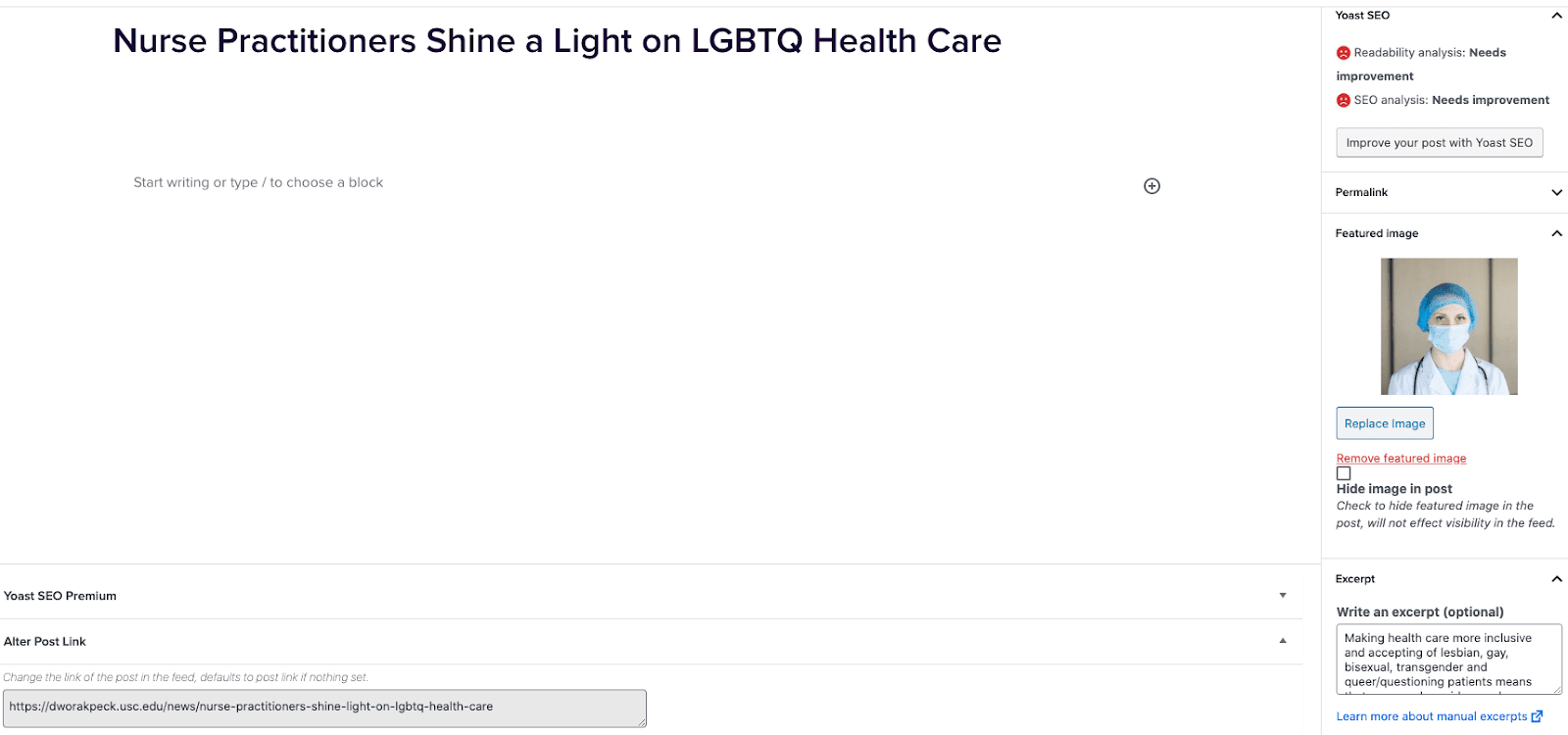
- Go to External News from the left sidebar inside WordPress and click ‘Add New’
- On the right hand menu add your featured image.
- On the right hand menu add the excerpt into the excerpt field.
- At the very bottom of the page add the URL into the ‘Alter Post Link’ field.
- Publish the post.
Including Internal Posts
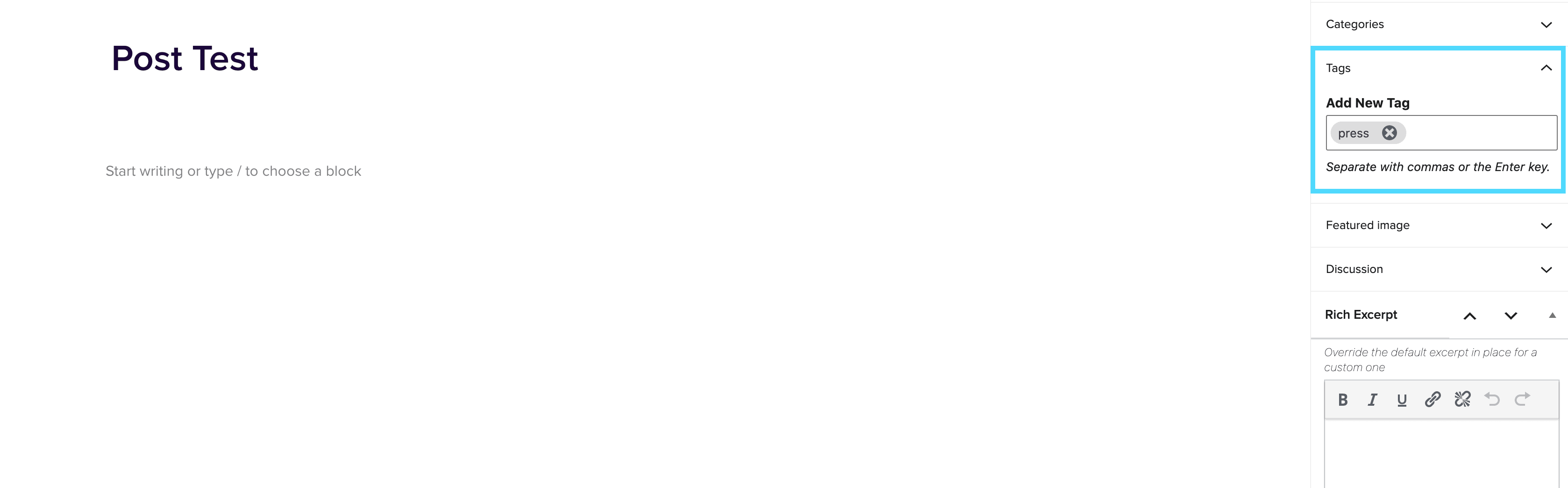
- Go to the post you want to include.
- On the right hand menu go to tags and add ‘press’ into the tags.
- Update the post.
Adding the block to a page
- Create a new page.
- If you want the feed to appear on a specific url then use the standard parent page feature on the right hand menu.
- Add the new news block page to the page by either typing /news or click on add block and then select the news block.
- You can adjust the block settings to change the posts per page and the heading colour.
- Finally publish the page.
Example of block:
In the News
WordPress 5.9
March 7, 2022
Improvements Better Social Icons and Buttons With previous versions of WordPress, it was a bit difficult to access controls of the parent and child blocks when working with social icons and buttons. WordPress 5.9 now makes it easier by allowing child blocks to use the parent block’s toolbar. A Better, More Powerful List View List view is one of the most useful features of the block editor, especially if you are using more complex layouts (like with Kadence blocks.) List view had several limitations, but WordPress 5.9 greatly improves usability. For example, in WordPress 5.9, you can now drag blocks around right in […]
Taxi
March 4, 2022
Taxi Taxi Prod Taxi Prod is the environment Web Producers use to build new forms and make edits to existing forms. Use the preview link from Taxi Prod to share with stakeholders to test the functionality of the form (QA questions, display values, does it pass to salesforce properly?, etc) https://taxi.mktg.2u.com/.
Screen Reader
March 4, 2022
Screen Reader What is a screen reader used for? Screen readers are super useful for those trying to navigate through a page without actually looking at the page due to a seeing impairment. A great way to test out if your page is accessible, is to turn your dimness down to 0% (black screen) and try and tab through the page using the below techniques. How can I navigate through a page with just my keyboard? Screen readers do work across multple browsers, however work best on Safari. Turn the voice over on[command + f5] Tab by headers[control + option + […]
s3 Bucket
March 4, 2022
s3 Bucket What is the Amazon s3 Bucket? The Amazon s3 bucket is simply a place to store images and PDFs. Once those images and PDFs have been uploaded, we can get links to those files and use them in our websites. NOTE: Most images and PDFs can be uploaded into WordPress, which is a simpler method, so you may not need to use the Amazon s3 bucket. How do I access the Amazon s3 bucket? To login to the Amazon s3 bucket, first go to OneLogin and search for AWS Corp Marketing. After clicking on this icon, you will […]