News Block

The external news block can be used to display a feed of posts which link out of the website with the option to include internal posts. The block will primarily use the custom post type ‘External News’ to populate the feed and include any internal posts tagged with ‘press’.

Adding External Posts

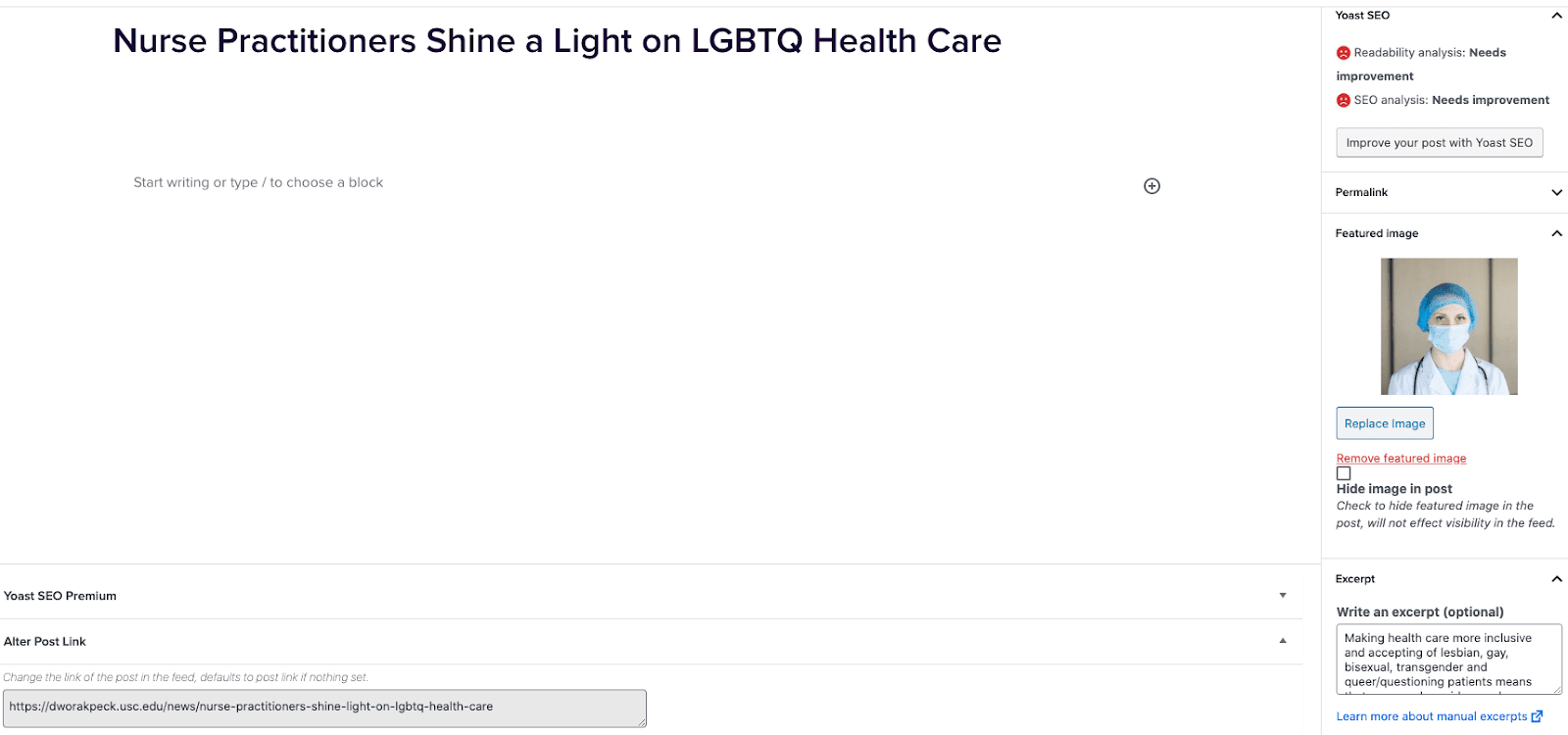
  1. Go to External News from the left sidebar inside WordPress and click ‘Add New’
  2. On the right hand menu add your featured image.
  3. On the right hand menu add the excerpt into the excerpt field.
  4. At the very bottom of the page add the URL into the ‘Alter Post Link’ field.
  5. Publish the post.

Including Internal Posts

  1. Go to the post you want to include.
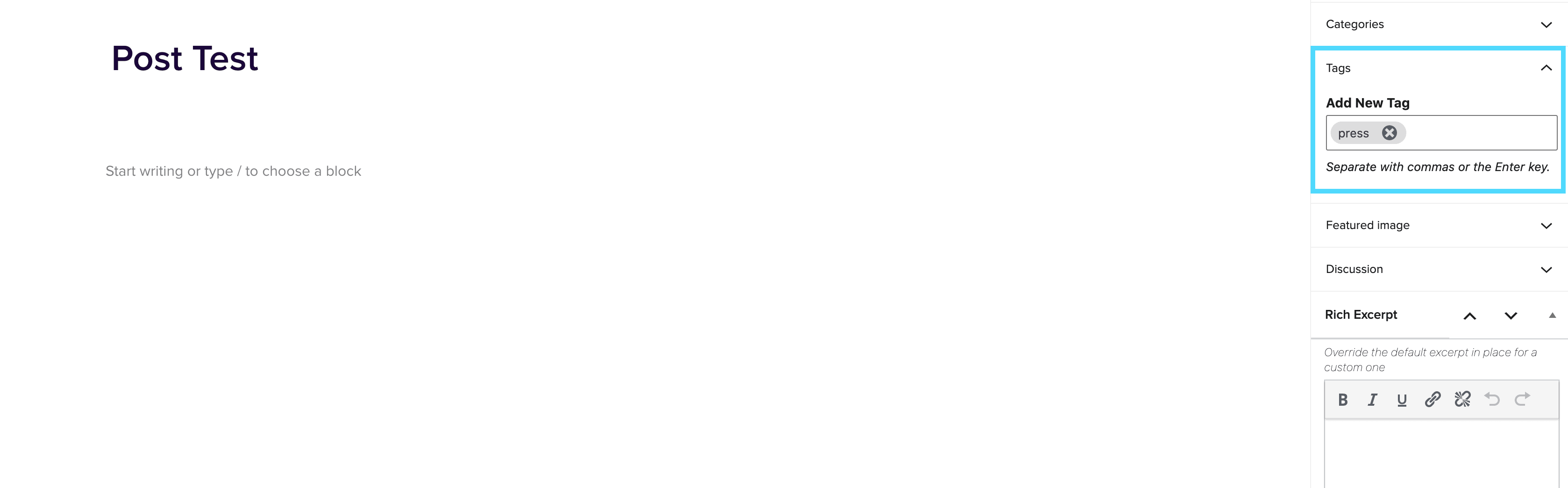
  2. On the right hand menu go to tags and add ‘press’ into the tags.
  3. Update the post.

Adding the block to a page

  1. Create a new page.
  2. If you want the feed to appear on a specific url then use the standard parent page feature on the right hand menu.
  3. Add the new news block page to the page by either typing /news or click on add block and then select the news block.
  4. You can adjust the block settings to change the posts per page and the heading colour.
  5. Finally publish the page.

Example of block:

In the News


Screen Reader

March 4, 2022

Screen Reader What is a screen reader used for? Screen readers are super useful for those trying to navigate through a page without actually looking at the page due to a seeing impairment. A great way to test out if your page is accessible, is to turn your dimness down to 0% (black screen) and try and tab through the page using the below techniques. How can I navigate through a page with just my keyboard? Screen readers do work across multple browsers, however work best on Safari. Turn the voice over on[command + f5] Tab by headers[control + option + […]

s3 Bucket

March 4, 2022

s3 Bucket What is the Amazon s3 Bucket? The Amazon s3 bucket is simply a place to store images and PDFs. Once those images and PDFs have been uploaded, we can get links to those files and use them in our websites. NOTE: Most images and PDFs can be uploaded into WordPress, which is a simpler method, so you may not need to use the Amazon s3 bucket. How do I access the Amazon s3 bucket? To login to the Amazon s3 bucket, first go to OneLogin and search for AWS Corp Marketing. After clicking on this icon, you will […]

RSVP Pages

March 4, 2022

RSVP Pages This page is a guide to how to review, add and remove RSVP pages from our marketing sites. The Email team builds the RSVP pages and shares the link with the Web Production team to be reviewed and added to a program site where necessary. Review Accessibility Double check that the RSVP page was coded correctly to adhere to accessibility guidelines. Make sure there is only one h1 on the page.Ensure that semantics for the header structure are followed correctly. Visit the Web Production’s Accessibility Guidelines for further information about accessible header structure.All images should include a blank alt tag. alt=””Double check dates are not coded as a header. […]

Pingdom

February 4, 2022

Pingdom What is Pingdom? We use pingdom to help our pages load faster, which in turn will improve users visitor time per page. After running a page through pingdom, we can pinpoint where the page load time is being slowed down and can work towards updating the page which mostly includes optimizing images. How to use pingdom Place the page URL you’re trying to test into the Pingdom Speed Checker. How to optimize images. The creative team will be optimizing images, but it’s useful for us to know how to direct them if needed. Image Optimization Tips Since images significantly add […]