


News Block
The external news block can be used to display a feed of posts which link out of the website with the option to include internal posts. The block will primarily use the custom post type ‘External News’ to populate the feed and include any internal posts tagged with ‘press’.
Adding External Posts
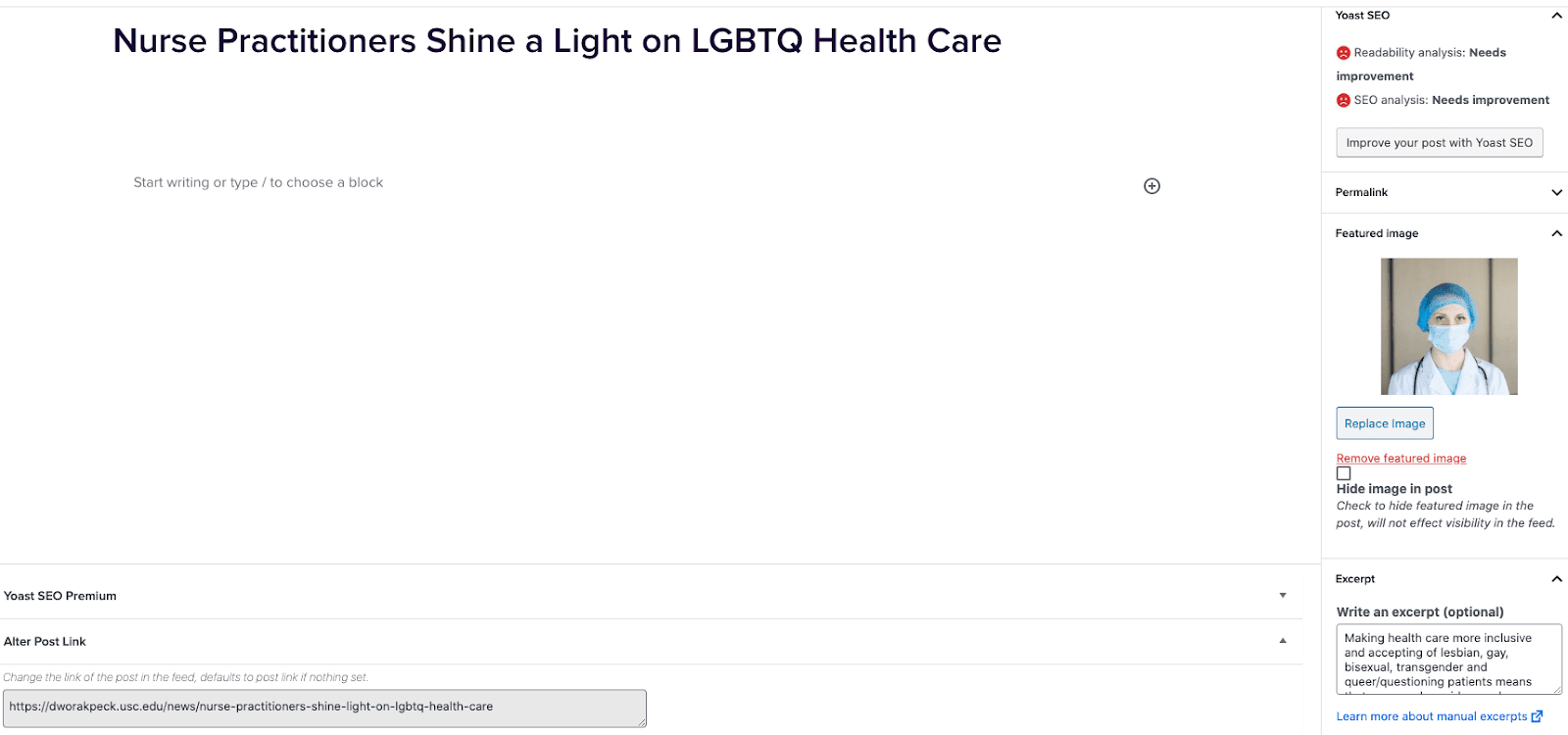
- Go to External News from the left sidebar inside WordPress and click ‘Add New’
- On the right hand menu add your featured image.
- On the right hand menu add the excerpt into the excerpt field.
- At the very bottom of the page add the URL into the ‘Alter Post Link’ field.
- Publish the post.
Including Internal Posts
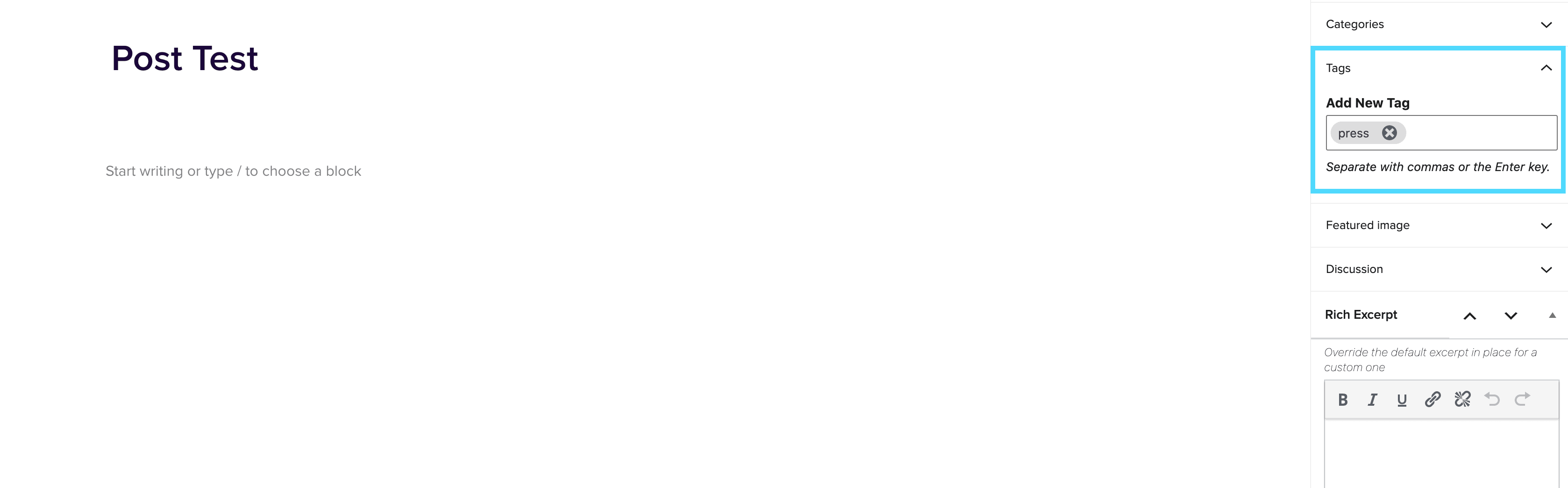
- Go to the post you want to include.
- On the right hand menu go to tags and add ‘press’ into the tags.
- Update the post.
Adding the block to a page
- Create a new page.
- If you want the feed to appear on a specific url then use the standard parent page feature on the right hand menu.
- Add the new news block page to the page by either typing /news or click on add block and then select the news block.
- You can adjust the block settings to change the posts per page and the heading colour.
- Finally publish the page.
Example of block:
In the News
Footnote Block
April 4, 2024
Footnotes Block The footnotes block contains footnote information for any text on the page marked with a note. The block will include numbered lines of reference text and jump links back to the corresponding note within the page. Here is an example (see “citation” at the bottom of this page). To use the footnote block highlight some text that you want to annotate and from the menu bar select the down arrow, then select footnote. This will automatically add a footnotes block to the bottom of the page, with a number 1 and a jump link back to your note. […]
PLPs for Flex Degrees
January 5, 2024
Paid Landing Pages For Flex Degrees Creating a PLP for Flex Degree There is a dedicated sub site in the network for creating a PLP for a Flex Degree. For testing use https://plp-library.vip-develop.twoyou.co/ 1.Create a new PLP Add any content you would like, all regular PLP blocks and functionality are available here. 2.Add Flex PLP settings Panel In the right hand sidebar there is a new panel for specific flex degree PLP settings: Live URL The live URL that you want the PLP to appear on needs to be entered in this field to handle cache clearing and performance. This […]