News Block

The external news block can be used to display a feed of posts which link out of the website with the option to include internal posts. The block will primarily use the custom post type ‘External News’ to populate the feed and include any internal posts tagged with ‘press’.

Adding External Posts

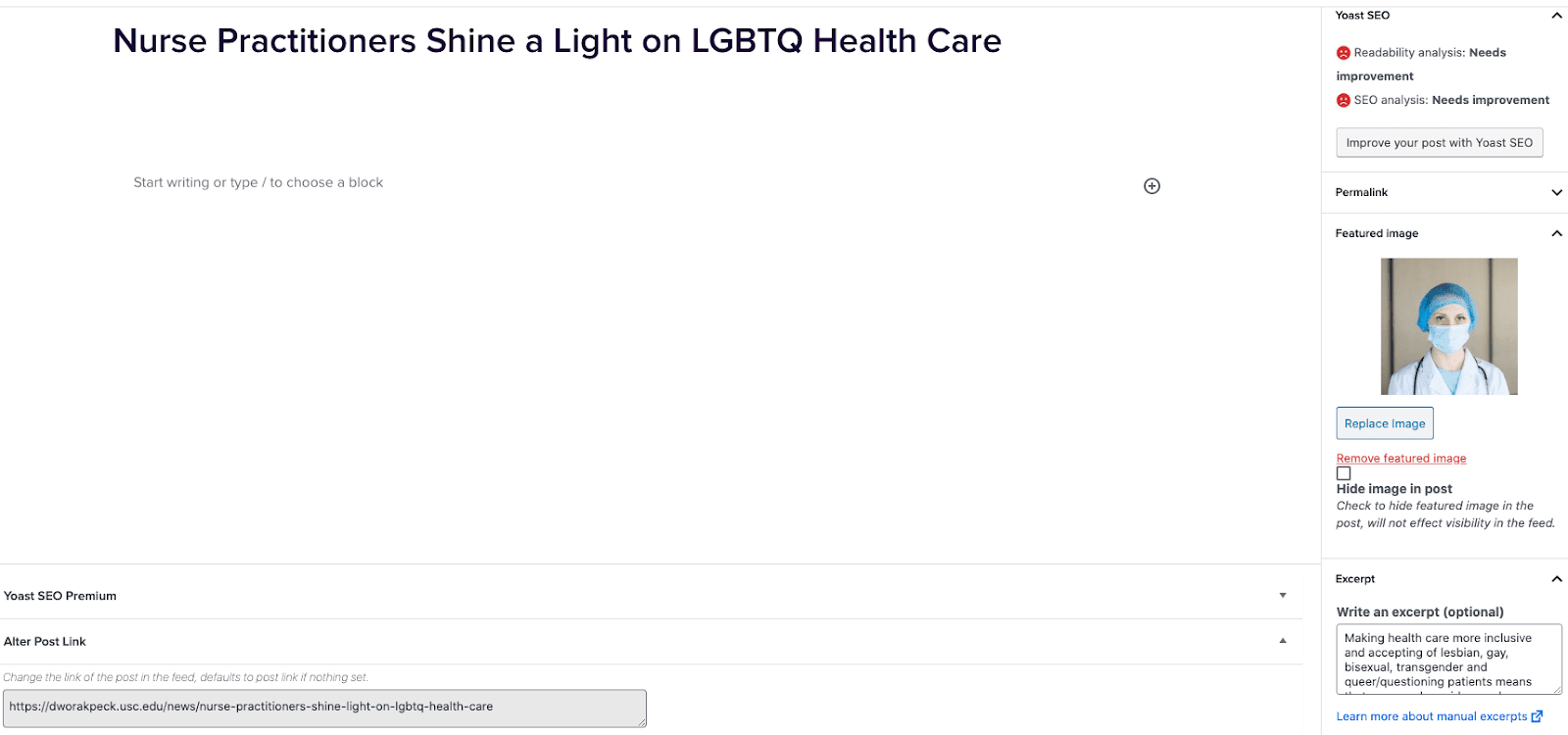
  1. Go to External News from the left sidebar inside WordPress and click ‘Add New’
  2. On the right hand menu add your featured image.
  3. On the right hand menu add the excerpt into the excerpt field.
  4. At the very bottom of the page add the URL into the ‘Alter Post Link’ field.
  5. Publish the post.

Including Internal Posts

  1. Go to the post you want to include.
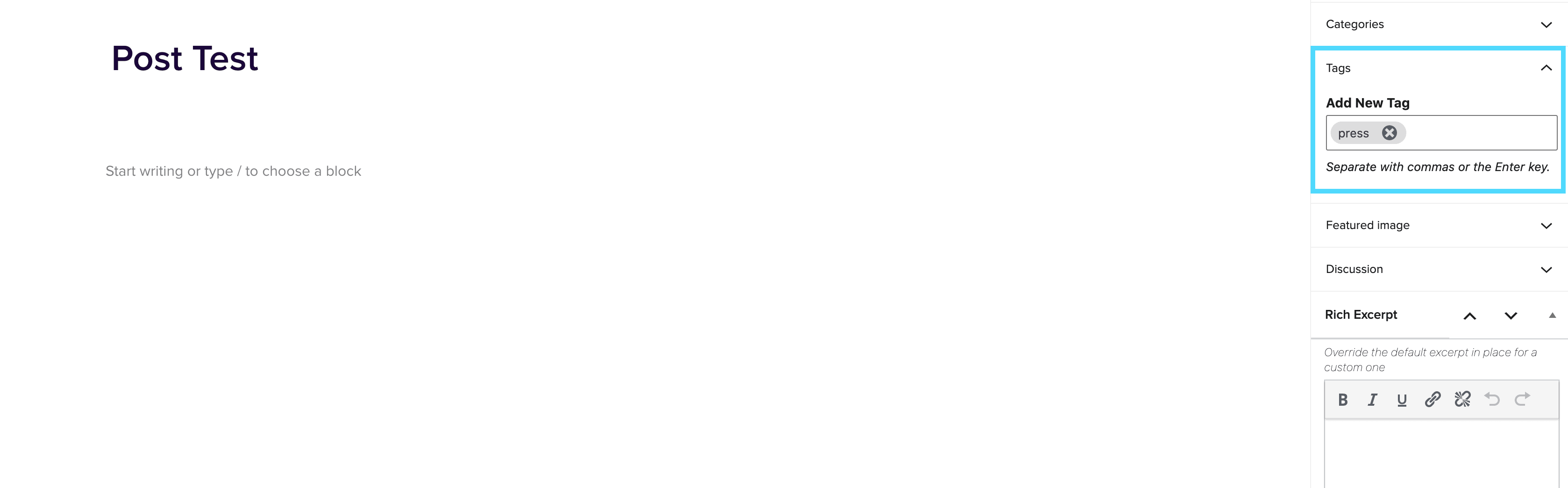
  2. On the right hand menu go to tags and add ‘press’ into the tags.
  3. Update the post.

Adding the block to a page

  1. Create a new page.
  2. If you want the feed to appear on a specific url then use the standard parent page feature on the right hand menu.
  3. Add the new news block page to the page by either typing /news or click on add block and then select the news block.
  4. You can adjust the block settings to change the posts per page and the heading colour.
  5. Finally publish the page.

Example of block:

In the News


Programs

April 29, 2022

Programs The Programs post type lives on both a Network and Site-level (if the Programs plugin is enabled on the site). This post type is used to store the data for all Programs, which can then be displayed across site(s) using the Programs Blocks. The Programs post type will appear on the sidebar in the WP Dashboard, if enabled on the site. If you are on the Network admin, it will appear there all of the time. Clicking on the Programs post type will take you to the post list screen, where you can view all Programs that have been […]

Notices / Banners

April 20, 2022

Notices / Banners The Notices post type works alongside the Notice Block to display Notices/Banners across the site. The main function of the notice post type is to display a primary notice/banner across all pages, with the option to hide the notice or display an alternate notice on a page-by-page basis. Creating a Notice To create a Notice, you need to go to the WP dashboard, hover over Notices and click ‘Add New‘: You will be taken to the block editor. Next, give your Notice a Title. Underneath the Title, you will see the Notice block inserted into the page […]

Paid Landing Pages

April 20, 2022

Paid Landing Pages Paid Landing Pages live separate to other content / page types on the 2U theme and have their own set of templates and features. Some of the differences between PLPs and regular pages are: PLP pages are always noindex/nofollow but have the option to enable this if requiredThere are no dropdown navigation/menus, breadcrumbs, or sidebar menus, no floating CTA, and logos are not linkedThe have custom metadata fields per page (which are pulled into the sitemap)There is a visible field in the WordPress admin to indicate which Form ID is in use on a pageThey have their […]