News Block
The external news block can be used to display a feed of posts which link out of the website with the option to include internal posts. The block will primarily use the custom post type ‘External News’ to populate the feed and include any internal posts tagged with ‘press’.
Adding External Posts
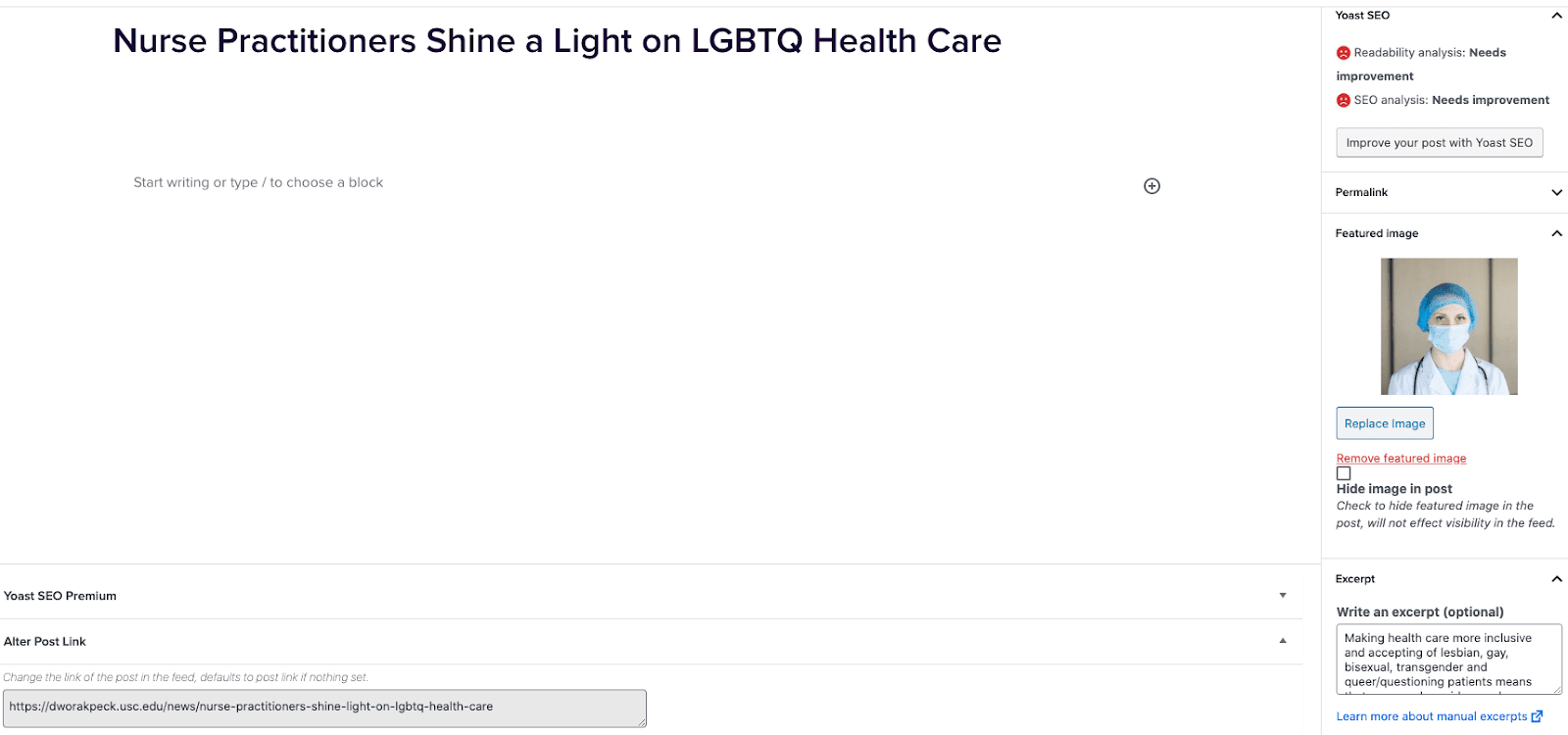
- Go to External News from the left sidebar inside WordPress and click ‘Add New’
- On the right hand menu add your featured image.
- On the right hand menu add the excerpt into the excerpt field.
- At the very bottom of the page add the URL into the ‘Alter Post Link’ field.
- Publish the post.

Including Internal Posts
- Go to the post you want to include.
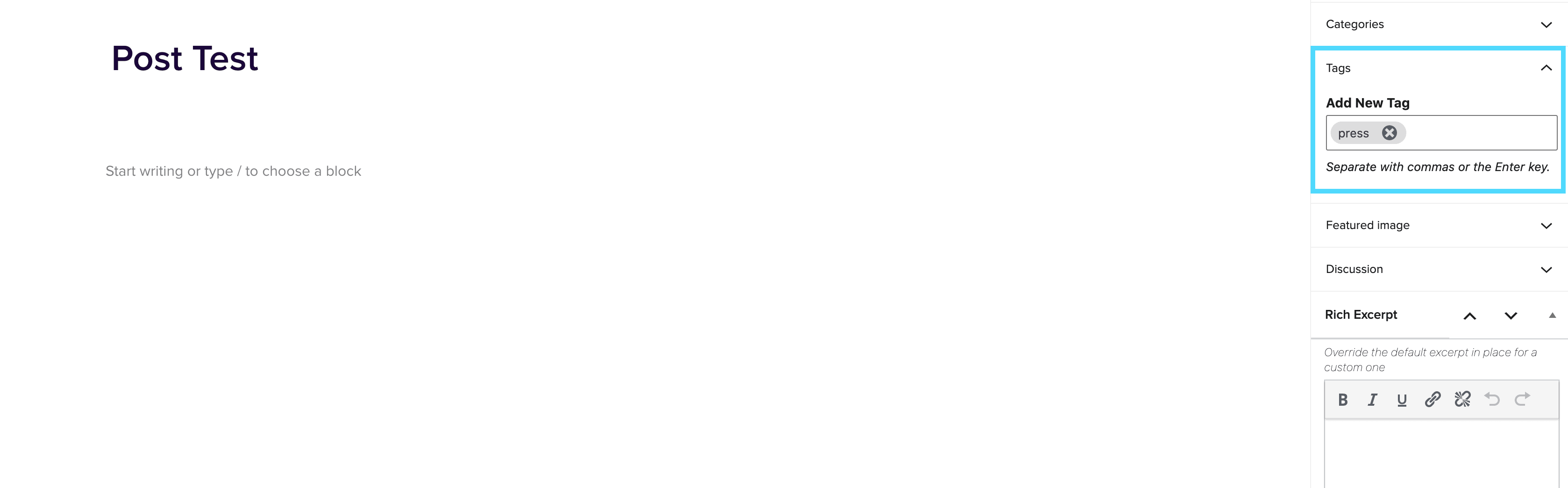
- On the right hand menu go to tags and add ‘press’ into the tags.
- Update the post.

Adding the block to a page
- Create a new page.
- If you want the feed to appear on a specific url then use the standard parent page feature on the right hand menu.
- Add the new news block page to the page by either typing /news or click on add block and then select the news block.
- You can adjust the block settings to change the posts per page and the heading colour.
- Finally publish the page.
Example of block:
In the News
Settings for Spiralyze PLPs
August 5, 2022
Settings for Spiralyze PLPs This page contains specific settings and recommendations for building PLPs in the new paid landing page content type. For general information on the PLP content type and PLP block patterns, see the Paid Landing Page Post-Type page. For any questions or issues regarding building PLPs within the new content type, reach out to Larry Clem at lclem@2u.com Building in the program site on production Program Sites Moving forward, all Spiralyze PLP builds for program sites builds should be done within the production environment for each program using the Paid Landing Content Type. Minisites Spiralyze PLP builds […]
PLP Hero
July 13, 2022
PLP Hero The PLP Hero can either be inserted manually, or you can insert the PLP Hero block pattern from the preset block patterns list. To insert manually, simply insert a regular Hero block into a PLP page, toggle the ‘Has Lead Form‘ setting on and select the PLP lead form variation: From there, you can insert the Hero content as you normally would. To insert the pre-filled PLP Hero block pattern, click the ‘+‘ icon in the top left of the editor and select Patterns. Scroll to the bottom to find the PLP Hero pattern: Doing this will pre-populate […]