News Block
The external news block can be used to display a feed of posts which link out of the website with the option to include internal posts. The block will primarily use the custom post type ‘External News’ to populate the feed and include any internal posts tagged with ‘press’.
Adding External Posts
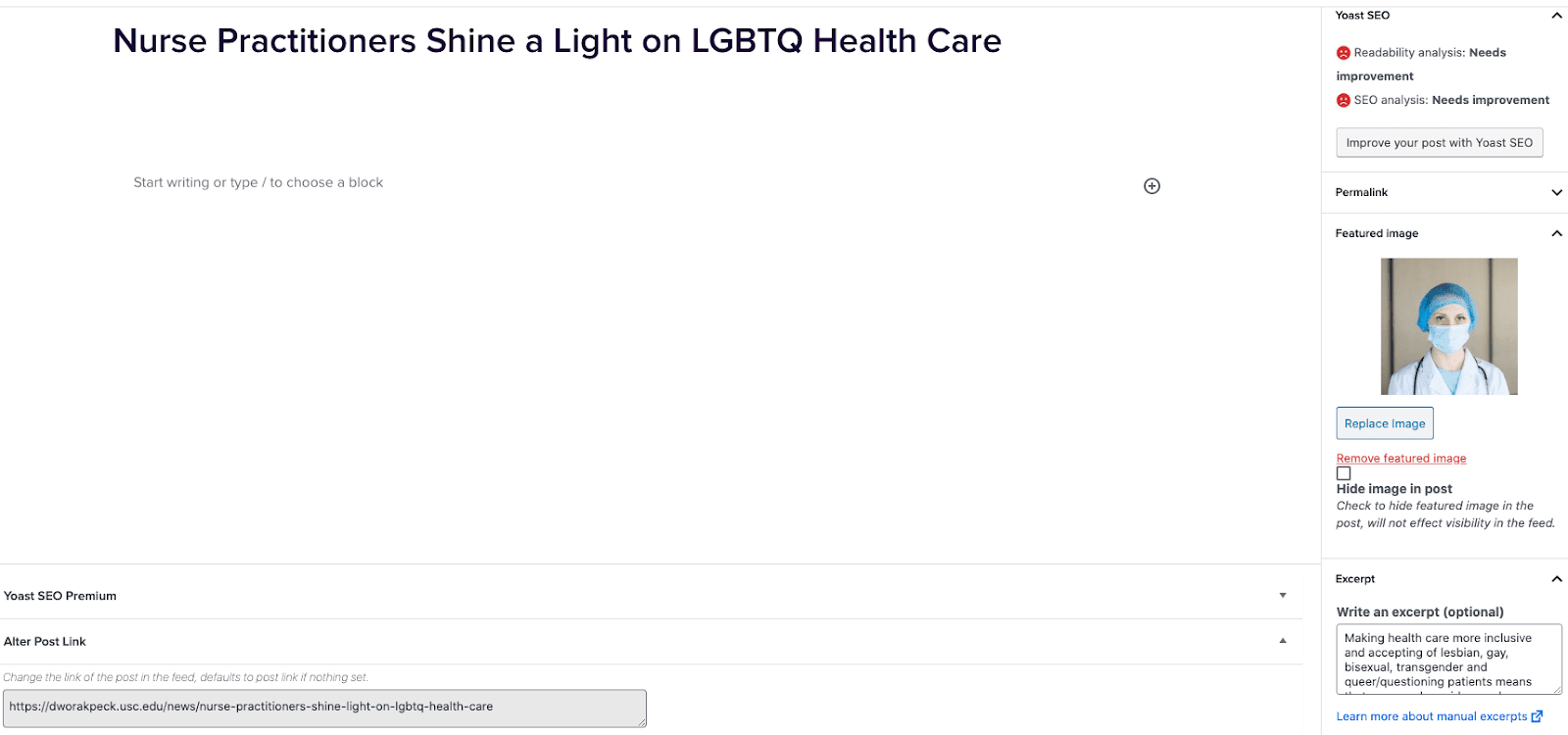
- Go to External News from the left sidebar inside WordPress and click ‘Add New’
- On the right hand menu add your featured image.
- On the right hand menu add the excerpt into the excerpt field.
- At the very bottom of the page add the URL into the ‘Alter Post Link’ field.
- Publish the post.

Including Internal Posts
- Go to the post you want to include.
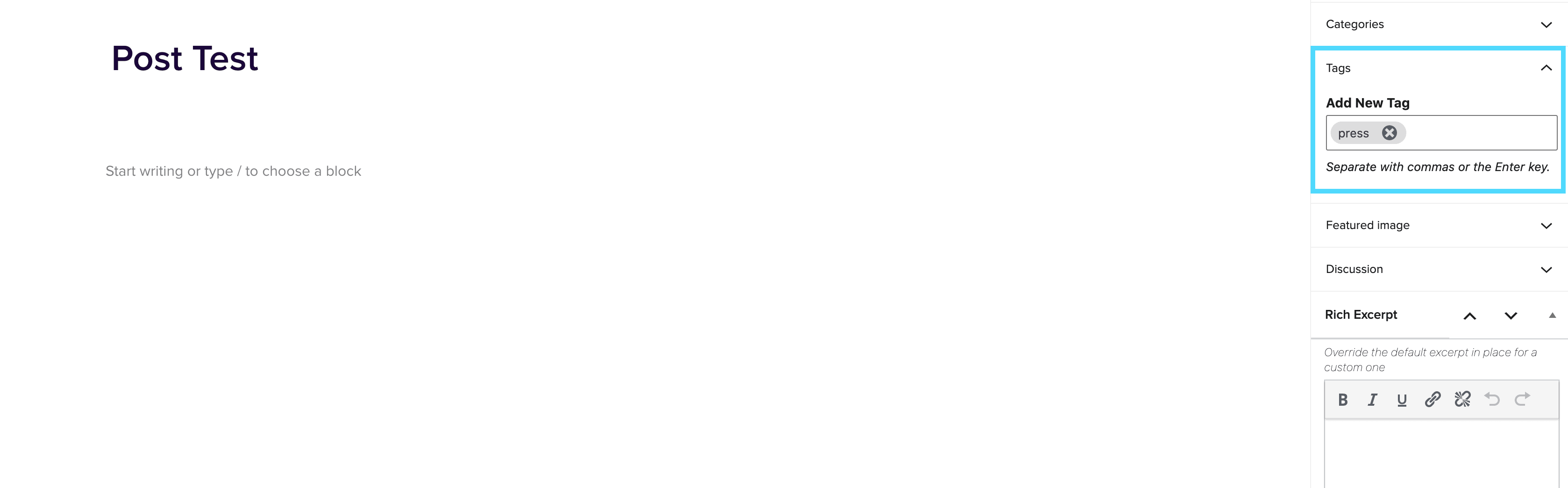
- On the right hand menu go to tags and add ‘press’ into the tags.
- Update the post.

Adding the block to a page
- Create a new page.
- If you want the feed to appear on a specific url then use the standard parent page feature on the right hand menu.
- Add the new news block page to the page by either typing /news or click on add block and then select the news block.
- You can adjust the block settings to change the posts per page and the heading colour.
- Finally publish the page.
Example of block:
In the News
Mega Menu
July 24, 2024
Creating a Mega Menu In order to create a Mega Menu, you first need to ensure the Mega Menu plugin is enabled on the site. To enable the Mega Menu go to options > settings > Mega Menu Note: If the Activate mega menu A/B testing setting in Global Settings > Mega Menu is activated, the VIP Cache Personalisation API is used to control the display of the Mega Menu with the following cookies; namevaluevip-go-segvc-v1__show_mega_menu_–_novip-go-segvc-v1__show_mega_menu_–_yes Tracking & Analytics A has_mega_menu property is added to the analytics page and track events, with a value of either true or false depending on the check with following selector document.querySelector(‘.wp-block-bigbite-mega-menu-container’) to determine […]