


PLP Hero
The PLP Hero can either be inserted manually, or you can insert the PLP Hero block pattern from the preset block patterns list. To insert manually, simply insert a regular Hero block into a PLP page, toggle the ‘Has Lead Form‘ setting on and select the PLP lead form variation:
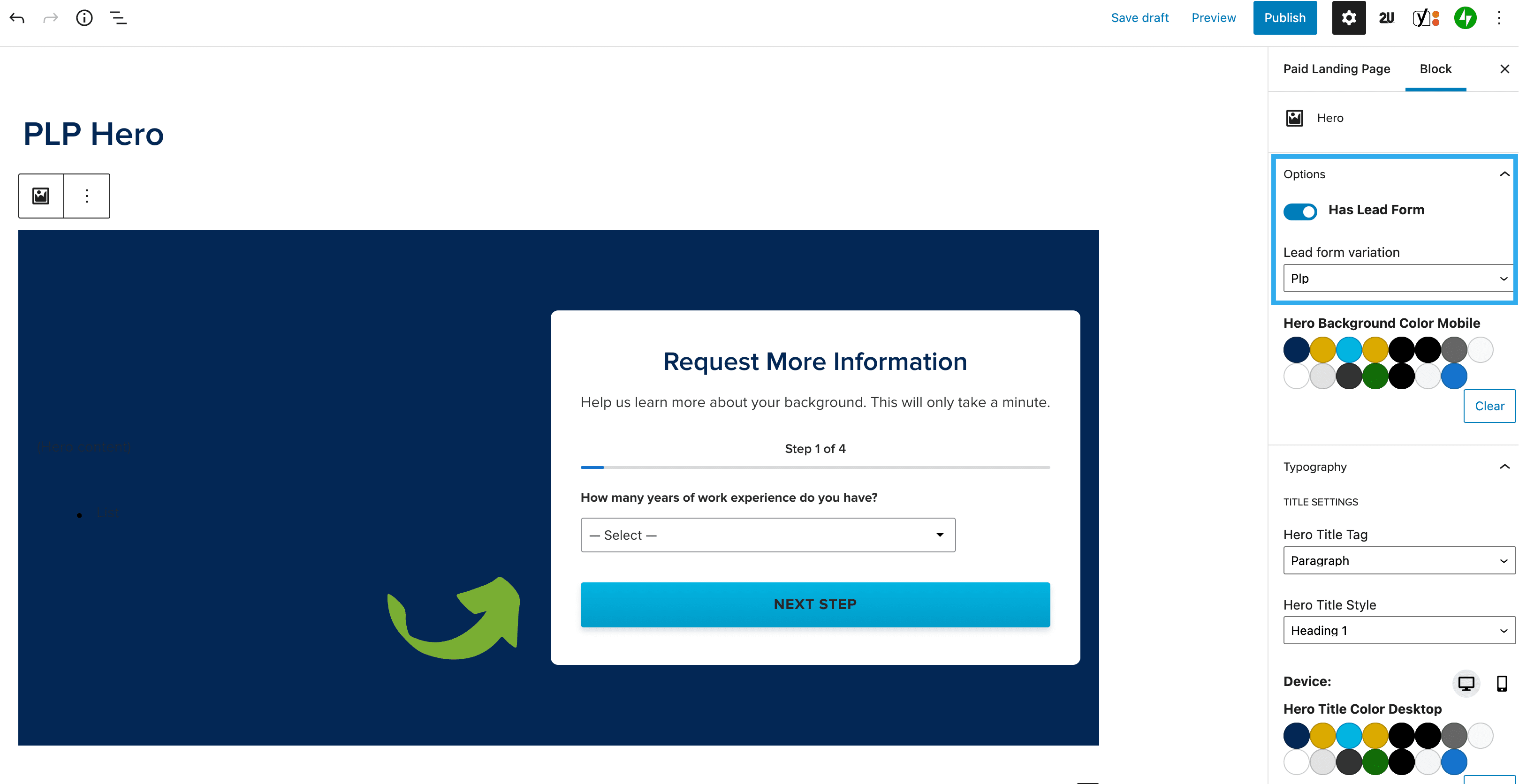
From there, you can insert the Hero content as you normally would.
To insert the pre-filled PLP Hero block pattern, click the ‘+‘ icon in the top left of the editor and select Patterns. Scroll to the bottom to find the PLP Hero pattern:
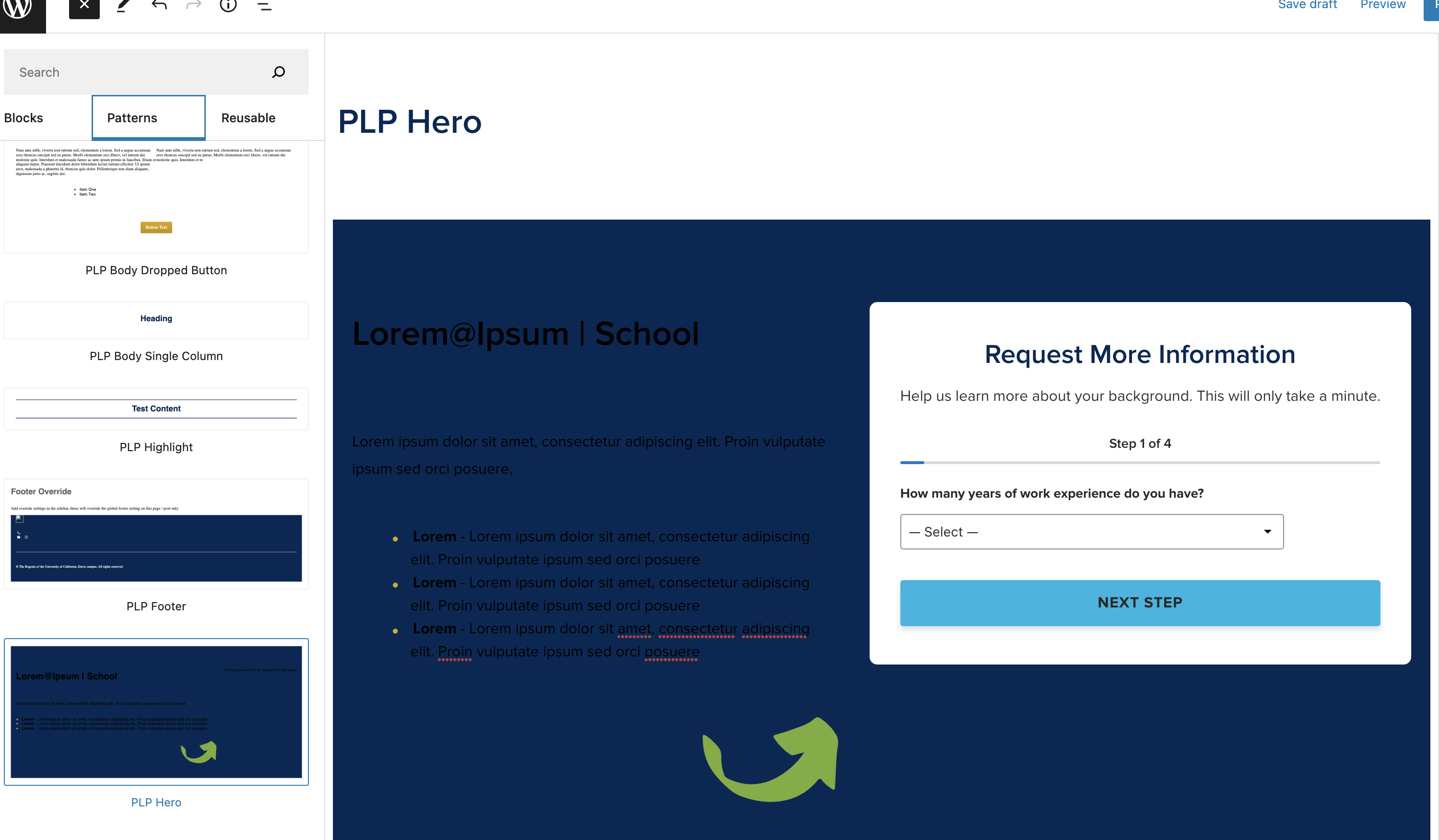
Doing this will pre-populate the Hero Title, Content & List content, along with setting the PLP Hero variation by default.
Using the PLP Hero pattern also means that the breakpoint requirements are already set for you, whereas creating a Hero manually, will not.
PLP Hero Settings
School Logo
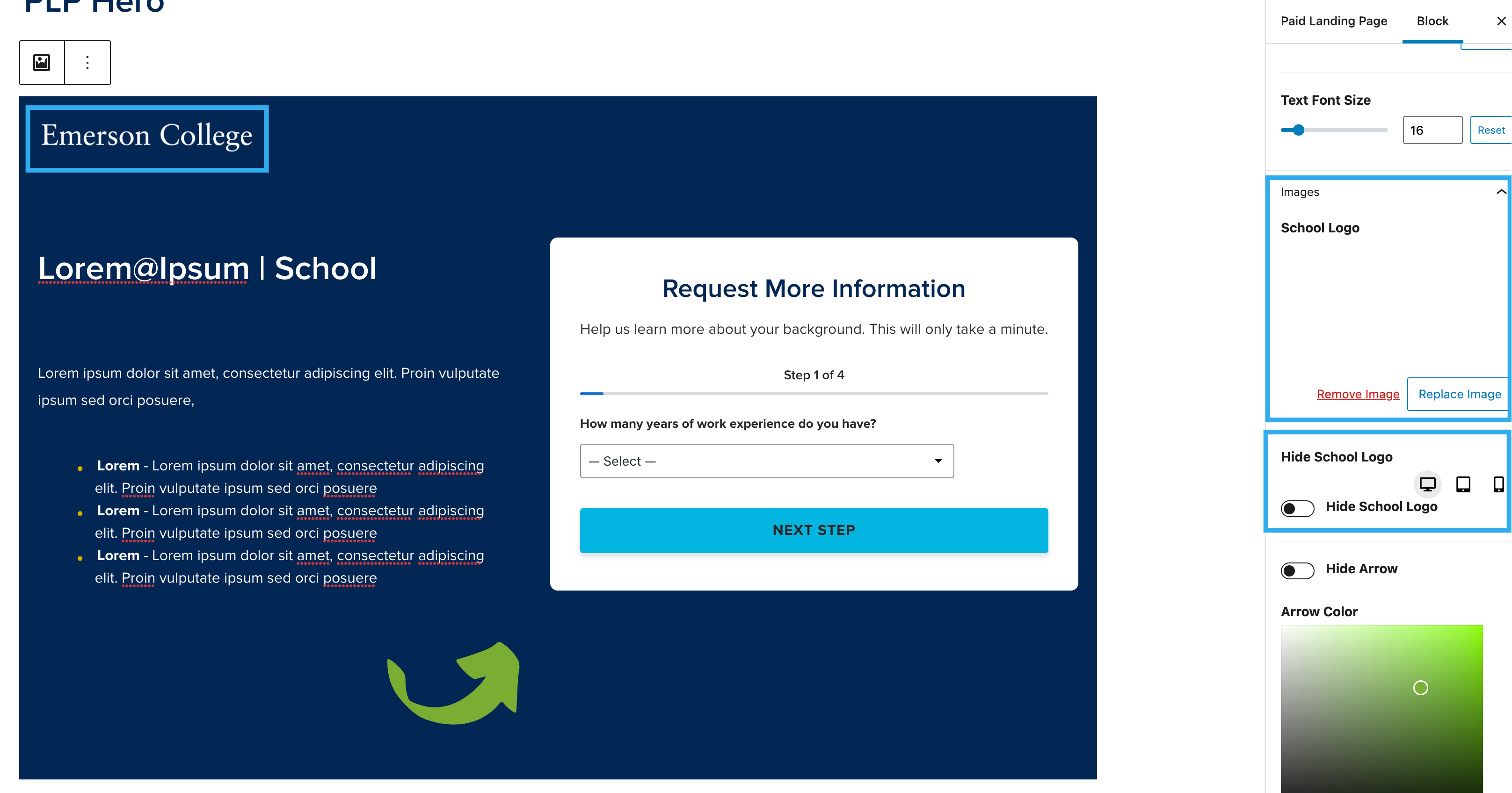
There is now a new setting which allows you to upload a School Logo into the Hero block. This also comes with device controls so you can hide/show it on different breakpoints:
Arrow Settings
There is also a custom color picker for the Arrow within the PLP Hero, where you can either enter a specific hex code, or choose color from the color picker.

There is also a ‘Hide Arrow‘ toggle underneath the color picker, so you can hide the Arrow if required.
The rest of the Hero settings remain the same as the current Hero block.