


Editing a Mega-Menu
This guide is for WebOps team members responsible for updating content, links, and text within existing Mega Menu templates. For structural changes or significant edits to entire levels and nesting functionality, create a new mega-menu.
Table of Contents
Accessing a Mega Menu to Edit
To begin editing the menu content, follow these navigation steps within the WordPress dashboard:
- Log in to your WordPress dashboard.
- In the left-hand sidebar, navigate to Mega Menus. This sits between the Comments and Paid Landing Pages items.
- Click the Mega Menus link to view all existing menu templates.
- Select the title of the Mega Menu you wish to edit (e.g., “Online Programs Mega Menu”).
- Click Edit to open the menu in the Block Editor.
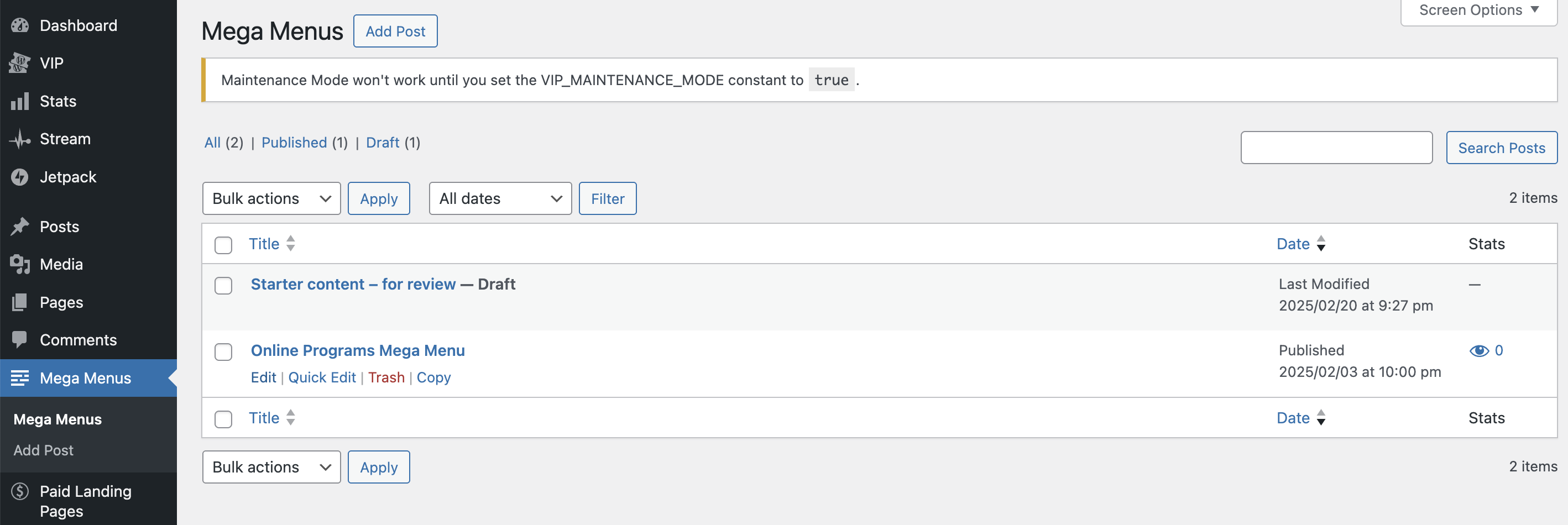
Screenshot showing the user in the WordPress dashboard, in the Mega Menus post type list, with the “Online Programs Mega Menu” title highlighted.
Navigating and Editing Content Blocks
Once in the editor, you interact with the menu content visually, much like an end-user on the front end.
Primer on Mega Menu Blocks
Mega Menus are built from a system of nested blocks:
- Mega Menu Container: The outermost block holding the entire menu.
- Mega Menu Level: The structural block that groups content (links to pages or deeper levels) for a given column or level.
- Mega Menu Nav Item: The fundamental block for all clickable menu links (where you edit the Label and URL).
- Mega Menu Default Content: The block that holds rich content like CTA headlines and paragraph text (this sits under the Mega Menu Nav Item)
Editing Nav Item Links and URLs
The majority of your content edits will happen in the Mega Menu Nav Item block.
- Select the Item: Click the link you need to edit (e.g., Bachelor’s Degrees) in the menu preview to select its Mega Menu Nav Item block.
- Update Content: Use the Settings sidebar on the right to make your edits.
| Action | Field to Update | Notes |
Change Link Text | LABEL field | Edit the visible text of the menu item. |
Change Link URL | URL field | Crucially, use relative paths for internal links (e.g., /online-bachelors-degrees/data-science). |
Re-order Items | Up/Down arrows on the block toolbar | Use these to change the item’s position relative to other items at the same level. |
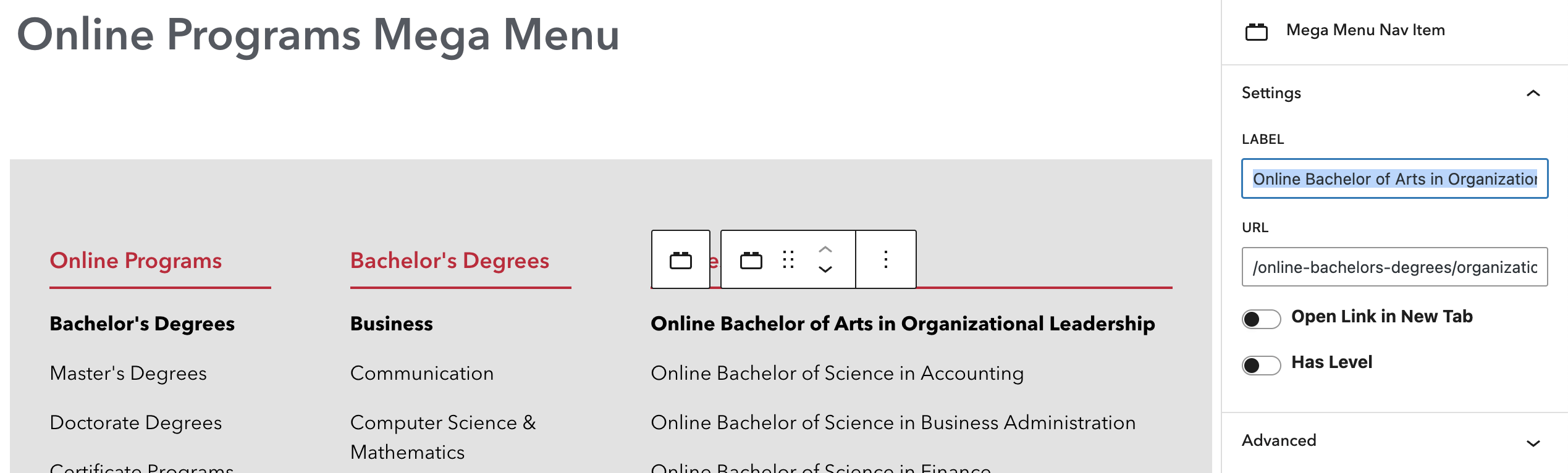
Screenshot of the Block Editor showing a “Mega Menu Nav Item” selected, with the right-hand sidebar open to the Settings panel, highlighting the LABEL and URL fields.
Adding a New Nav Item
To efficiently add a new link to the menu:
- Select an existing Mega Menu Nav Item at the level where you want to add the new link.
- Click the “Duplicate” icon in the block toolbar.
- Update the LABEL and URL fields for the new duplicated item.
Editing CTA Content
To edit non-link content like a headline or paragraph in the menu (e.g., a promotional message):
- Click directly on the text (e.g., the headline or body paragraph) in the menu preview.
- Edit the text as you would any Heading or Paragraph block in the standard WordPress editor.
Saving and Verifying Changes
- Click the Save button (typically located in the top-right corner) to save your changes to the Mega Menu.
- Once saved, verify the changes on the front-end of the live website.
Structural Changes: Create a New Menu
Mega Menus rely on a precise structure of nested blocks. To prevent accidental breakage, do not attempt to manually edit the nesting levels or overall layout in a live menu.
- If you need to change the fundamental structure, add or remove an entire level, or change the column layout, please Create a New Mega Menu and apply it in the main navigation.
- Refer to the “Creating a New Mega-Menu” documentation page for the correct steps to build a new template.
Site-Specific Nuances
Maryville University (MVU)
Online Programs Mega Menu: https://online.maryville.edu/
- External: Be aware that some Mega Menu Nav Item blocks require an External Link to a different Maryville University (MVU) site.
- These links must use a full absolute URL in the URL field (e.g.,
https://nursing.maryville.edu/degrees/example/). - They should also have the Open Link in New Tab toggle enabled.
- These links must use a full absolute URL in the URL field (e.g.,
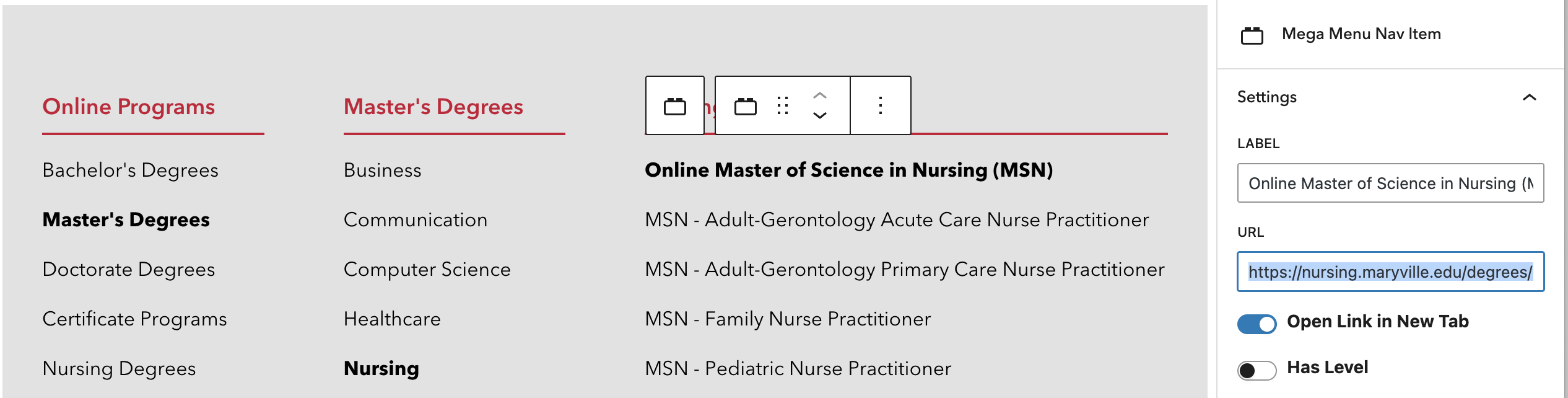
Screenshot showing a “Mega Menu Nav Item” selected in the sidebar, with the URL field containing a full external link (e.g., to the Nursing site), and the “Open Link in New Tab” toggle enabled.