


Legal Page Templates
Creating a Global Privacy Policy/ Terms of Use Template and Pulling in a Global Template on a Site Page
A global template for Privacy Policy and Terms of Use pages can be set up in the main 2U WordPress instance. The global template can be referenced on any other site’s Privacy Policy or Terms of Use page. Follow the steps below to create and set a global template.
Please note: Global Privacy Policy templates can only be used on sites with single programs. As of 11/29/23, this is still under development for multi-program sites.
Creating or Modifying a Global Template
1. SAML into /wp-admin/
2. Go to: Site 1 – 2U WordPress- Admin Dashboard
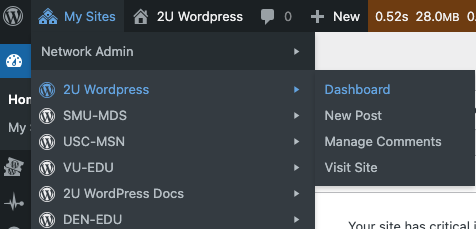
3. Go to: Privacy Policies/Terms of Use menu item
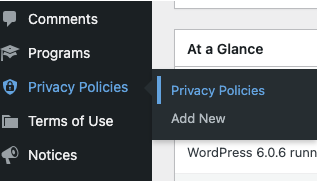
4. Click “Add New”
5. Add a title and text to the Privacy Policy or Terms of Use template. Within the text, replacement variables may be used. Make sure the variables are formatted like the values in the table below.
| Parameter | Replacement Variable |
|---|---|
University Full Name | {{cp_univ_name}} |
School Name | {{cp_school_name}} |
Fully Qualified Domain | {{cp_domain}} |
Total Program Count | {{total_school_count}} |
Application Host | {{cp_app_host}} |
LMS Host | {{cp_lms_host}} |
One Trust Class this variable adds the “your privacy choices” link | {{cp_one |
Archive Link | {{cp_archive_link}} |
example:
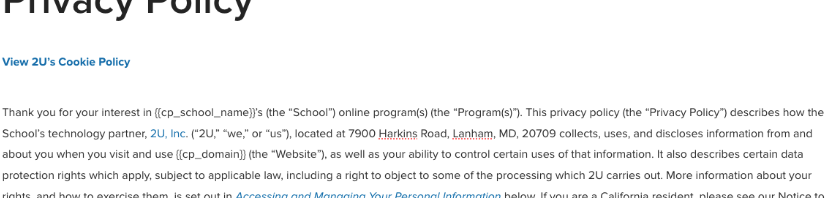
note: If the variable {{cp_archive_link}} is needed, the Archive Link value will need to be added to the Central Park section of the site’s Global Settings manually. See more information on setting this value and archiving a previous privacy policy page HERE.
6. Select a Policy Type
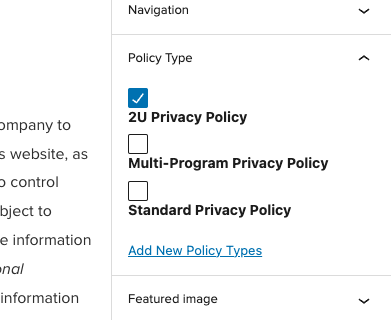
7. Publish the template
Setting Site Pages to Pull in a Global Template
1. Log into the WP dashboard for your site ( ie. datascience.smu.edu/wp-admin )
2. click the “Pages” menu item
3. Edit the existing Privacy Policy or Terms of Use page (or add a new page if one does not exist)
4. In the editor – look in the Page metaboxes on the right for “Template” and select the “Privacy Policy – global” or “Terms of Use – global” template depending on what type of page you’re editing
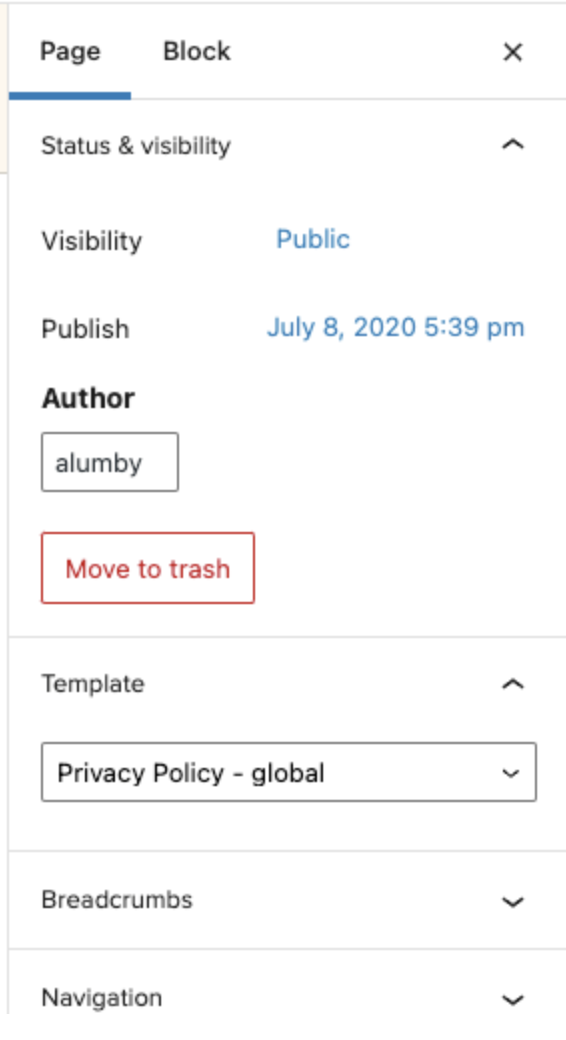
Notes:
- When you select the template, you will not see the template’s text in the WP editor. If you are editing a Privacy Policy or Terms of Use page you will see the old text in the editor. If setting up a new page you will be able to preview your page in draft mode and see the new template.
- In order to confirm what values will be substituted into the template’s text, check the values coming from Central Park for your site via Options > Central Park Data > General or navigate to
/wp-admin/admin.php?page=global-settings#central_park_settings on the site you’re editing.
12. Update/ Publish the page