Whitelabel
What you need to know
What is it?
The integration between Whitelabel and WordPress, was custom built fully to meet the needs of the 2U team. Big Bite received an API endpoint from 2U and built out an API interaction for Whitelabel, this included setting up the build scripts for the options page within Global Settings.
With this integration, users can now import settings from Whitelabel, into WordPress with the simple click of a button. The import will be done automatically when on-boarding a new site, but can be performed at any time after that, if new settings need to be imported or if you have overridden settings within WordPress and want to return to the default settings from Whitelabel.
How to use the Importer
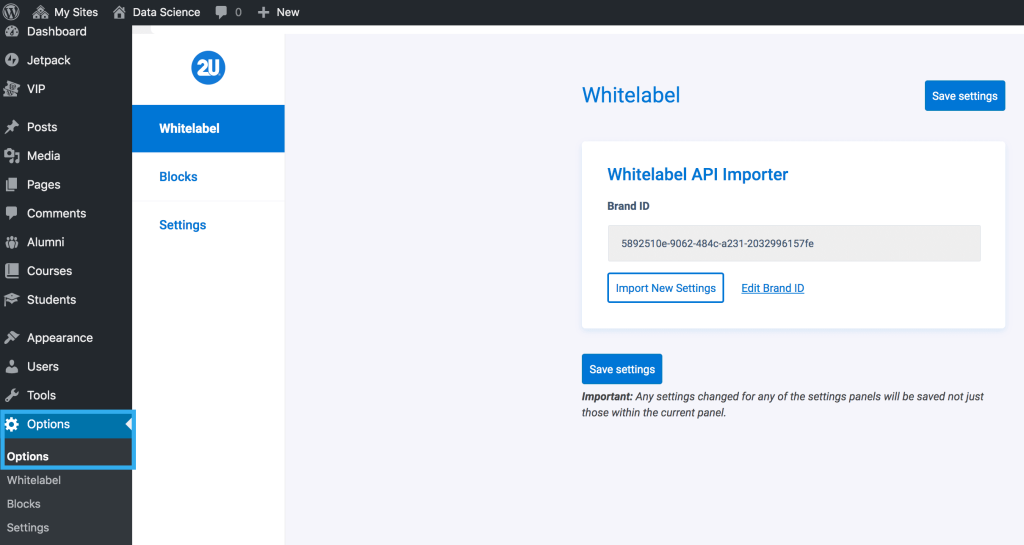
On the Whitelabel API Importer screen, you will be presented with two options:
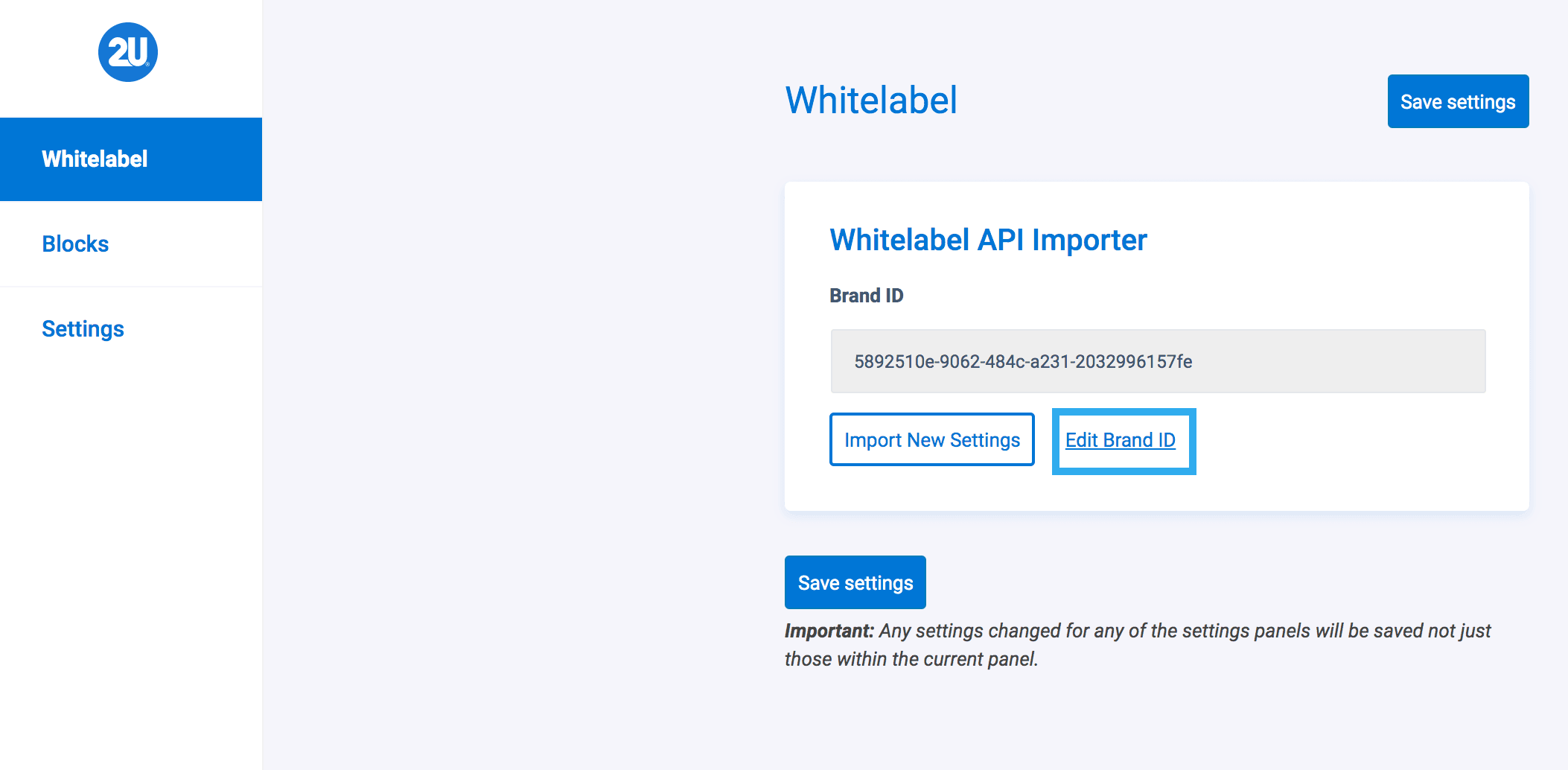
1. Edit Brand ID
If you want to import completely new settings, from a different Brand ID; clicking Edit Brand ID will allow you to insert a new ID to pull the settings from.
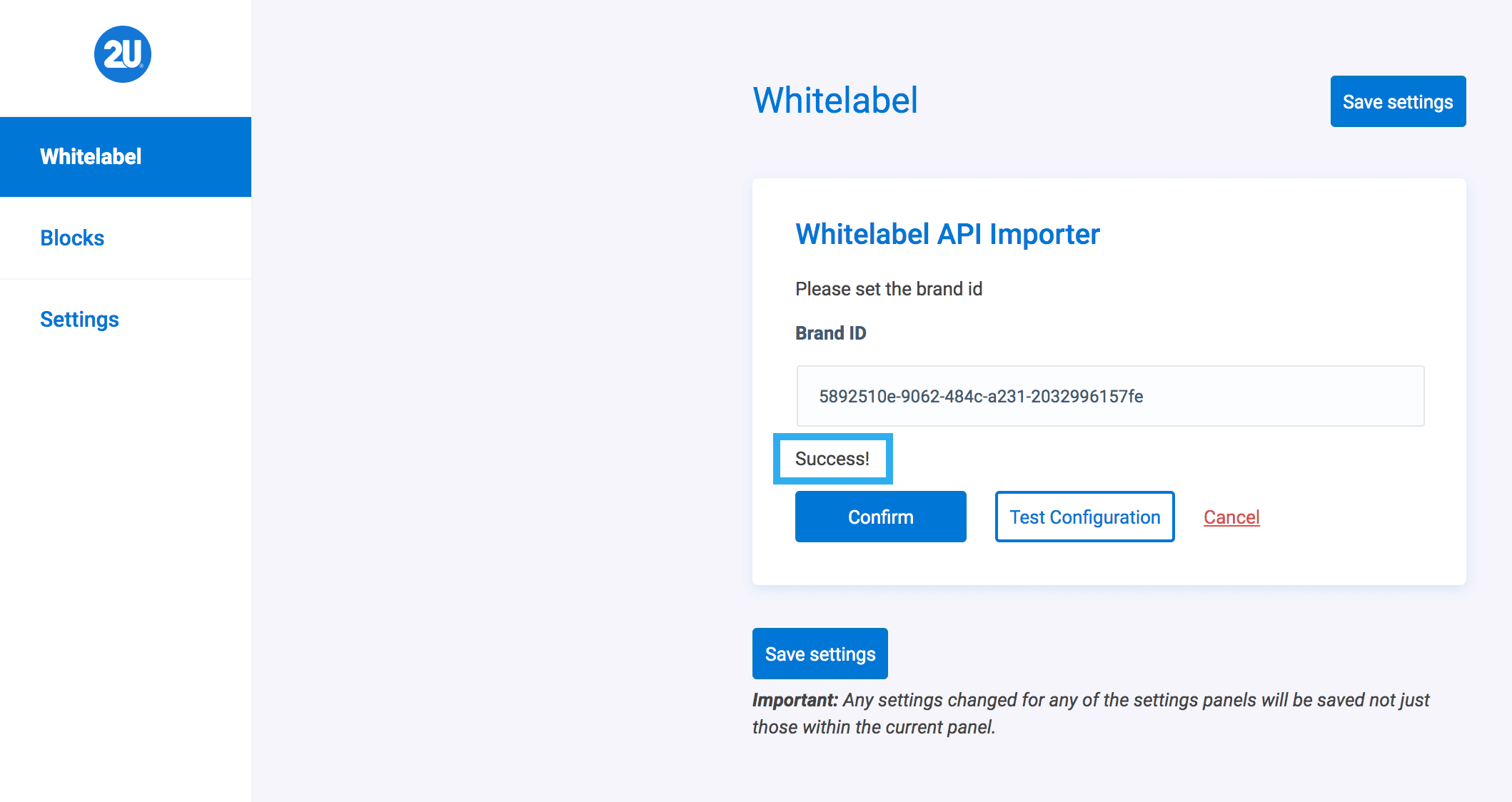
After you insert your updated Brand ID, click the Test Configuration button to ensure that the Brand ID is recognised and syncs correctly.
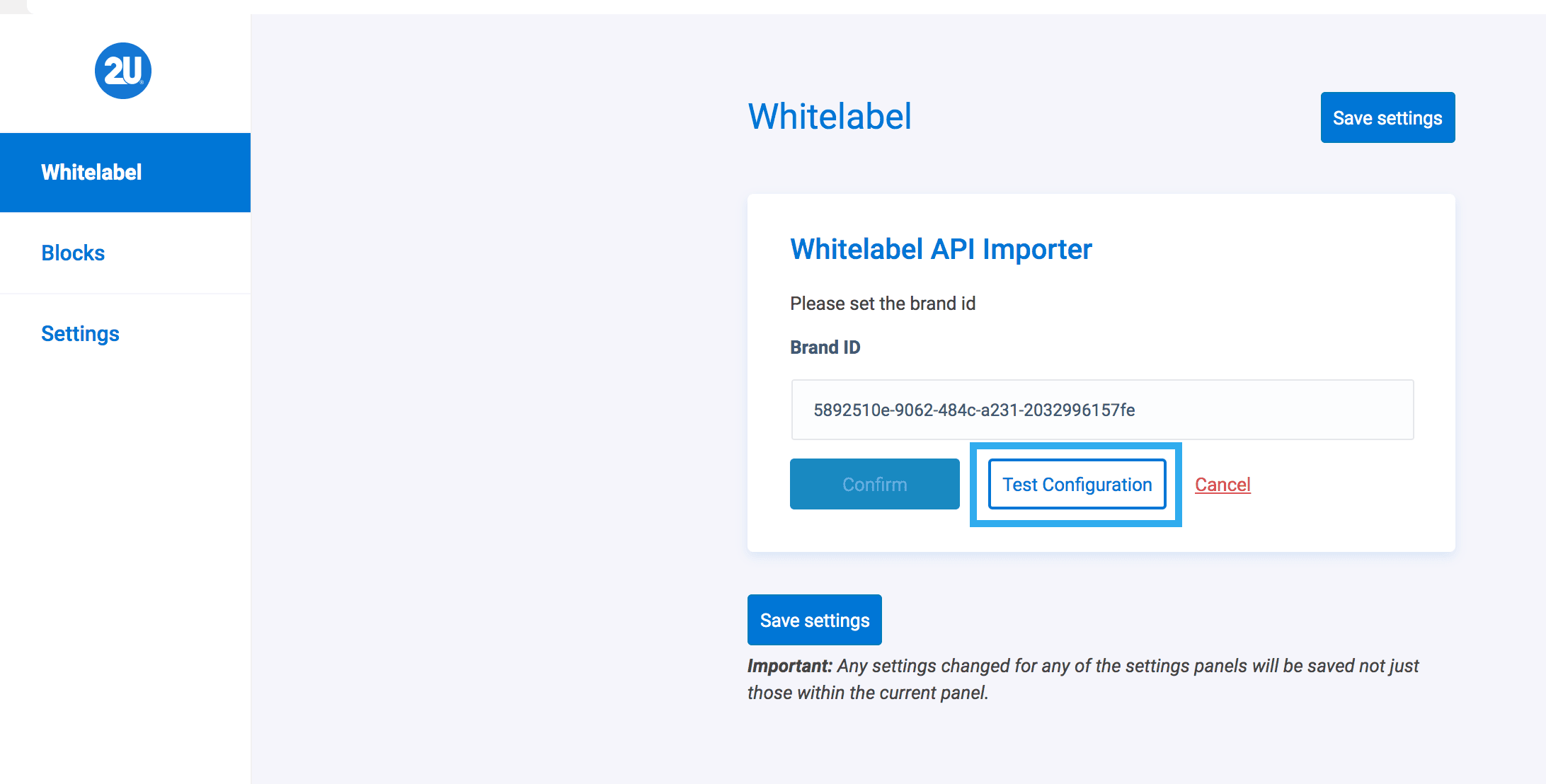
You should then receive a ‘success!‘ message to inform you that your sync has been successful. You can then go ahead and click confirm, to save the new Brand ID.
2. Import New Settings
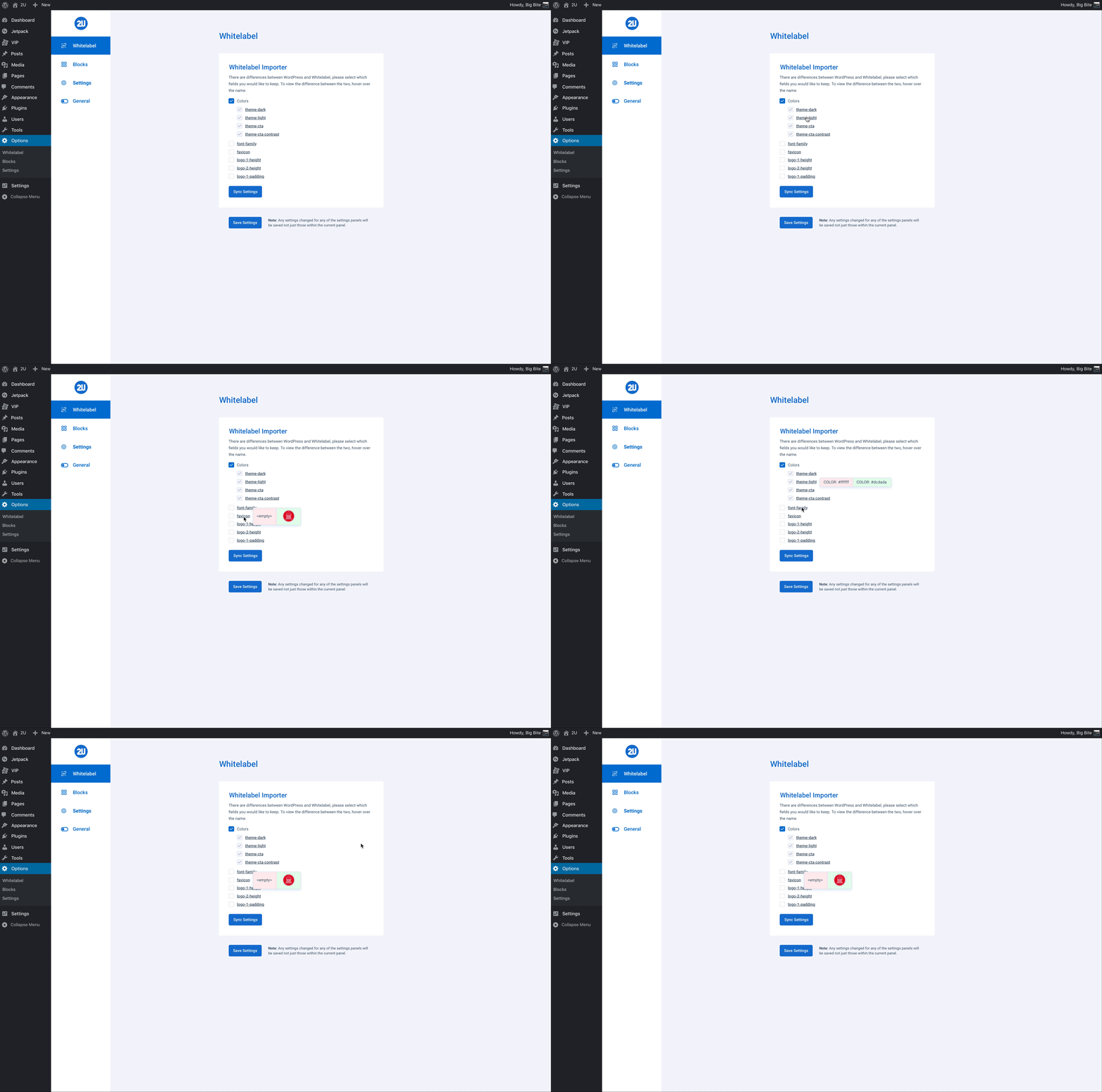
If you have overridden settings within the WordPress Global Settings area and want to import new settings from Whitelabel, you will need to confirm which settings from WordPress that you would like to remain.
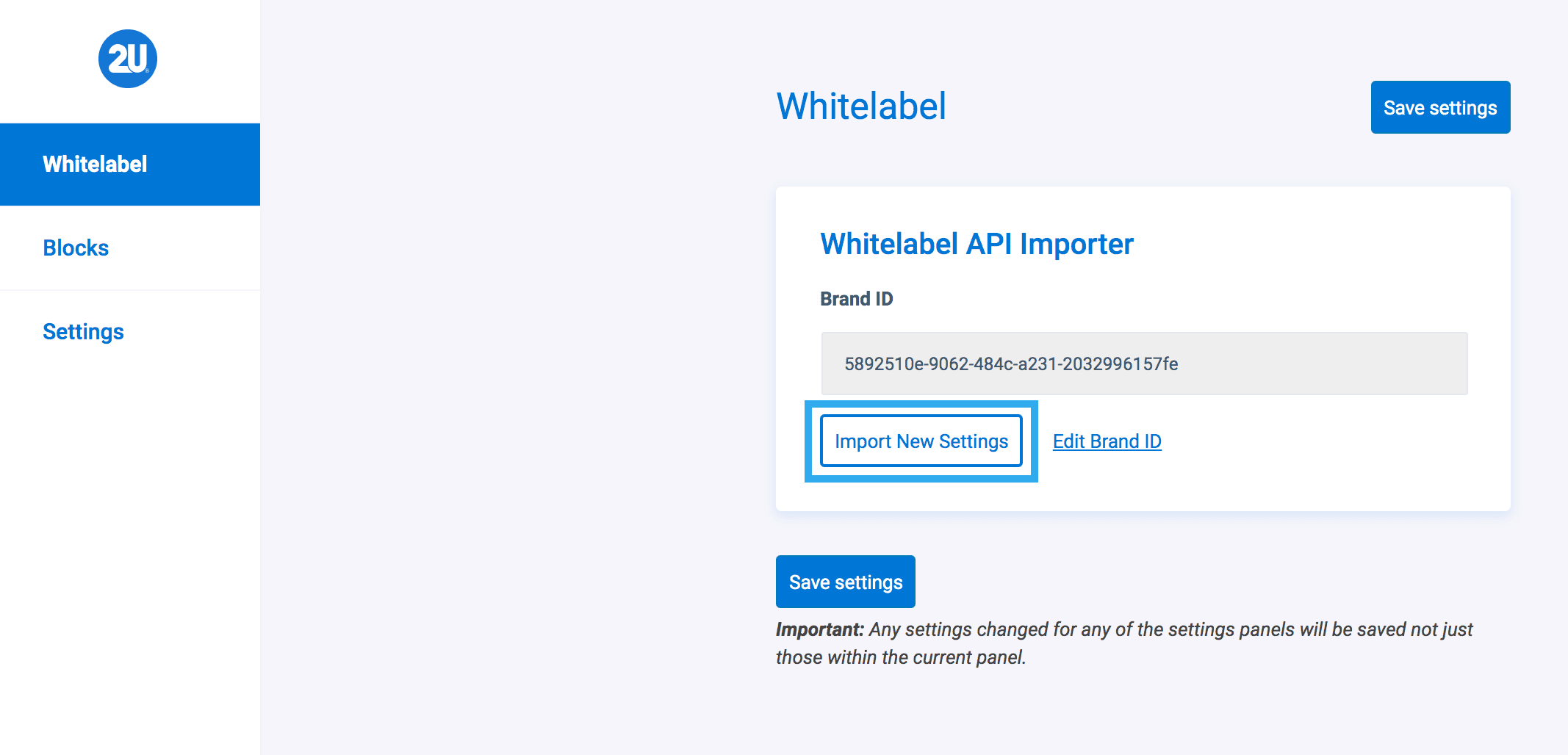
After clicking Import New Settings you will be presented with the differences between the WordPress & Whitelabel settings. You will be prompted to select which fields you would like to keep.
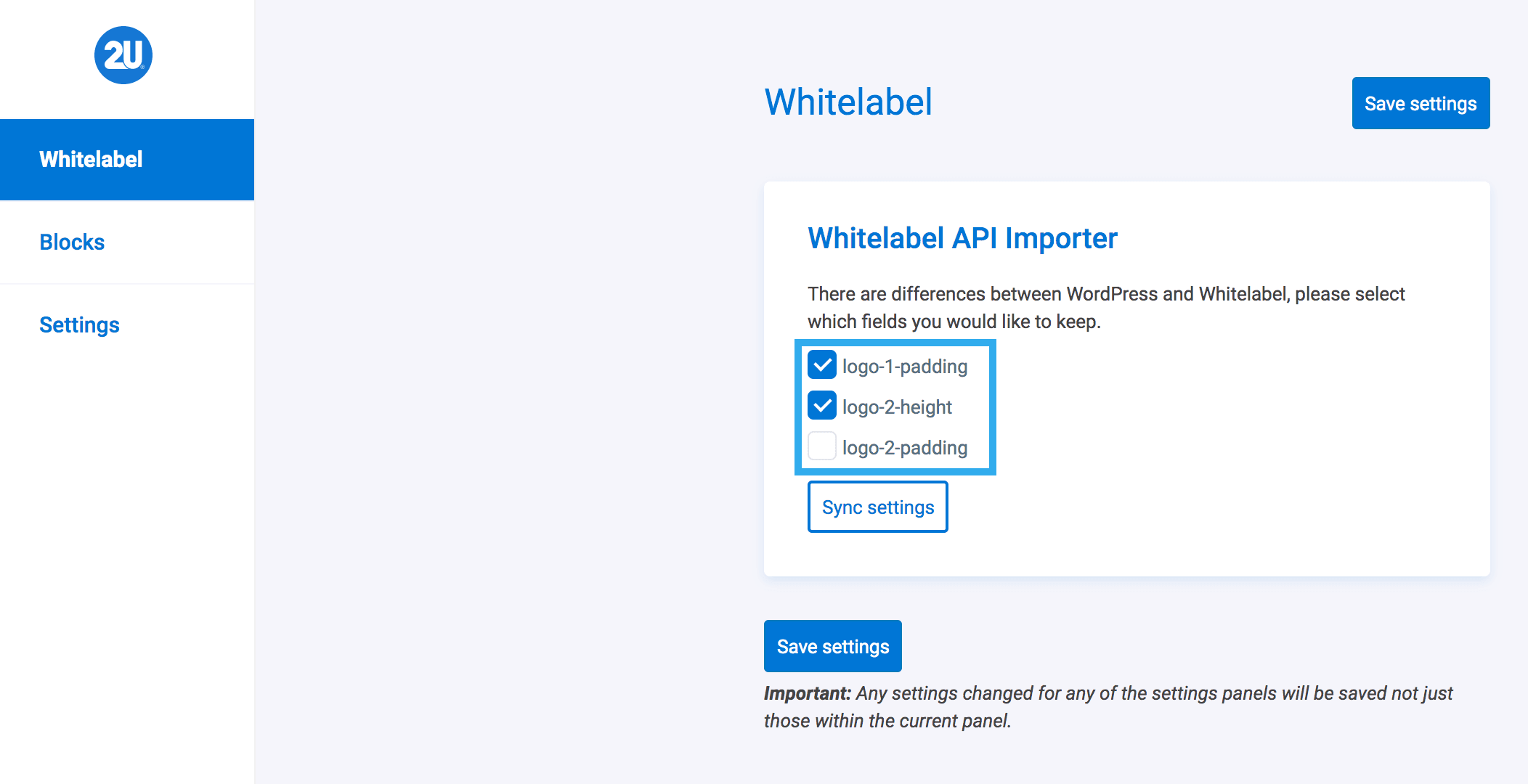
Note: if you do not click any of the fields, the Whitelabel settings will replace any settings you have set within WordPress. Alternatively, if you select all of the fields given, this means that your WordPress settings will override any new settings (for those fields) from Whitelabel.
Once you are happy with your selections, click Sync Settings.
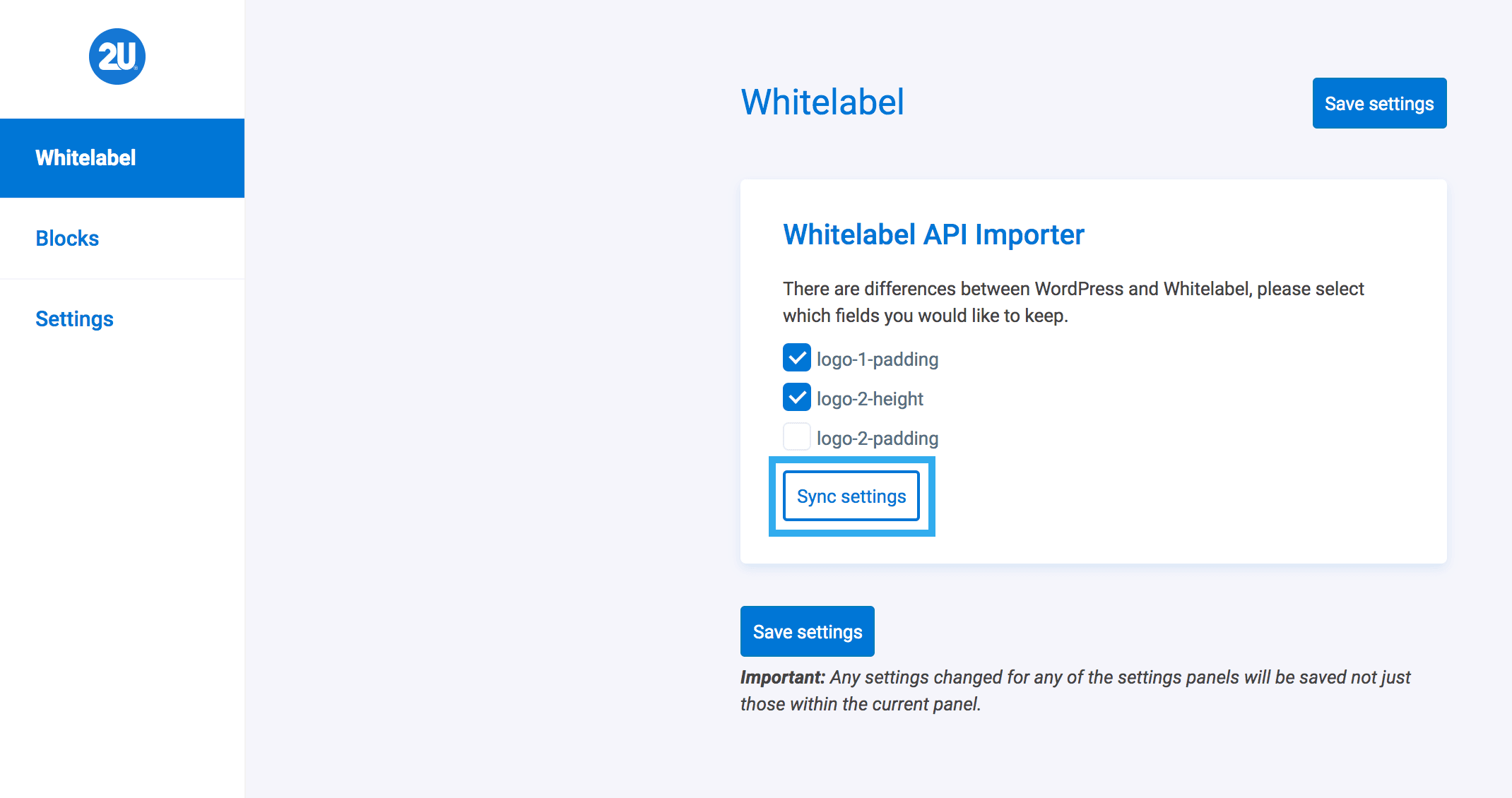
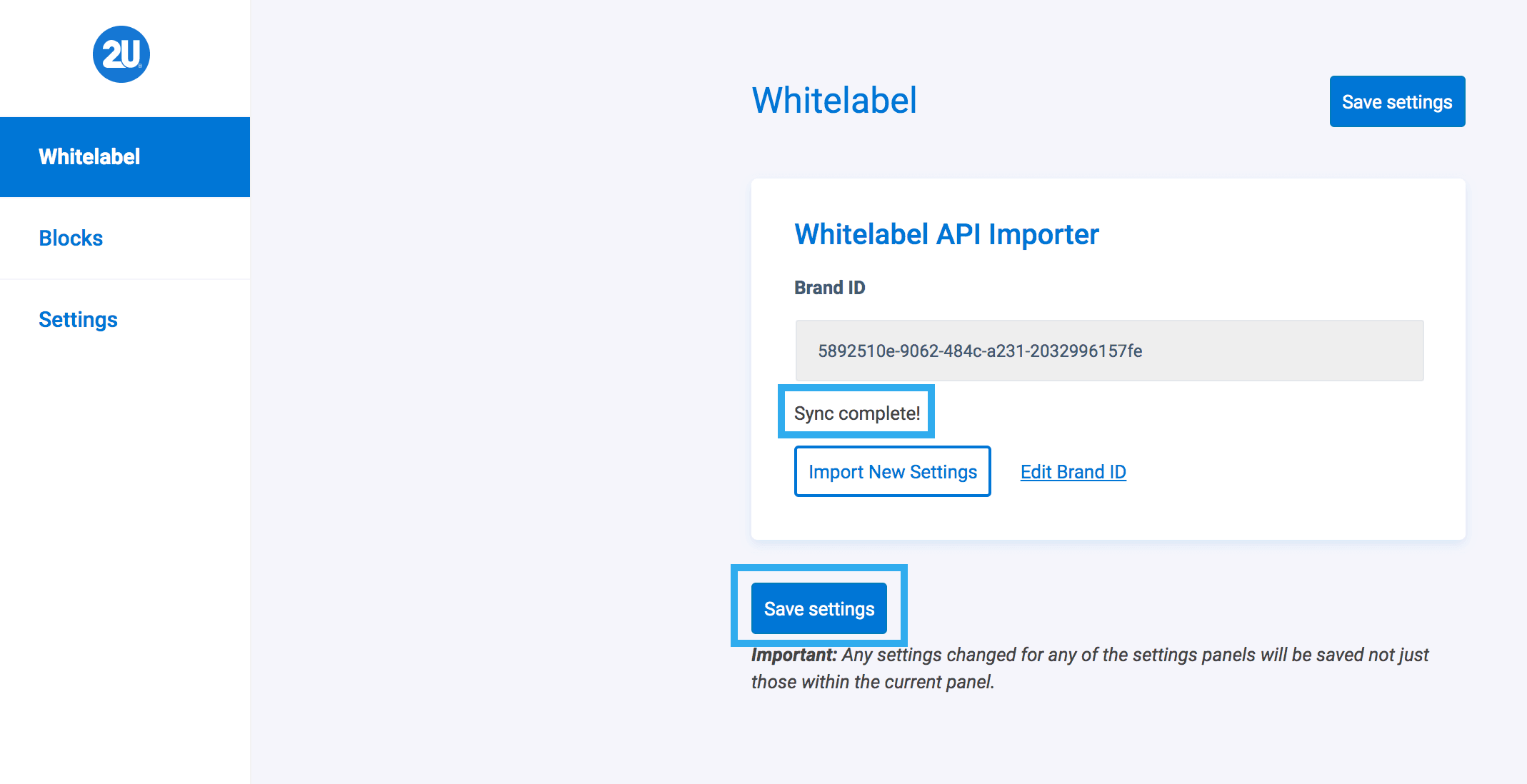
You will then be presented with a confirmation messages saying ‘Sync Complete!‘ – Ensure that you hit save once this is complete.
Hints & Tips
- When importing new settings, you can hover over each field to see the difference between Whitelabel & WordPress settings