


Background:
The idea for this project came from the desire to automate changes to different degree site pages whenever a school term date changed. School term dates include variables like application submission date, term start date, etc. This information is stored in Salesforce and managed the Program Directors (PD) team, who must notify the WebOps team about changing dates. With Salesforce Term Objects in WordPress this step can be automated.
The Iteration Squad released Salesforce Term data integrations into the WordPress production environments in November 2025.
What does this look like in WordPress?
A Plugin
- This is available on all sites and must be activated before the dashboard is available

A Dashboard
- When the plugin is activated there is an option called “SF Terms” under Settings
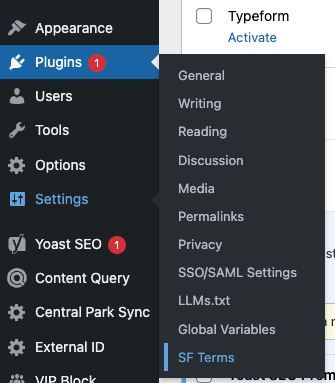
- This leads to a Dashboard where all term data currently available in Salesforce is visible under the “SF Terms” tab
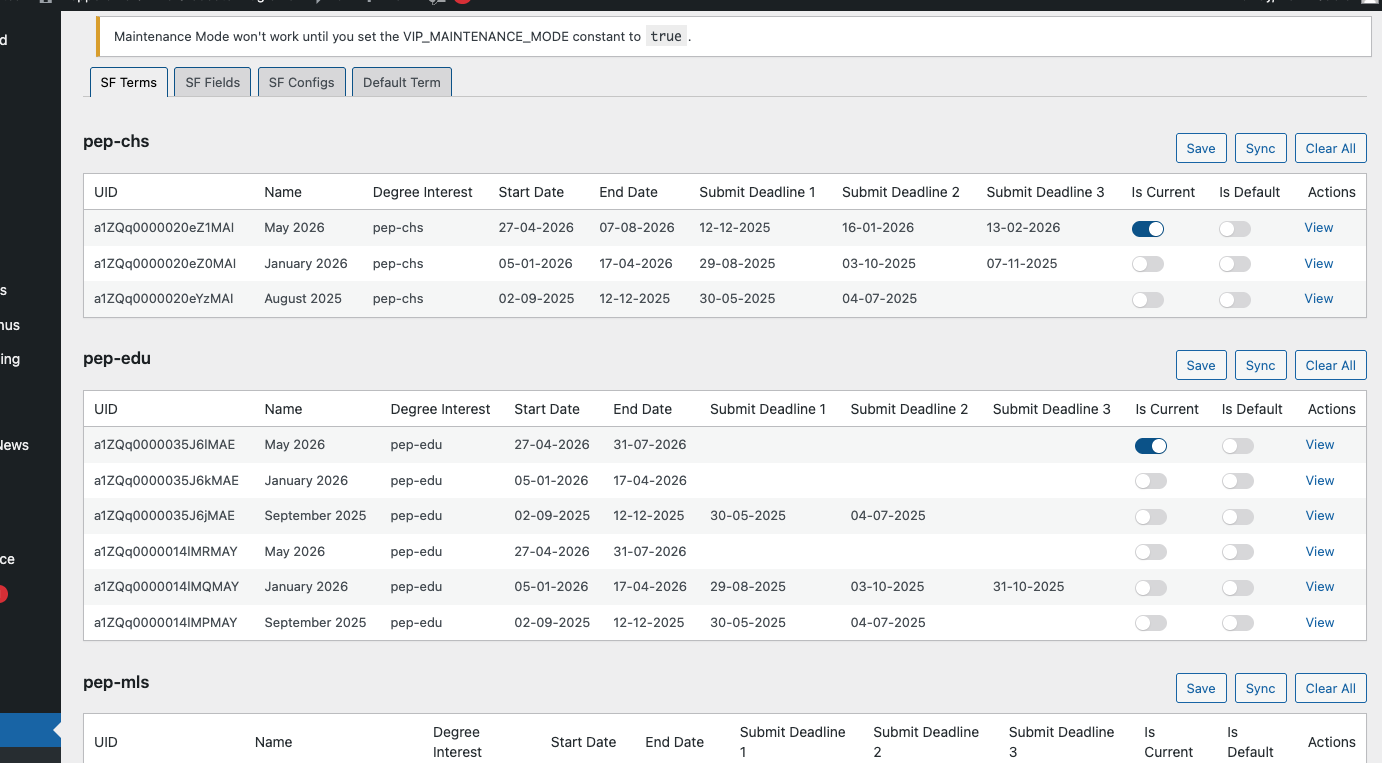
- Activating the plugin creates a request to pull in this data from Salesforce, but manual syncs can be done at any time by clicking the “sync” button.
- note: Currently all syncs with Salesforce need to be done manually. When Salesforce term data changes the WP user must hit sync to see the changes. In cases like the screenshot above there are multiple sync buttons, one above each table. Clicking any of them will sync all salesforce data for all cohorts.
- The term with the next future occurring start date will be listed as “current” automatically. This can be changed manually with the “is current” switch. When the user changes what term “is current,” saves, and performs another sync with Salesforce the term that is set as current will not change.
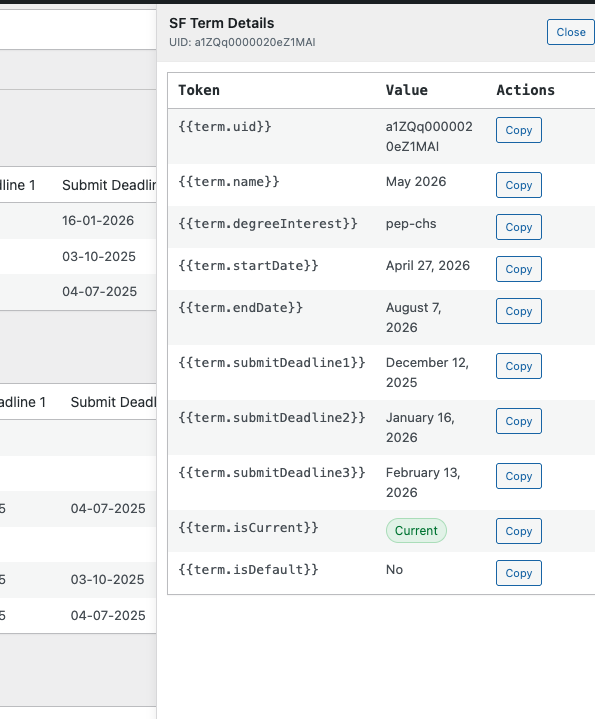
- Select “View” to see a list of new site variables and what value will be injected when those variables are used
- “Default” switch- When there are multiple programs in one dashboard the default switch helps denote which program/ term to default to. This is necessary if no page-level “program code” is set. Only one term across all programs can be set as the default at a time.
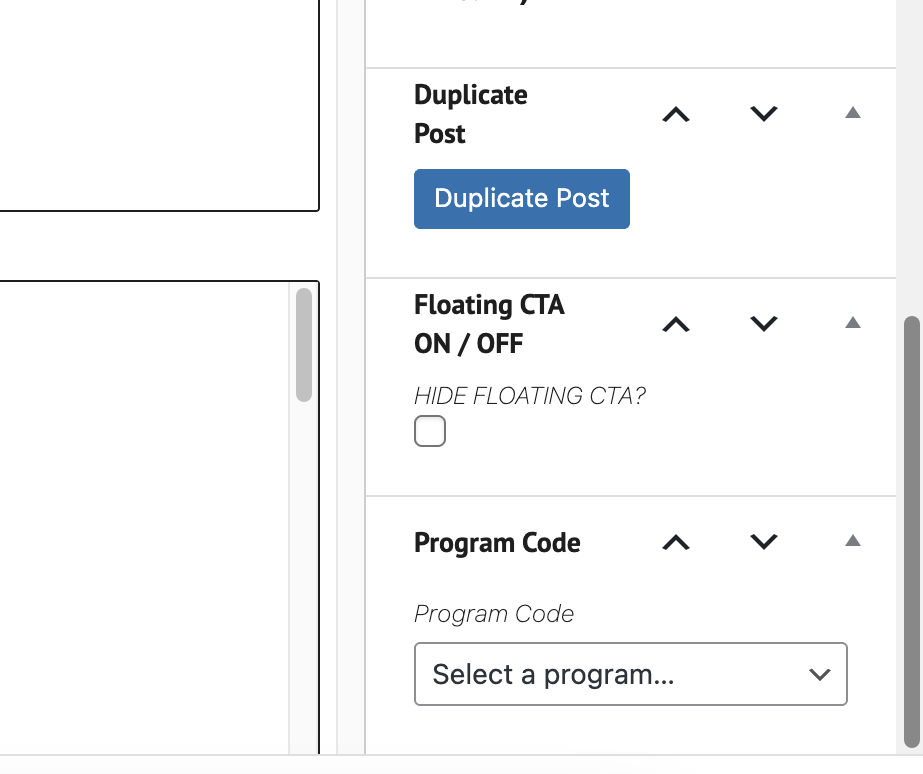
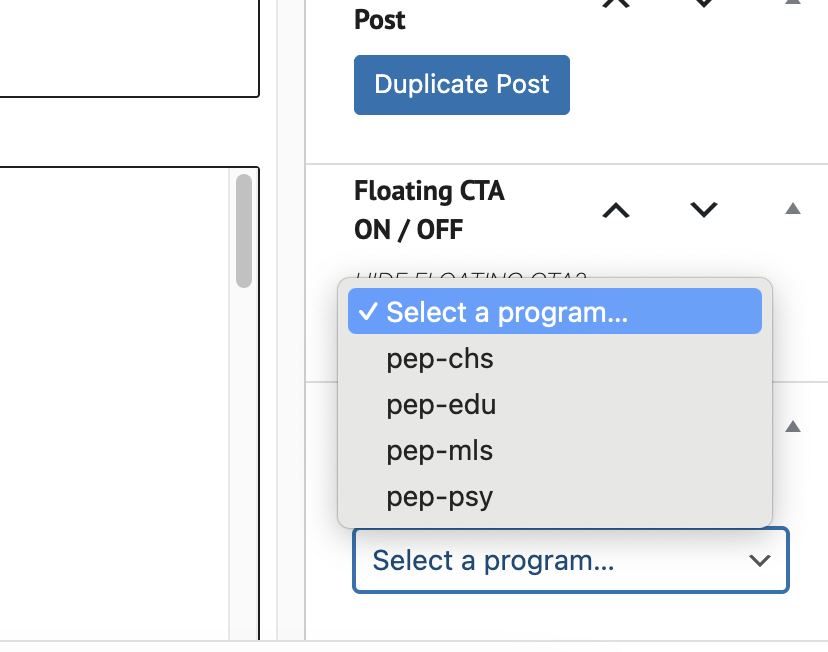
- Page-Level Program Code
- When the plugin is activated WordPress page settings will include an option to specify which program to associate with the page. This helps specify which program’s “current” term to use for term variables on this page.
How to Use this New Feature
The Salesforce Terms dashboard allows the WP user to see and manage term data coming from Salesforce. In order to automate term updates at the page level:
- Make sure the term dates marked as “current” look accurate
- Select “view” to see a list of new variables
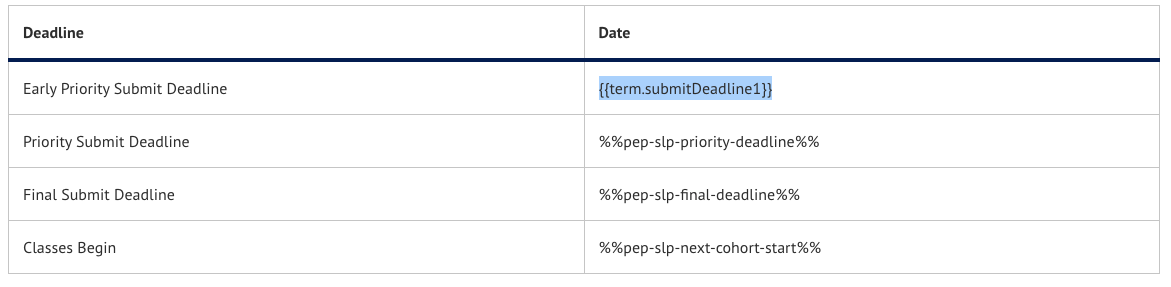
- Open a page that contains term submission deadlines, typically an admissions page
- replace text with the new SF term variables
save the page

Video Walkthrough, Nov 2025 (Download Link)