HTML Code (“Raw”) Pages
Adding custom HTML pages such as microsites via Github.
What is it?
Raw pages allow you to create a ‘website within a website’ without the use of blocks or being limited to a specific theme.
How to use
- Go to the Github repository https://github.com/wpcomvip/2u-v2
- Make sure you select the develop branch to test for staging, or master branch to publish to production.
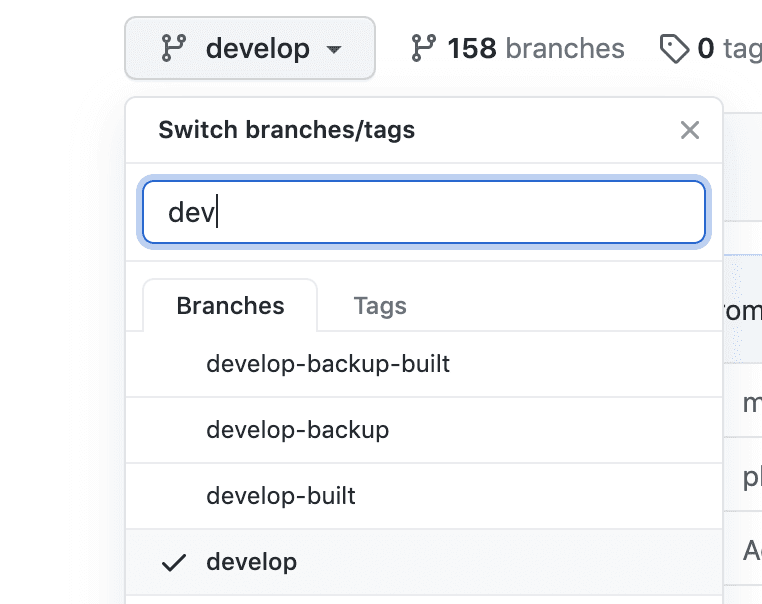
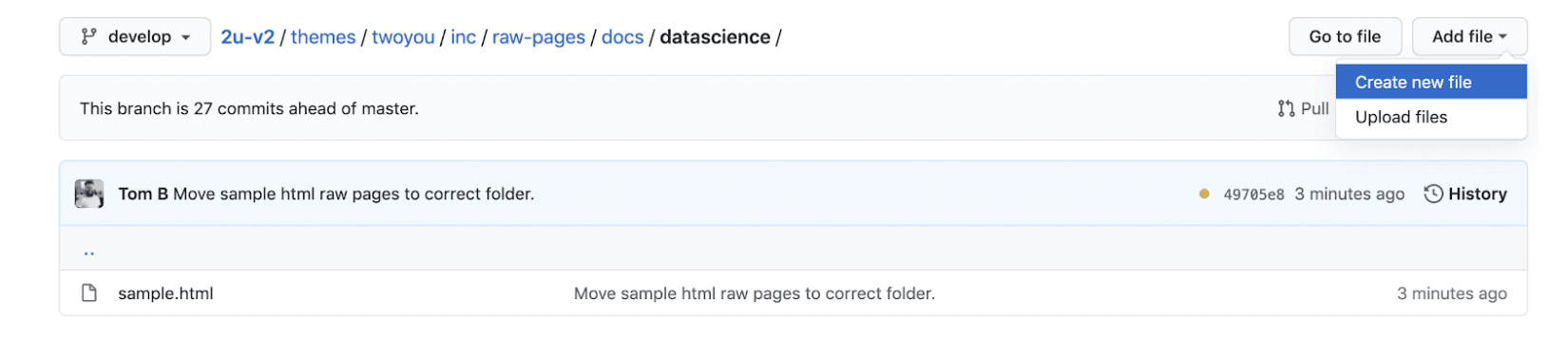
- In Github, go to the directory { themes / twoyou / inc / raw-pages / docs /}
- Select the directory relevant to your site, or create a new one if you need one
- When in your site directory, click add file -> create new file
- Input your html
- When ready to commit your raw file, scroll down, and select the second option, you are able to commit to develop (staging) directly, but not master (production), so you will create a pull request for someone to review when doing this on production
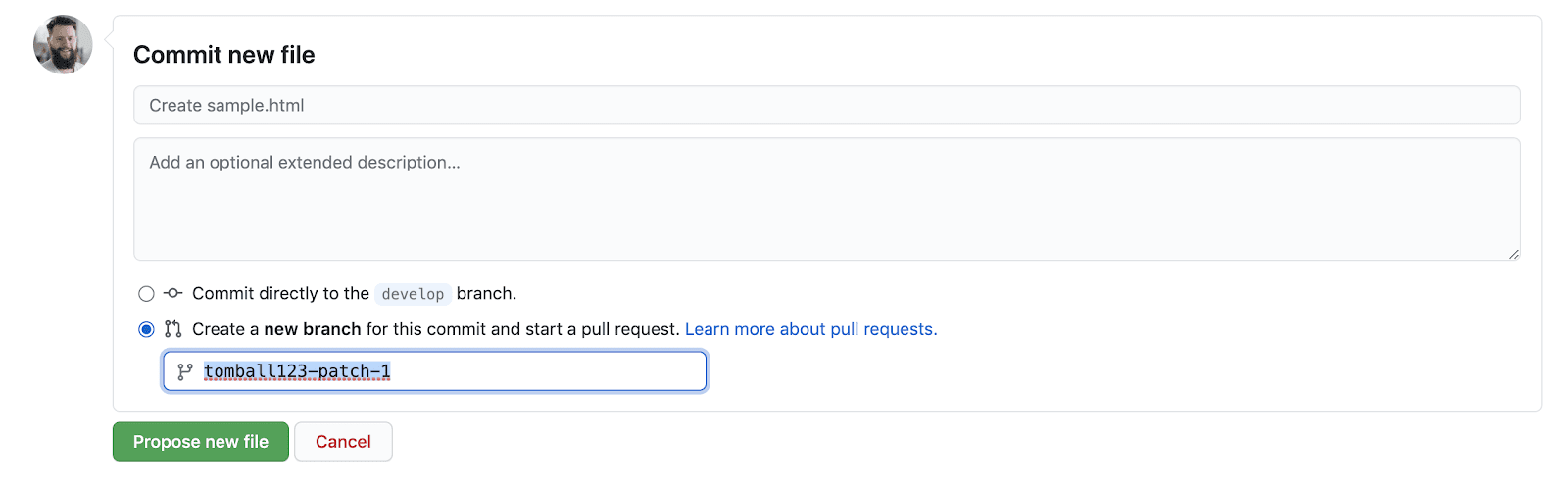
- After creating the pull request, the pull request will need to be built and approved (around ten minutes to buil)
- When the file is successfully merged and built (roughly takes about 10 mins to publish) head to global settings -> raw pages
- In the input text field in raw pages section, set that to your site folder container, save and refresh then you should see your uploaded files
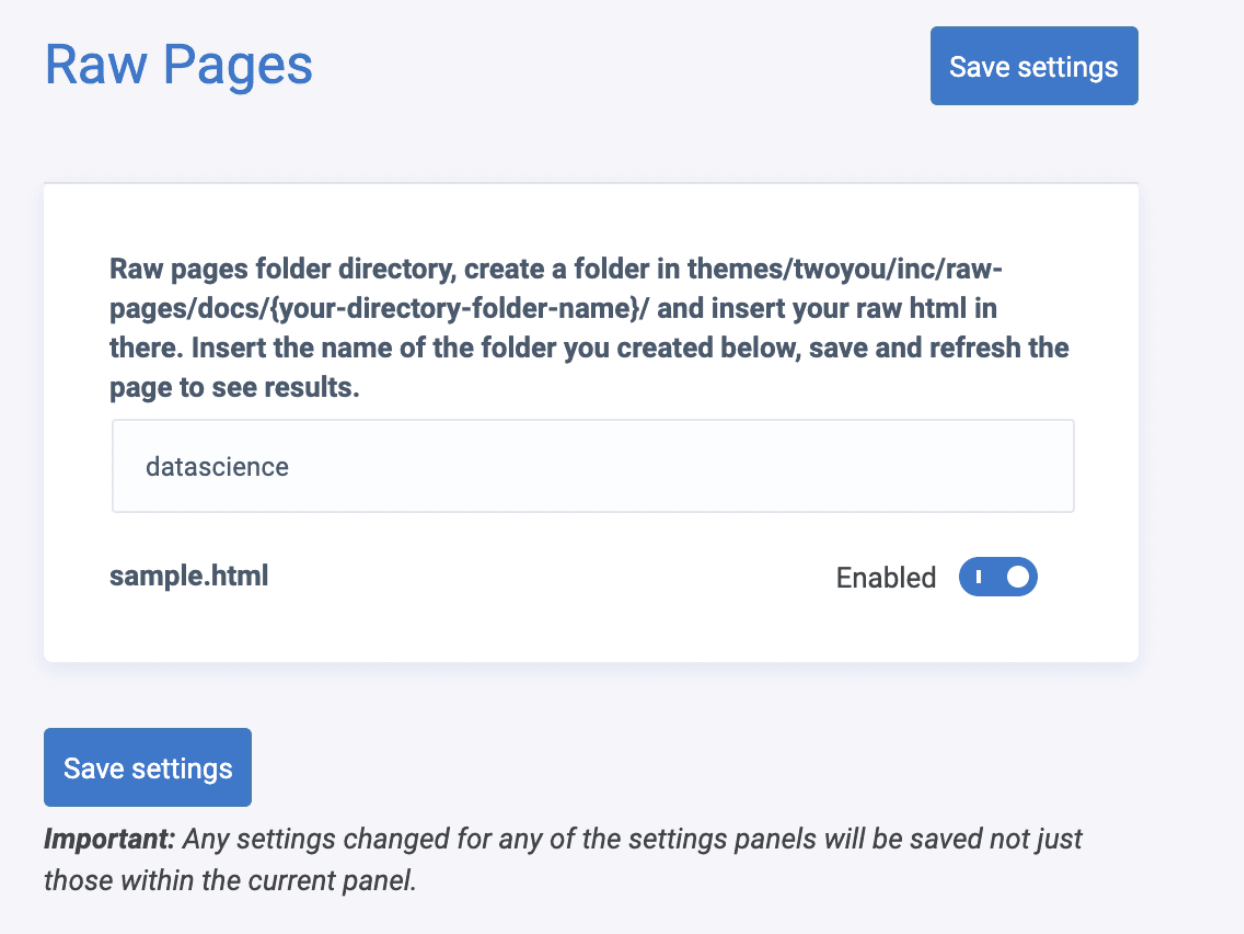
- Enable the file, now your url should be {site-url}/{html-file-name}/ to see the page.
Child pages
- To create child pages, you first need a top level page in the root of your directory you created earlier. Let’s consider if you wanted to create a child page for the sample.html referenced above
- After completing all of the steps above, create a folder called sample in the same directory of sample.html, this will be your child pages directory
- Create new html files in this directory, for example sample-child.html
- When sample is enabled on global settings, all of the html child pages in the sample folder will be activated so the url {site-home}/sample/sample-child.html will now be active
Example of Raw page: