


Table Block
The Table Block can be used to create responsive tables to showcase data. This block has responsive rules built into it already, so you do not need to worry about setting these when creating tables.
| Table Column 1 | Table Column 2 |
|---|---|
Table row data here | Table row data here |
Table row data here | Table row data here |
Table row data here | Table row data here |
Table Heading
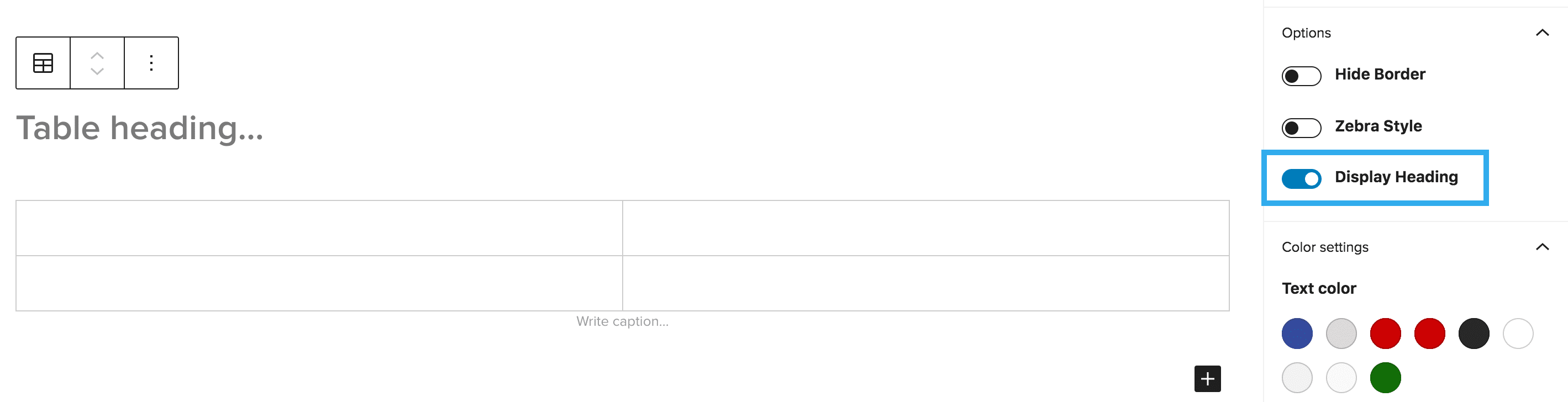
When initially inserting a table block you will be given the option to insert a table heading. If you do not want to use a heading on your table, a new toggle has now been added to the sidebar settings for the table. You can simply toggle this off/on to display or hide the heading.
We have also removed the ‘remove block‘ setting from the heading block within the table.

Row & Column Count Setting
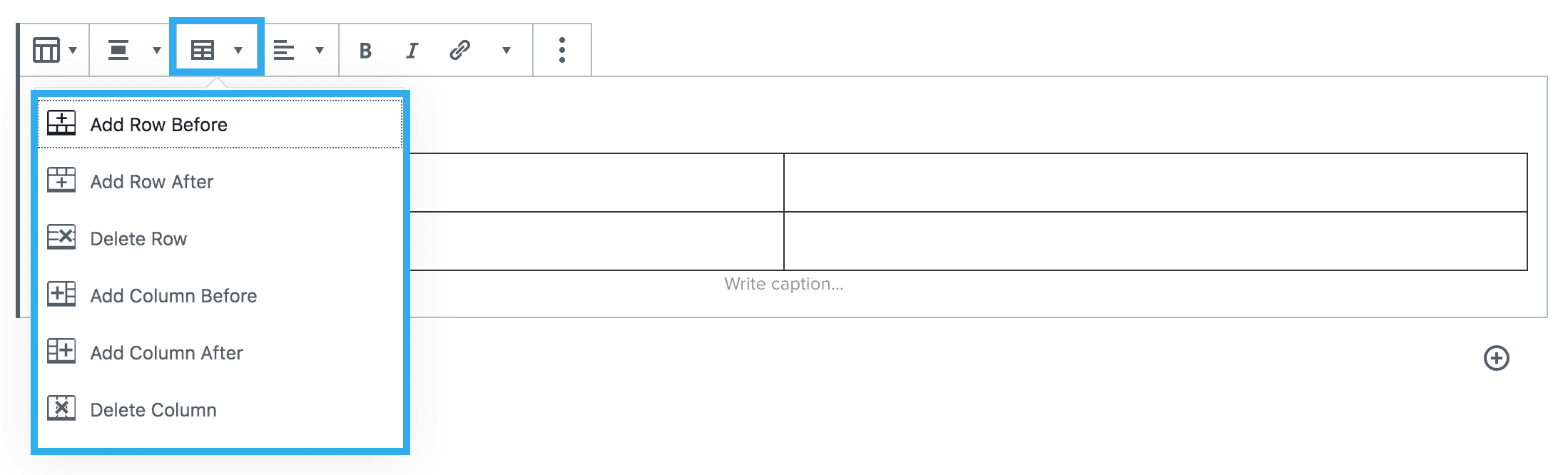
This setting will appear after inserting the table block. You should firstly select how many columns & rows you want your table to have.
Note: you can adjust the number of rows & columns after creating your table if required.
Column percentages
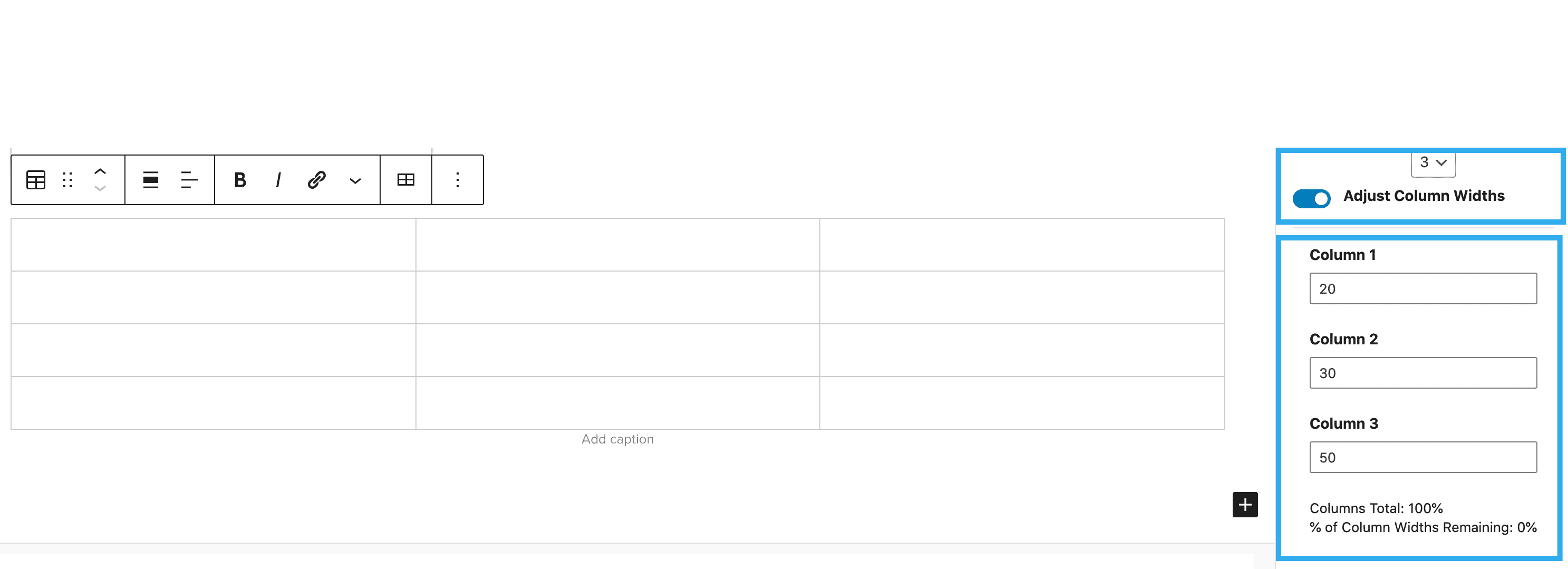
The table block also has the ability to set desktop column widths as a percentage for each column. To use, toggle across the ‘Adjust Column Widths’ slider within the options panel. Once this is selected you can begin inputting your desired width percentages. In the example below you can see 20%, 30% and 50% have been used – all columns must equal 100%.
The column percentage tool also has a feature, which tells you how much percentage has been used and how much is left, you can see an example of this below:
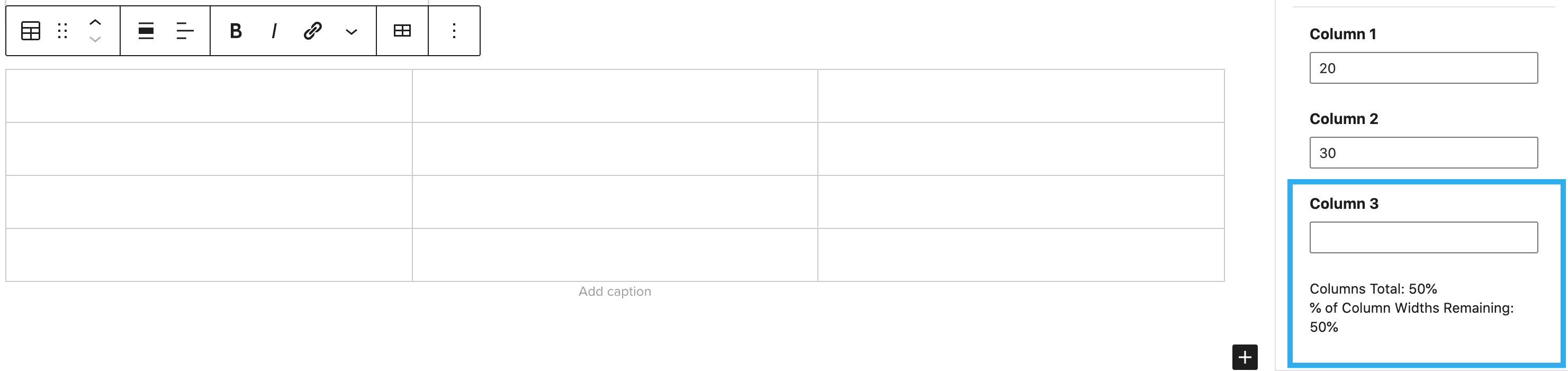
Table Header Section Setting
This can be toggled on/off at any time. When toggled on, a new row will be inserted at the top of your table, with a header underline automatically applied.
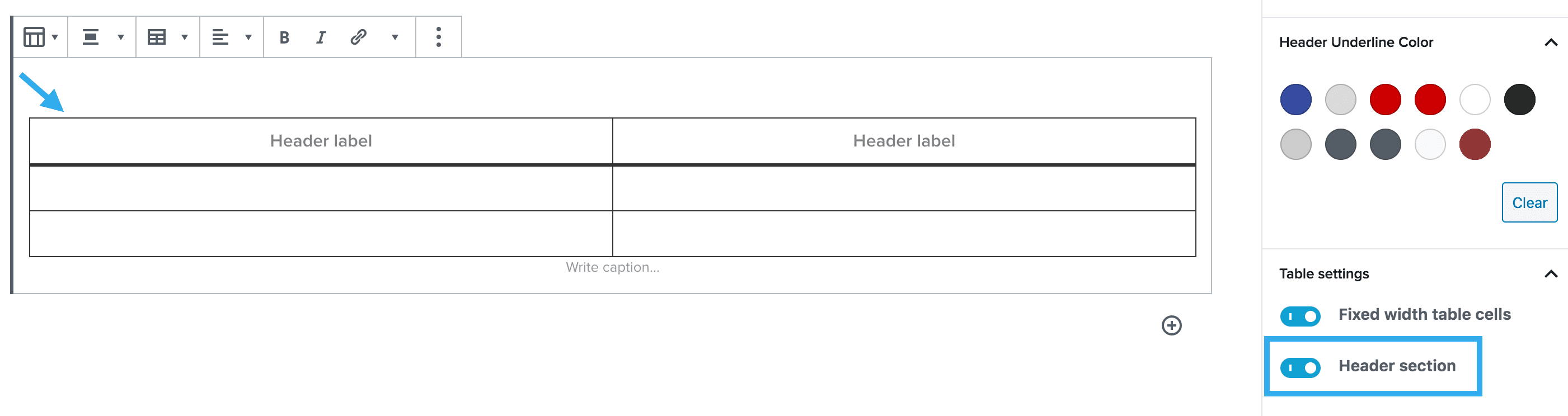
You can then change the colour of the header underline to match the branding of the site.

The block also has the option to change the background colour of the header section. These can be altered within the options panel:
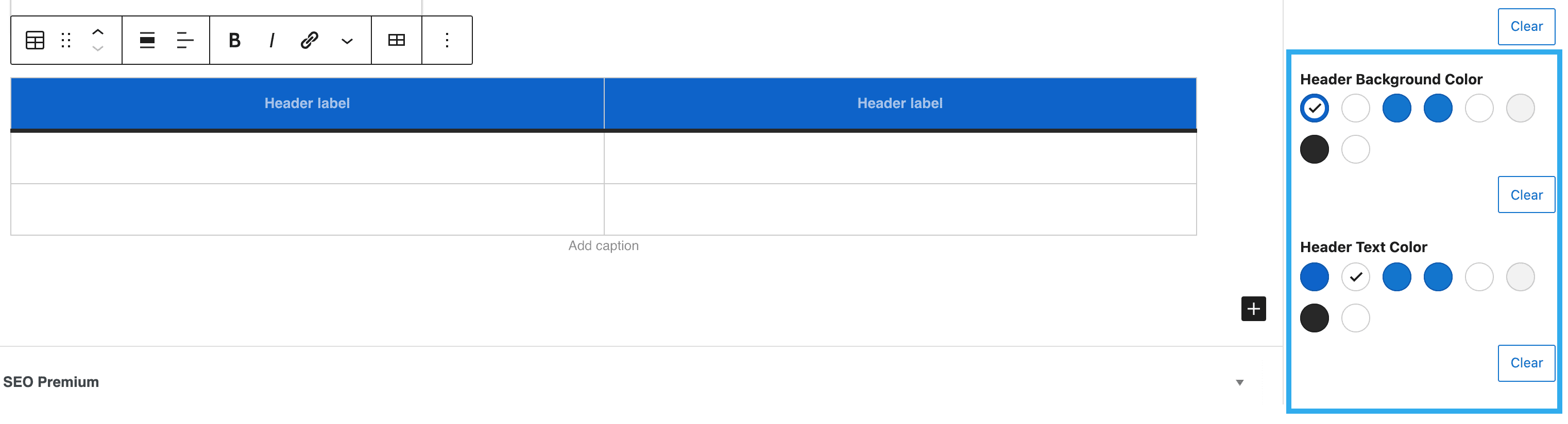
Note: we have also added a Header Text Colour setting to prevent accessibility issues introduced with this new setting
Fixed Width Table Cells Setting
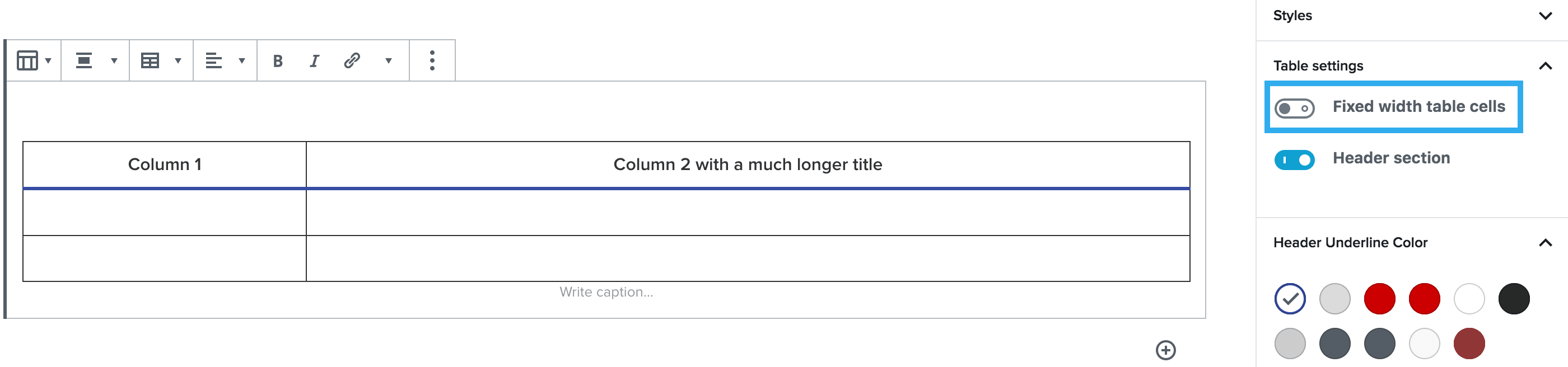
This setting allows you to select between a fixed with table, or fluid table cells. This is best used when you are going to have a column with much more content to fit inside of the cells.
Margins and Padding
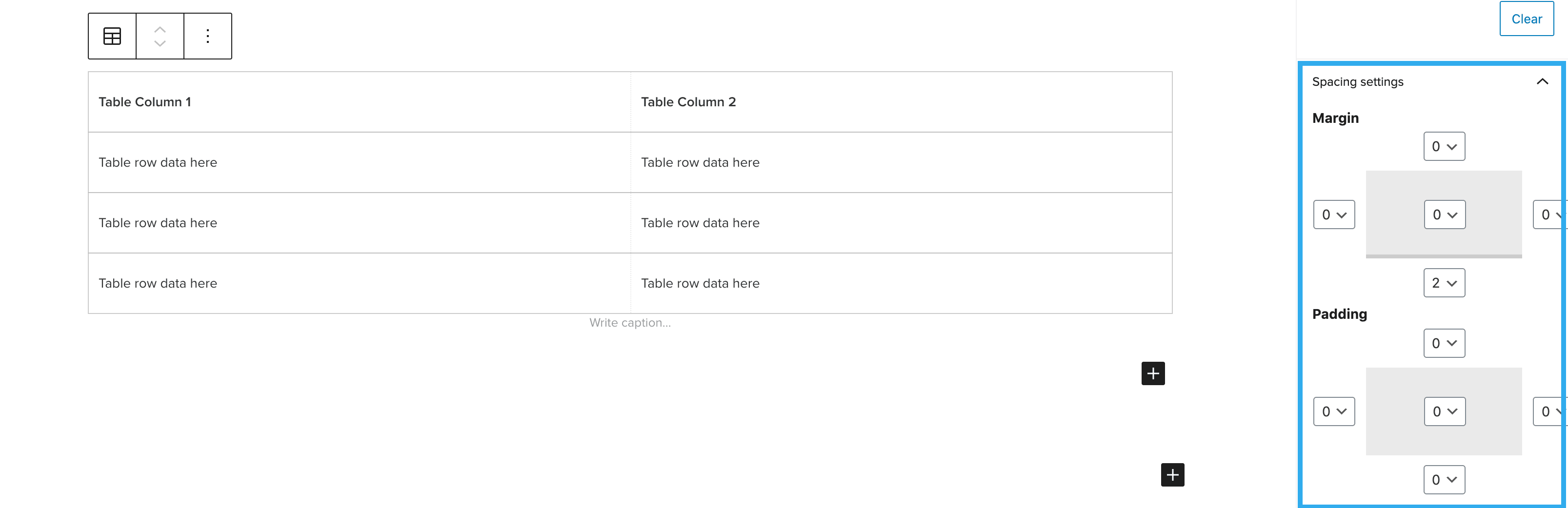
The spacing settings allow you to alter the margin and padding around the table heading and the table. Each side of margin and padding can edited independently from one another and can be previewed in the settings panel:
Hints & Tips
- Tables are automatically responsive
- Table cells support the insertion of links
- Multiple tables can be added to pages