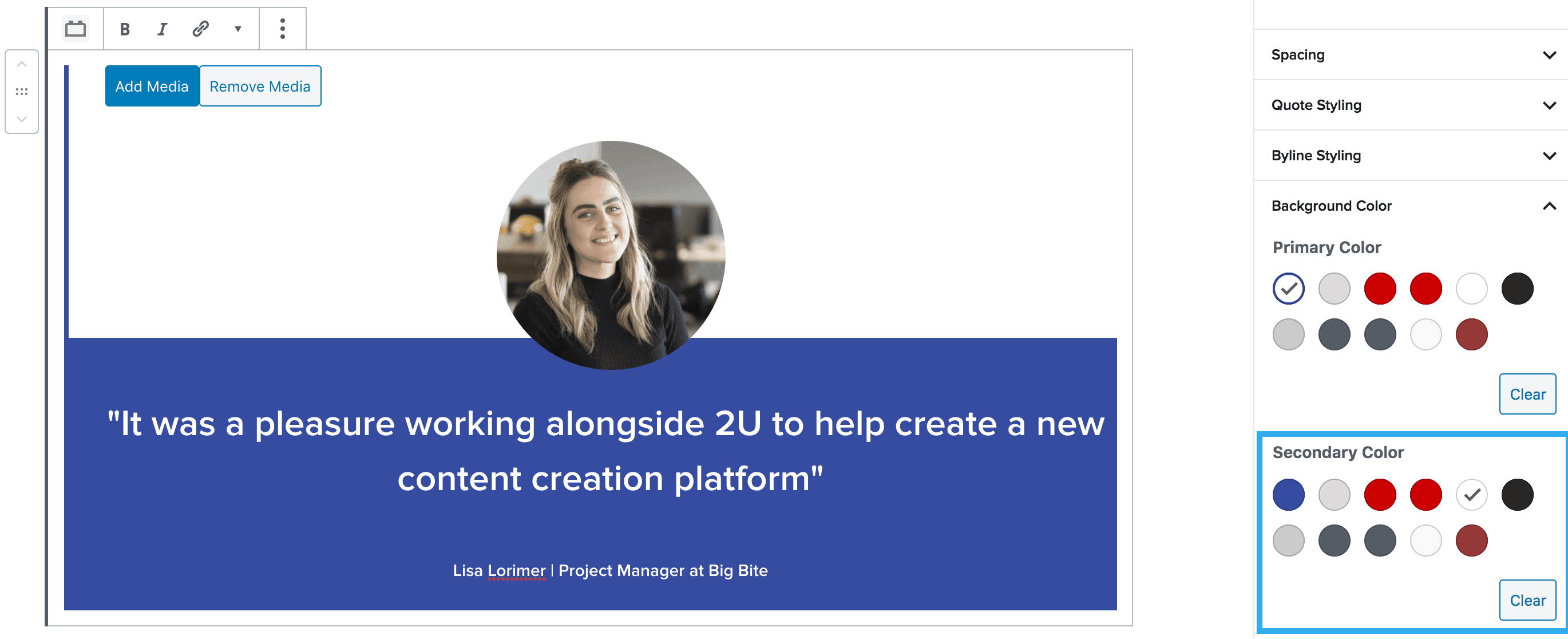
“It was a pleasure working alongside 2U to help create a new content creation platform”
Lisa Lorimer | Project Manager at Big Bite
Quote Block
The Quote Block can be used to feature quotes or testimonials across the site. When initially inserting the quote block, you will be presented with two fields, one to insert the quote, then another for the byline.
Quote & Byline Styling Settings
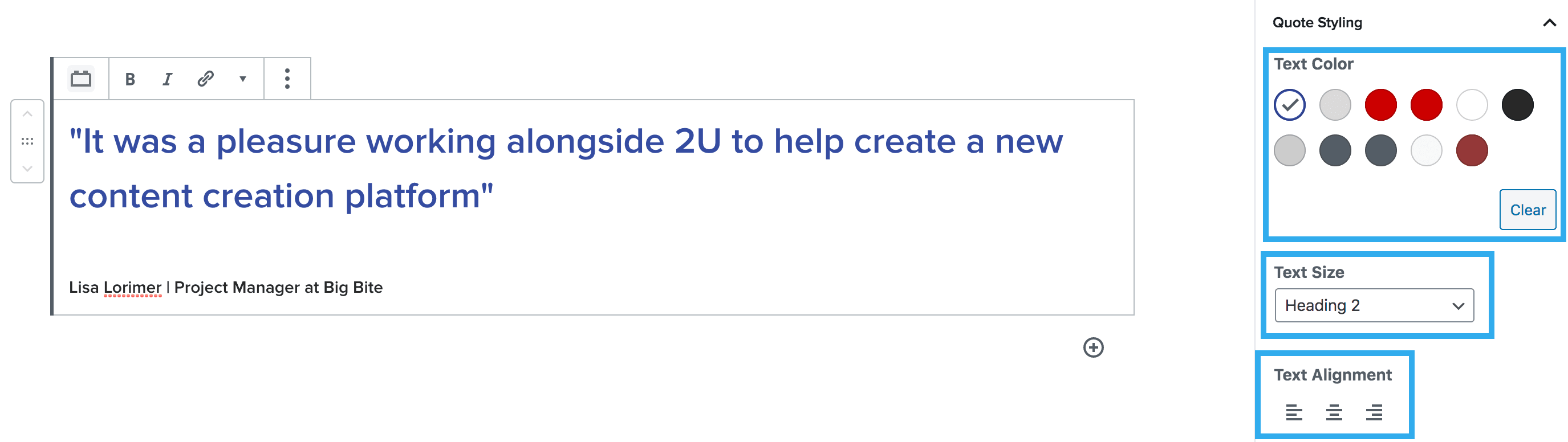
These settings allow you to individually style the Quote & Byline. You can select the colour, text side (e.g. H2, H3 etc or D1, D2, D3 etc) and the text alignment (left, center, right).
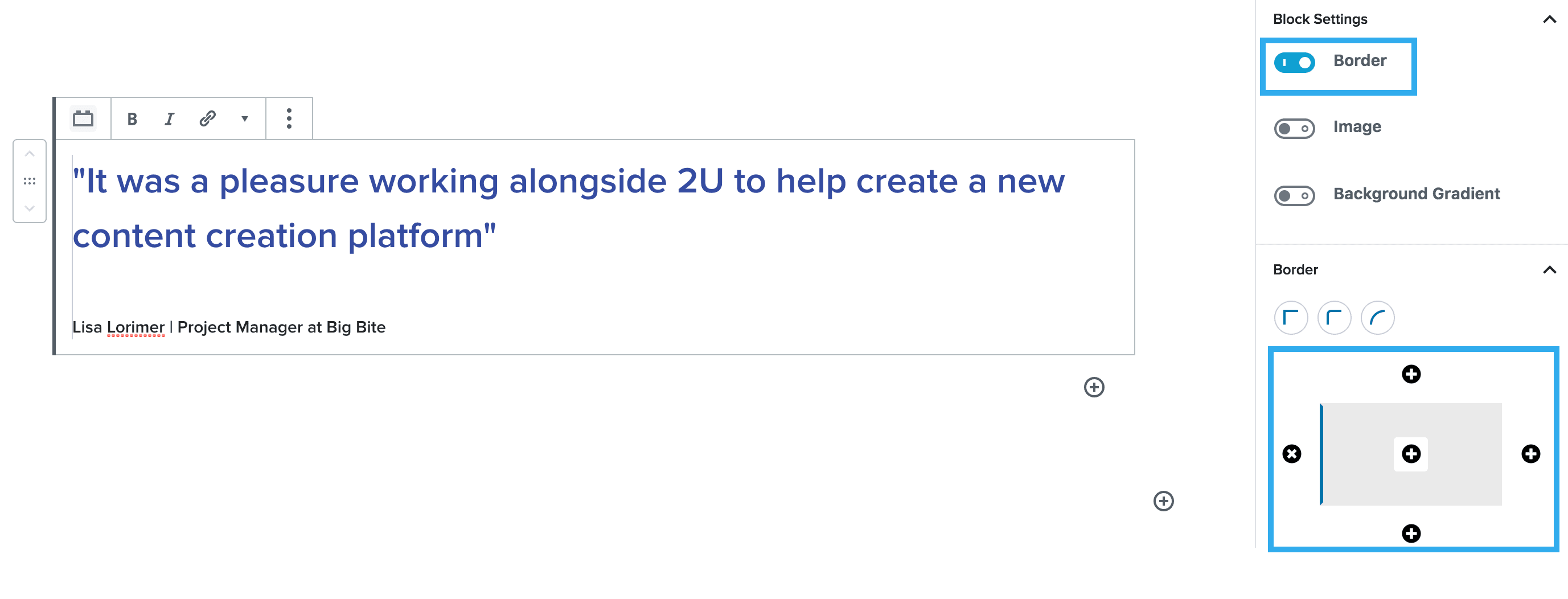
Border Settings
These settings allow you to toggle a border on/off and select what side(s) you want to apply the quote border to.
You can then choose the colour of the border, using the colour palette that comes down from the Whitelabel settings, in Global Settings. You can also apply a border radius & adjust the thickness of the border here too.
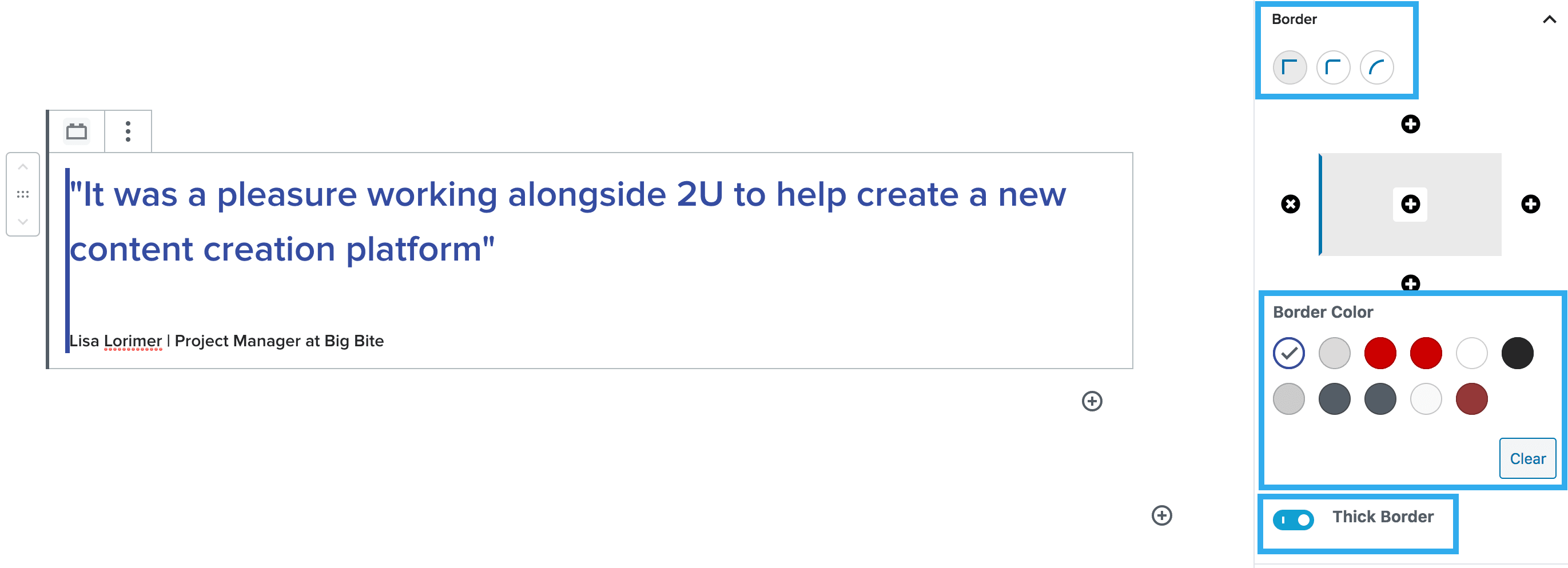
Note: you will need to apply spacing to your quote if you use the border setting, to separate the text, from the border.
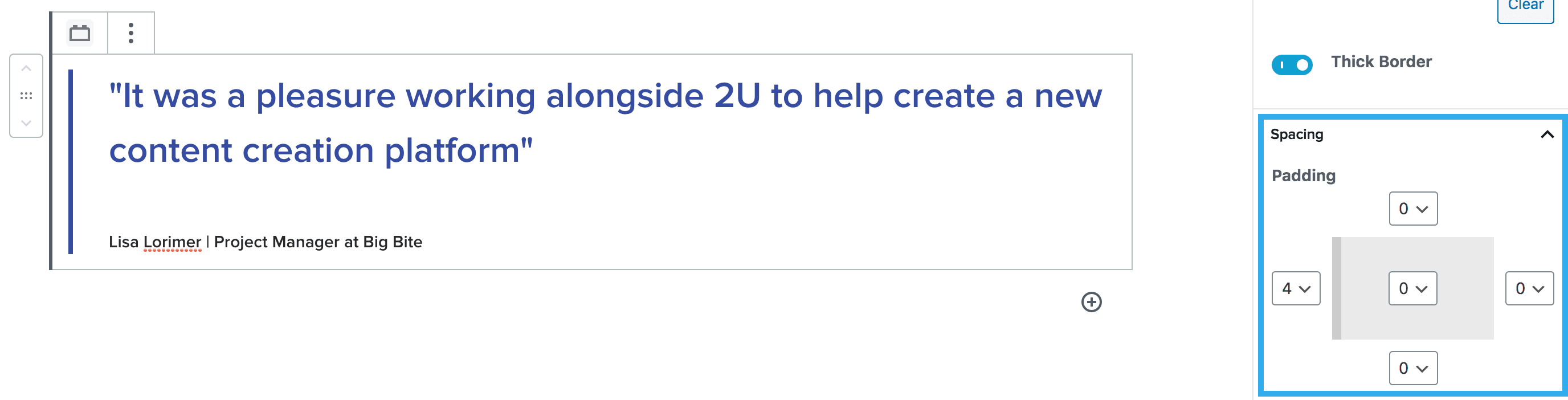
Image Settings
The image toggle allows you to choose whether to apply an image to the quote or not. Once you click the image toggle on, new settings will appear for you to adjust how your image looks.
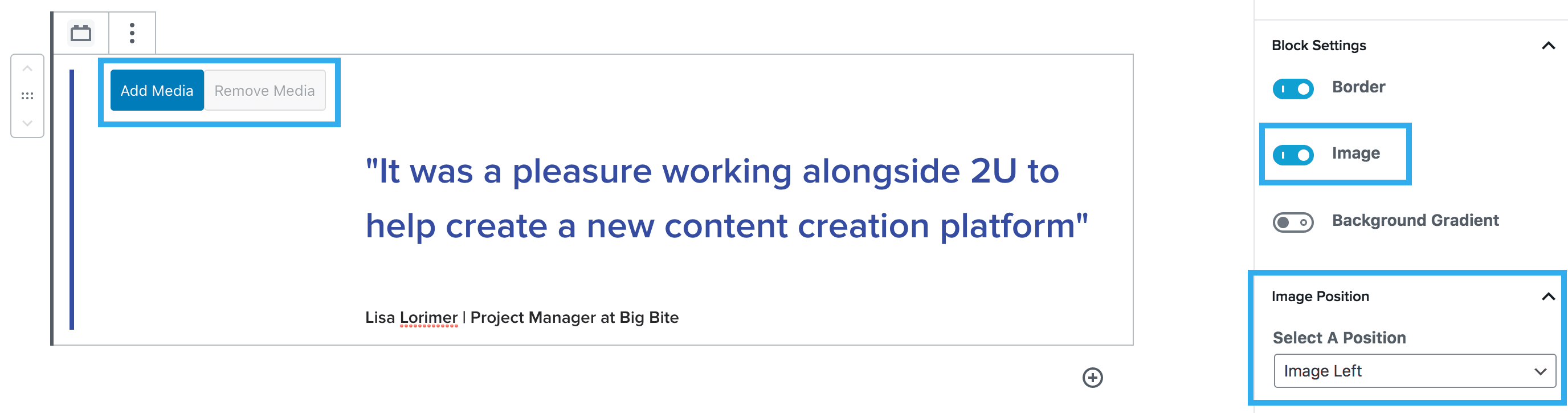
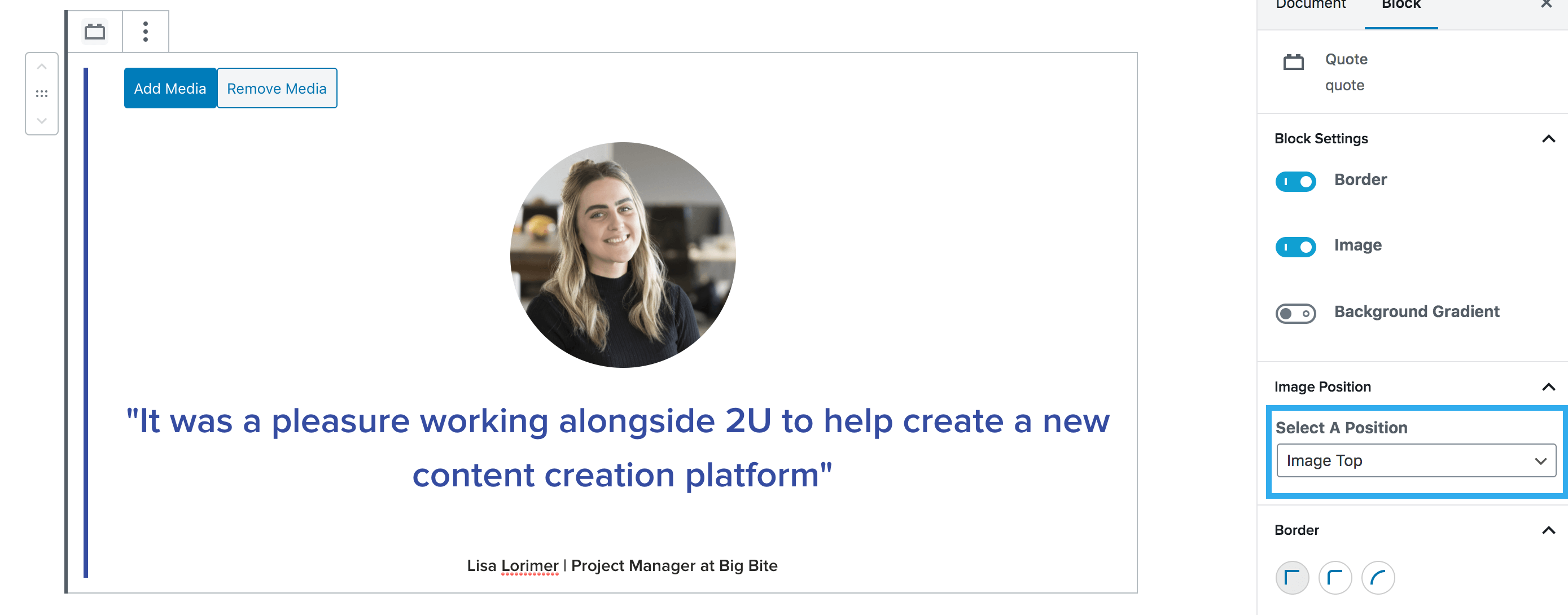
Once you have inserted your image, you can adjust it’s position to either the left, top or right of the quote.
Note: You will need to change the alignment of the Quote & Byline text if you choose to position your image above the quote.
Background Colour & Gradient Settings
These settings allow you to apply a background colour to your quote.
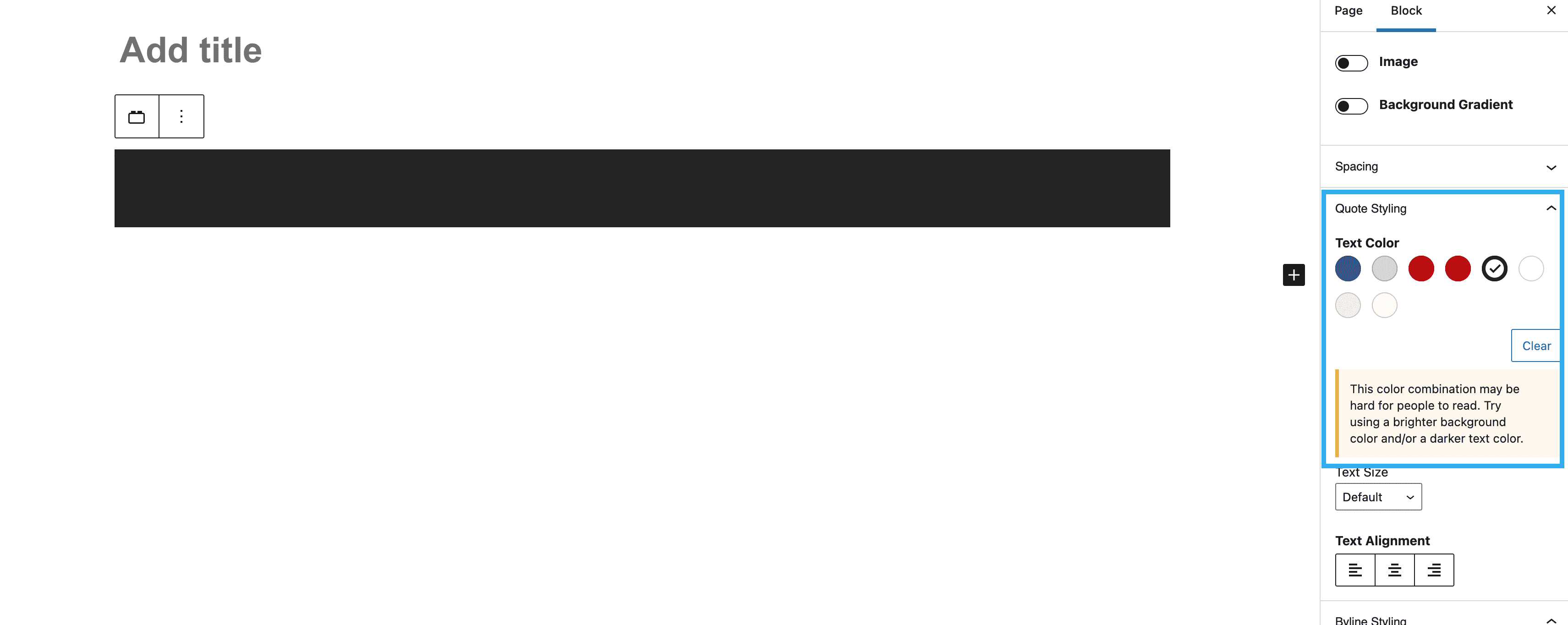
Note: You will need to change the colour of the Quote & Byline text if you apply a background colour that doesn’t meet accessibility requirements.
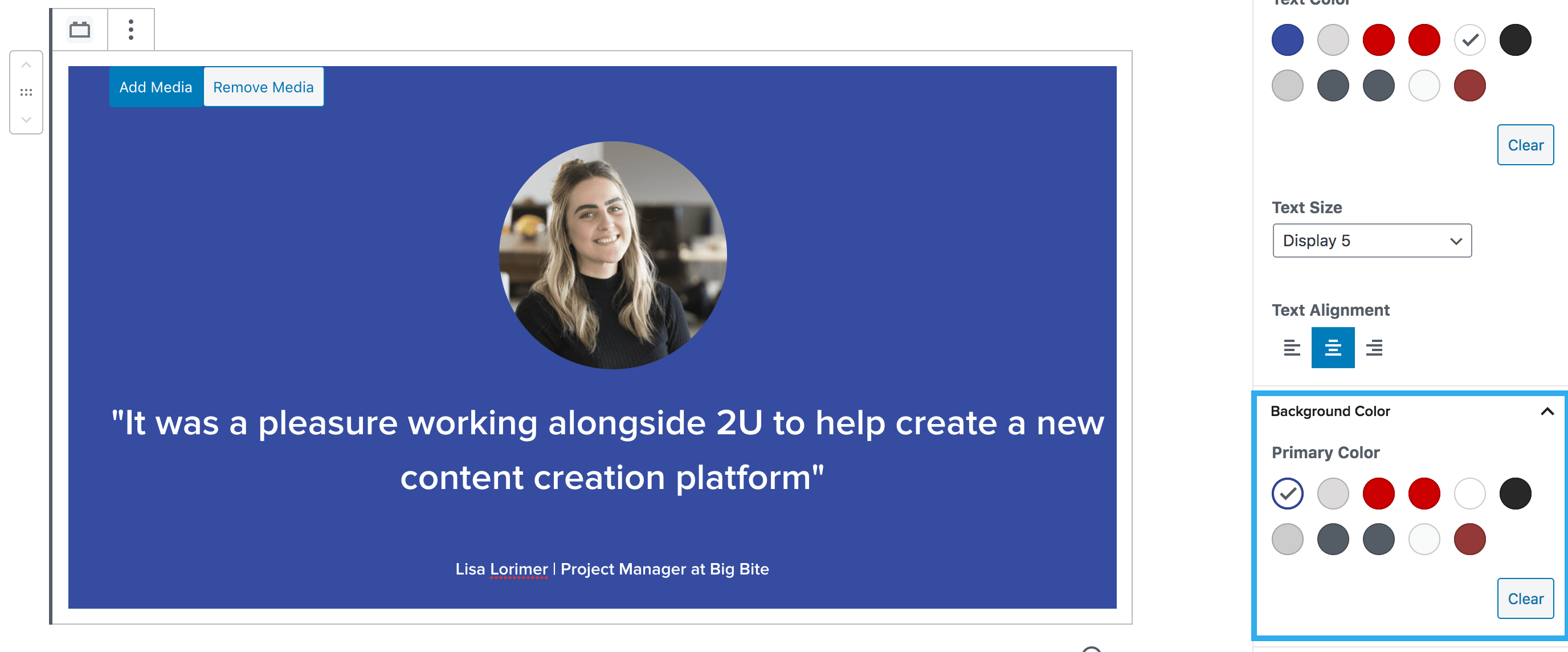
If you toggle the background gradient setting on, you will be presented with a secondary color setting, so you can apply your gradient.
The quote block also includes a feature which triggers an alert should the background and text colour combination not meet the minimum colour contrast.