


Programs Blocks
There are two main Programs blocks in the 2U theme, which have many variations and customisability. The two blocks are named ‘Program Card(s)‘ and ‘Programs Table‘.
Programs Card(s)
When you first insert the Programs Card(s) block, you will be asked to select the ‘content type‘ – you can choose between ‘Selection‘ and ‘Feed‘.
- Selection – this mode allows you to select individual Programs from the list
- Feed – this mode pulls through a feed of all Programs (apart from Programs that have been set to not be excluded from the feed)
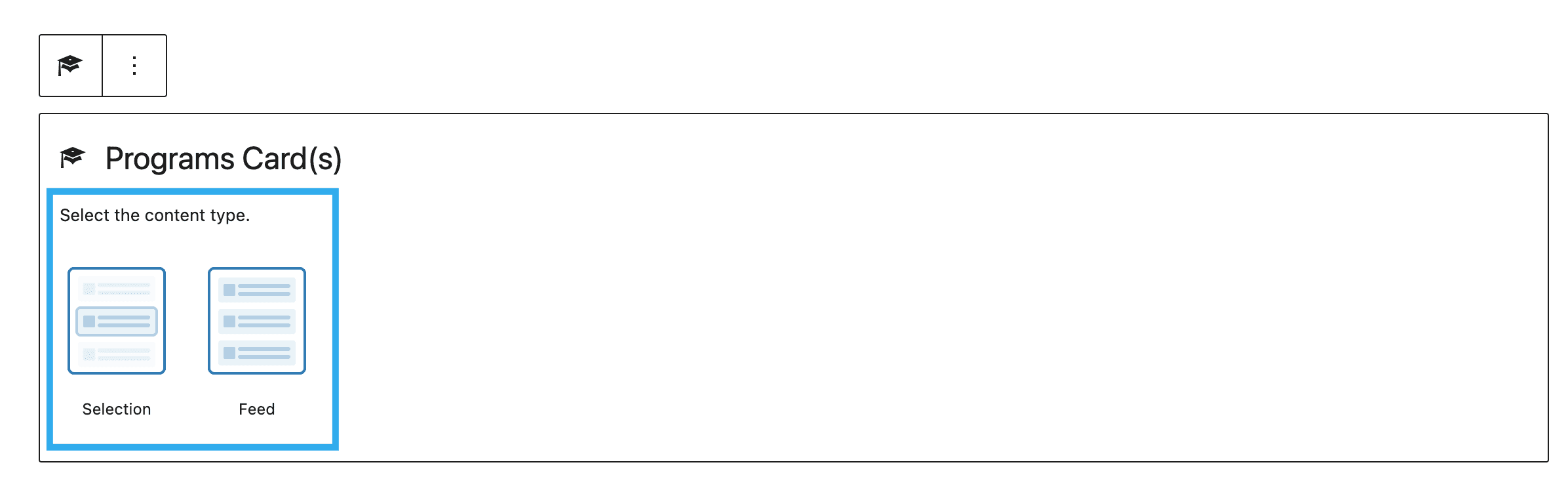
Selection:
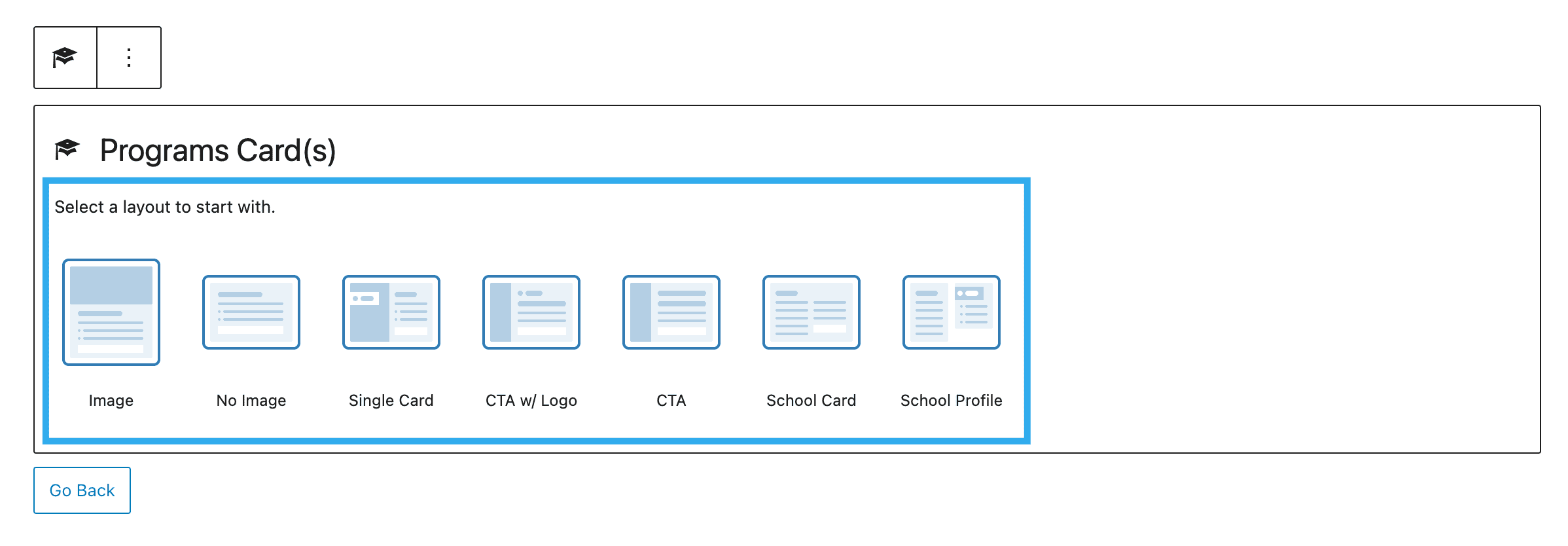
Choosing Selection mode will then provide you with a selection of Layouts to choose from:
- Image
- No Image
- Single Card
- CTA w/ Logo
- CTA
- School Card
- School Profile (this layout comes with additional toggle settings in the sidebar – listed below)
- Enrolment Type
- Work Experience
- Study Length (enabled by default)
- Start Date
- Number of Credits
- Test Requirement (enabled by default)
- GPA Requirement (enabled by default)
- Letters of Recommendation Amount
- Program Cost
- Concentration/Specialization
- Vertical
- Field Placement Support
- Campus Visit Requirement
- Number of Factors Met
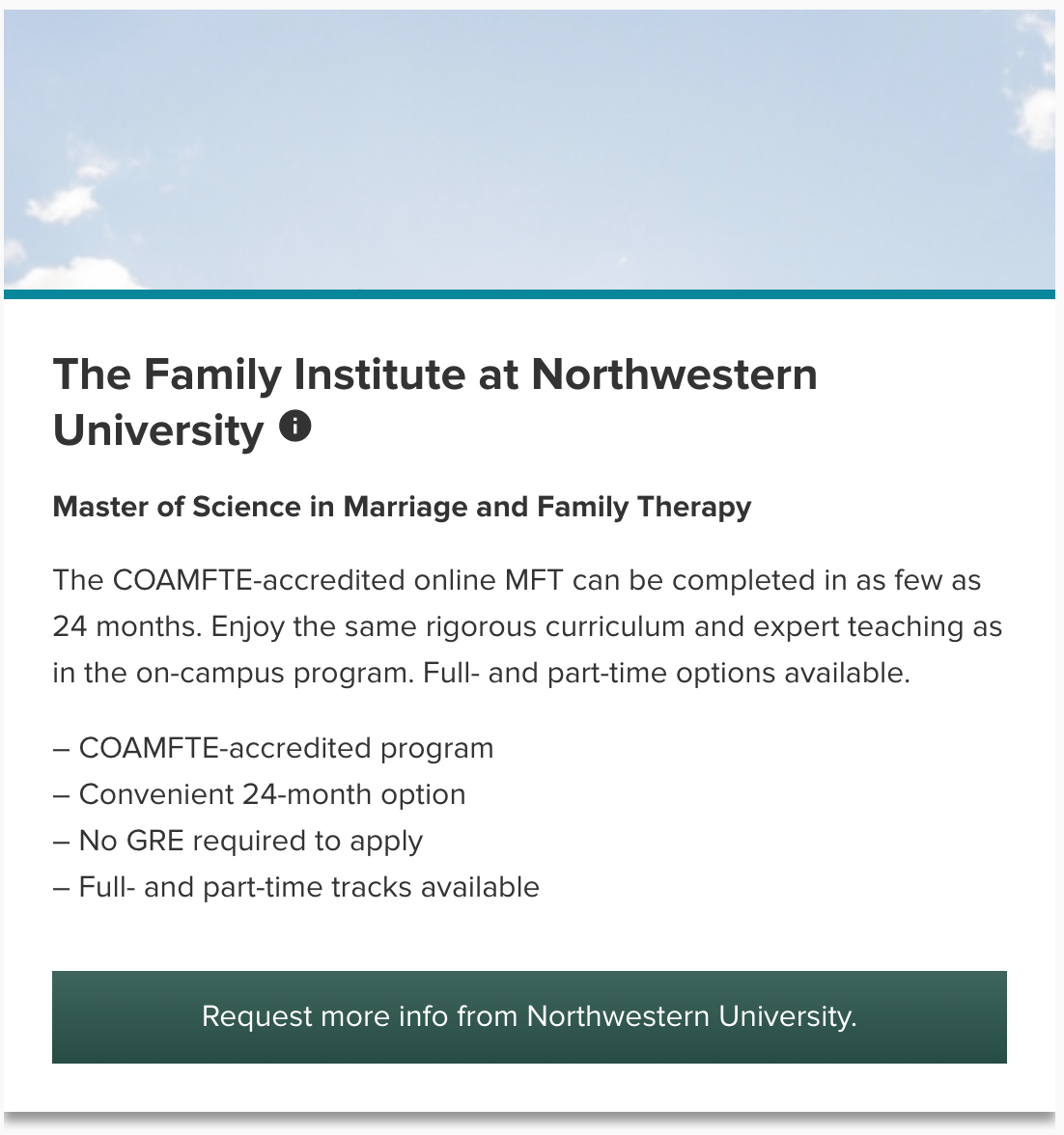
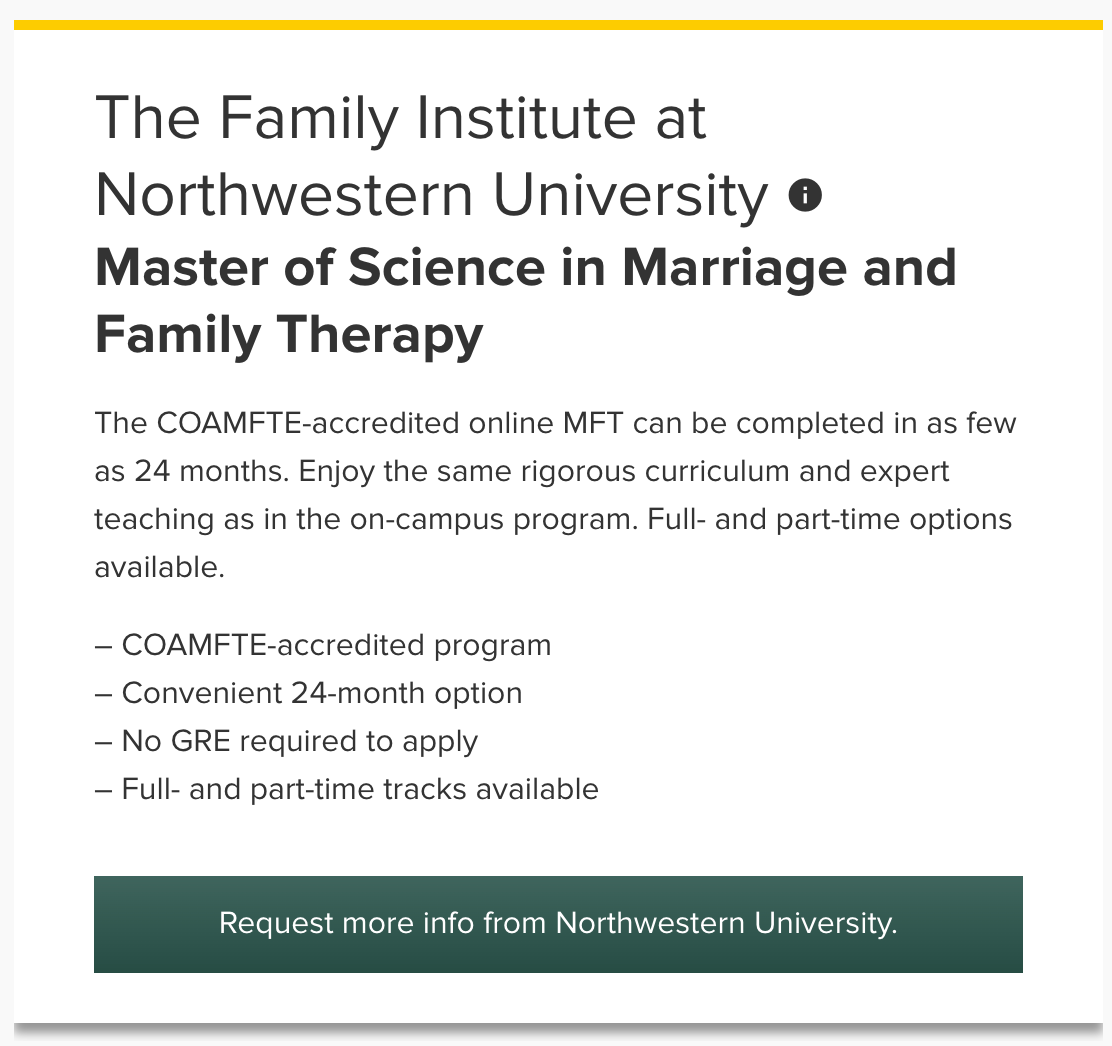
You are also provided with a preview of how that layout will look, before making a selection:
Image
No Image
Single Card
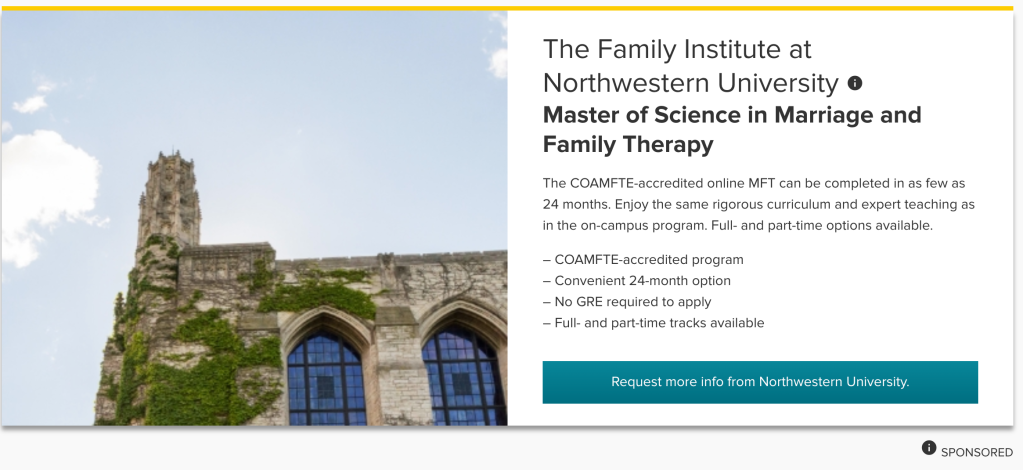
CTA w/ Logo
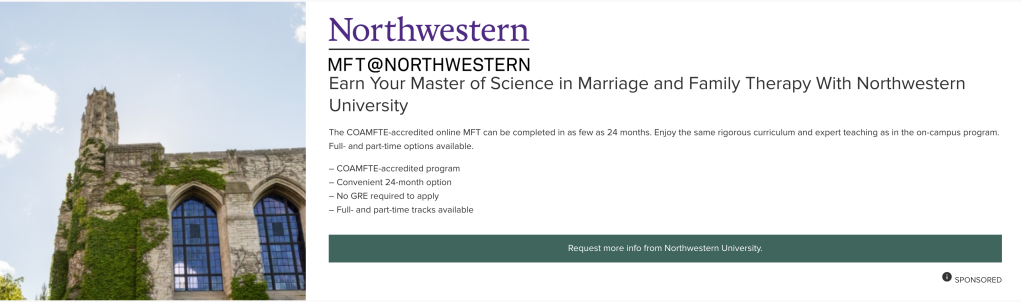
School Card
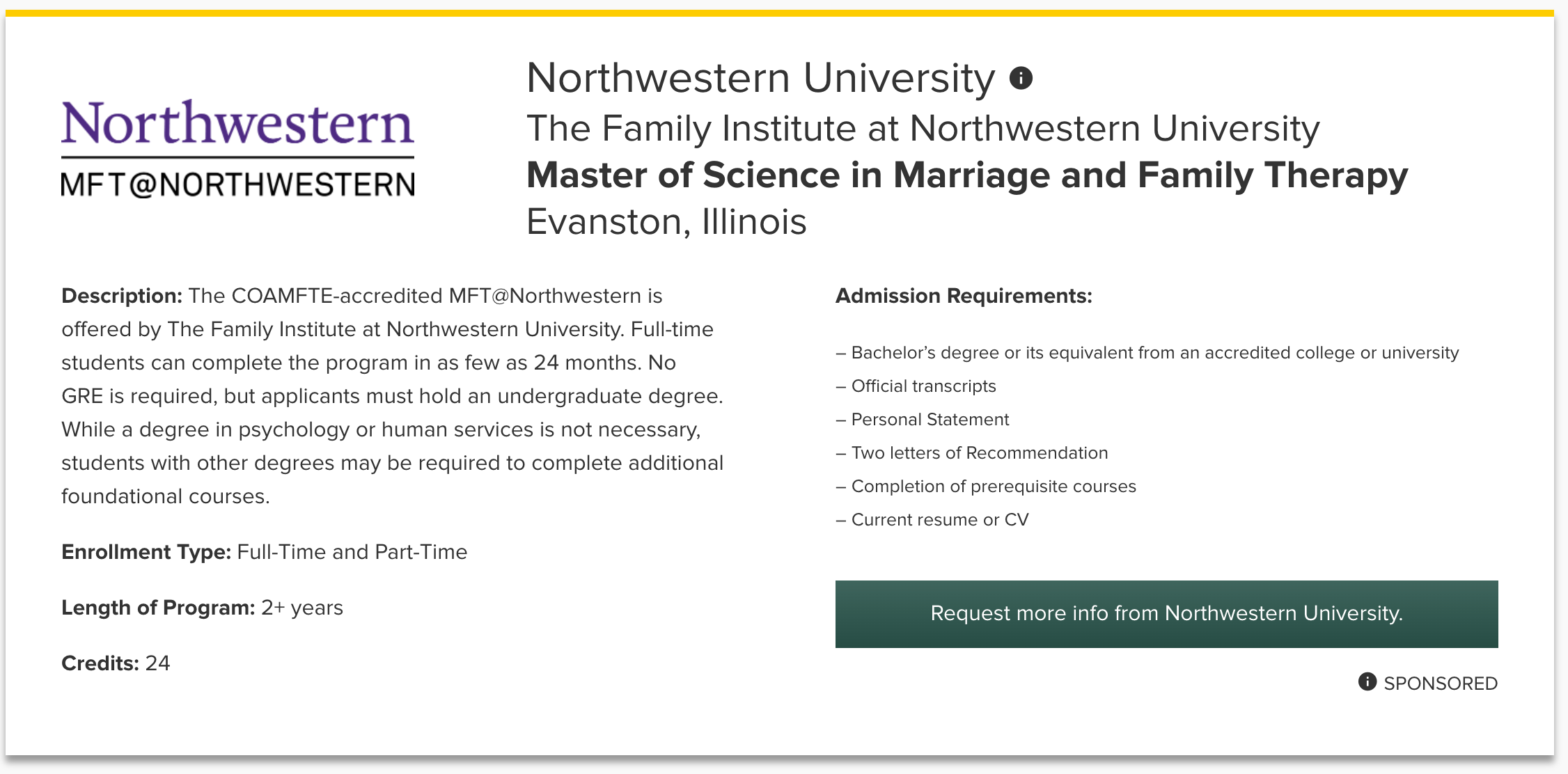
School Profile
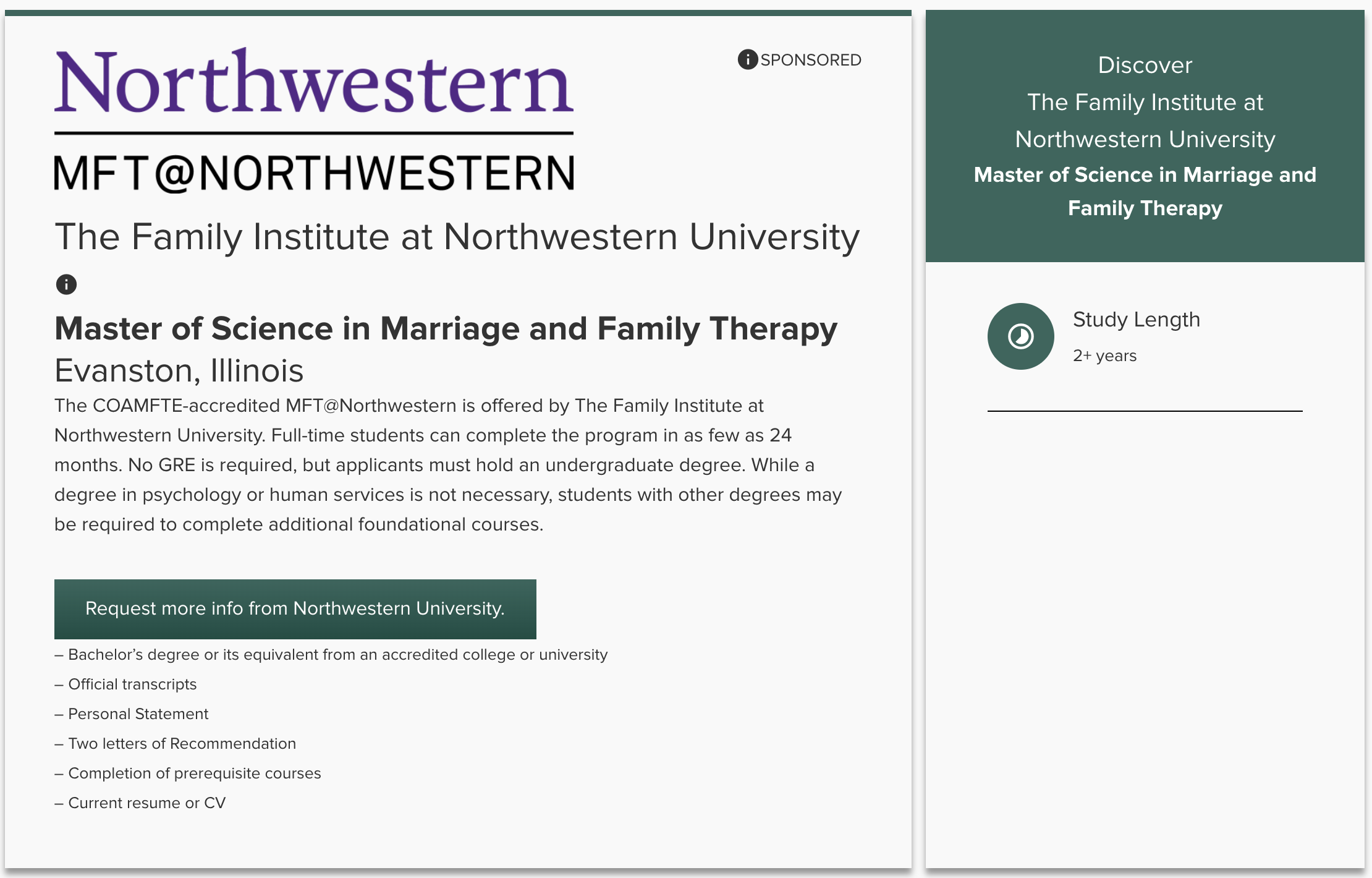
After making your selection, you can then select the Programs you want to display by clicking the ‘+‘ button next to each Program.
To remove a selected Program, simply click the ‘–‘ button next to the Program on the right-hand side.
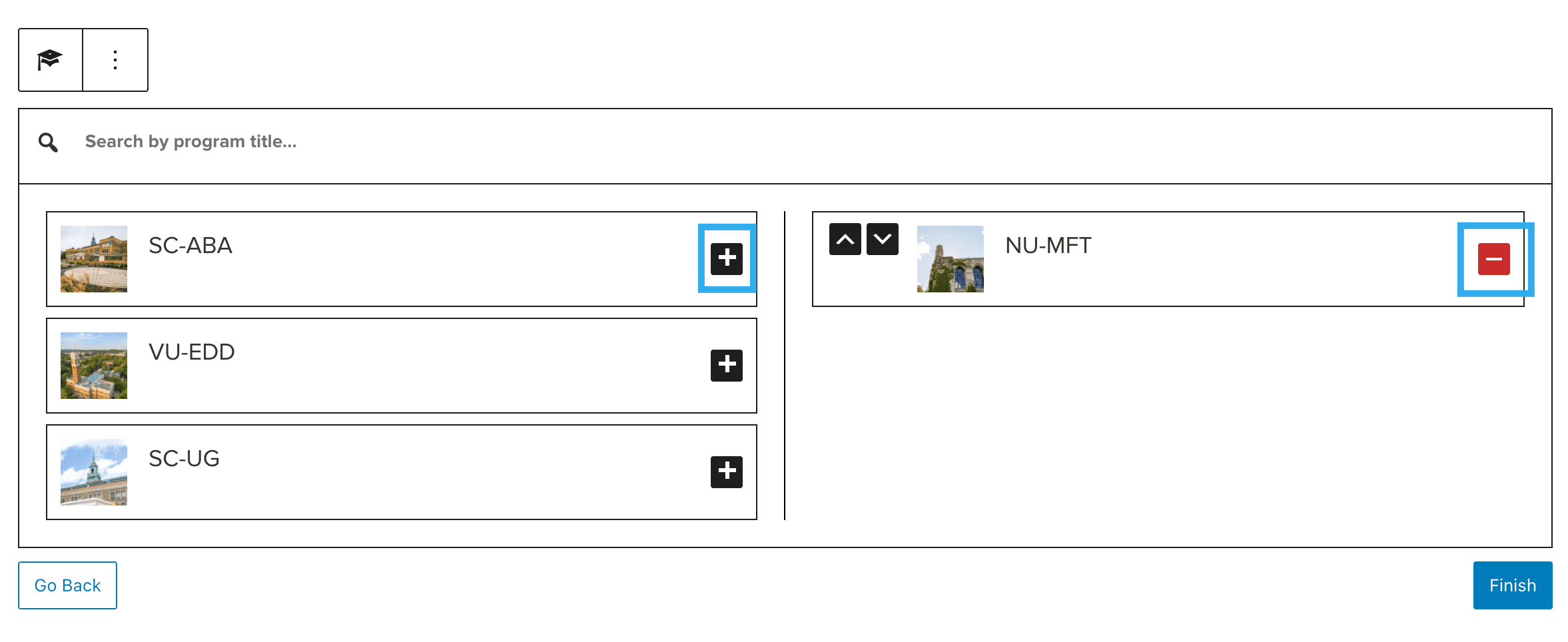
Once you have selected all of the Programs you want to display, click ‘Finish‘.
The Programs will then be loaded into the Editor, with the Layout you have chosen. At this point, you will see some more block settings in the right-hand sidebar. These settings are:
- Amount of Cards per row (defaults to 2)
- Auto append links (toggle – enabled by default)
- Show Featured Headline (toggle – disabled by default)
- Typography:
- School Name Style
- Program Name Style
- Styles (if you want to change the card layout to a different one mentioned above)
Feed:
Choosing Feed mode will take you through the same setup steps as Selection mode, however, after you select your Layout, the feed of Programs will be pulled through automatically.
You are then presented with the following block settings:
- Max number of programs to show (defaulted to 100)
- Is Sponsored (toggle – enabled by default)
- Auto append links (toggle – enabled by default)
- Show Featured Headline (toggle – disabled by default)
- Typography:
- School Name Style
- Program Name Style
- Styles (if you want to change the card layout to a different one mentioned above)
- Taxonomy Filters (to show Programs from specific Taxonomies)
- State
- Degree Type
- Format
- Enrolment Type
- Study Length
- Test Requirement