


News Block
The external news block can be used to display a feed of posts which link out of the website with the option to include internal posts. The block will primarily use the custom post type ‘External News’ to populate the feed and include any internal posts tagged with ‘press’.
Adding External Posts
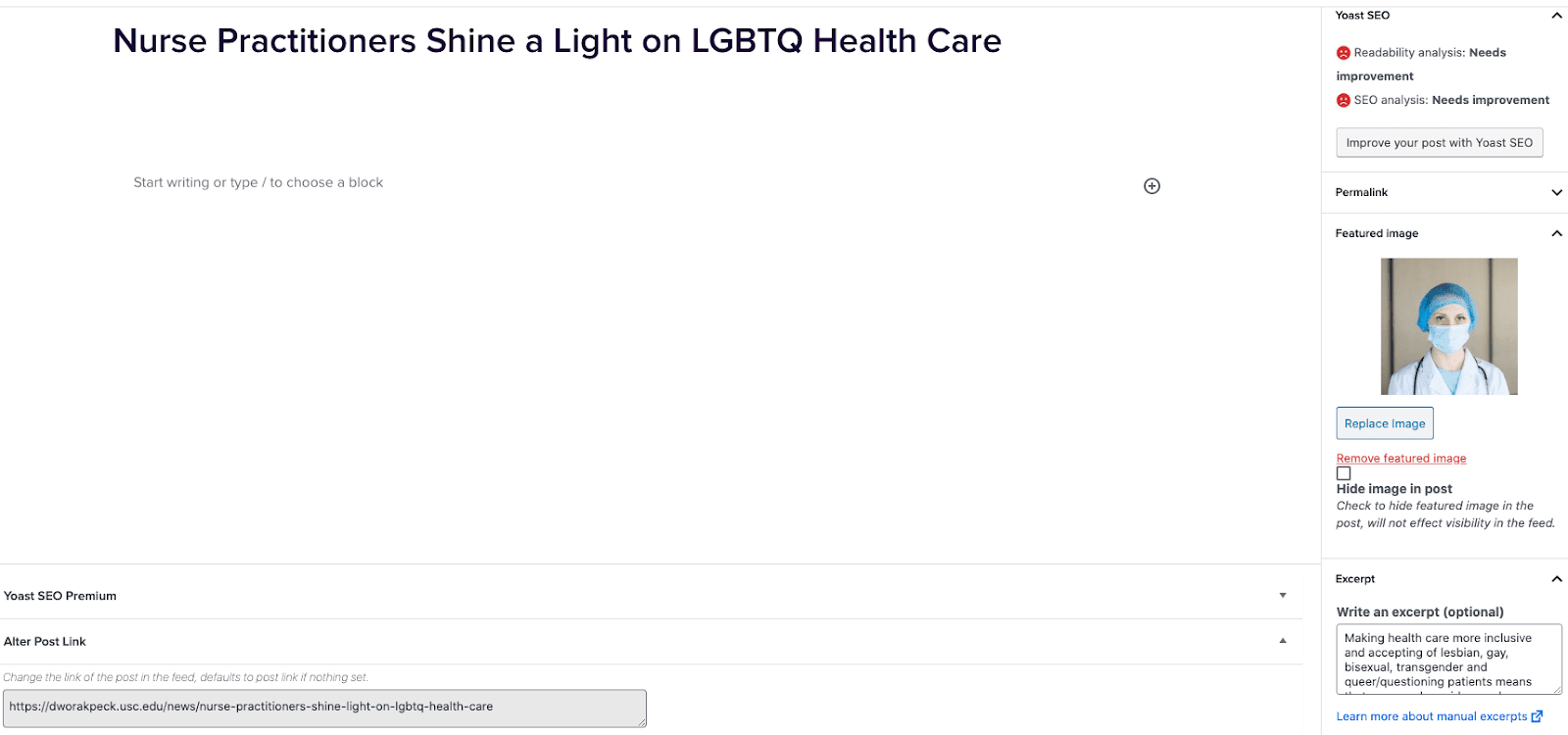
- Go to External News from the left sidebar inside WordPress and click ‘Add New’
- On the right hand menu add your featured image.
- On the right hand menu add the excerpt into the excerpt field.
- At the very bottom of the page add the URL into the ‘Alter Post Link’ field.
- Publish the post.
Including Internal Posts
- Go to the post you want to include.
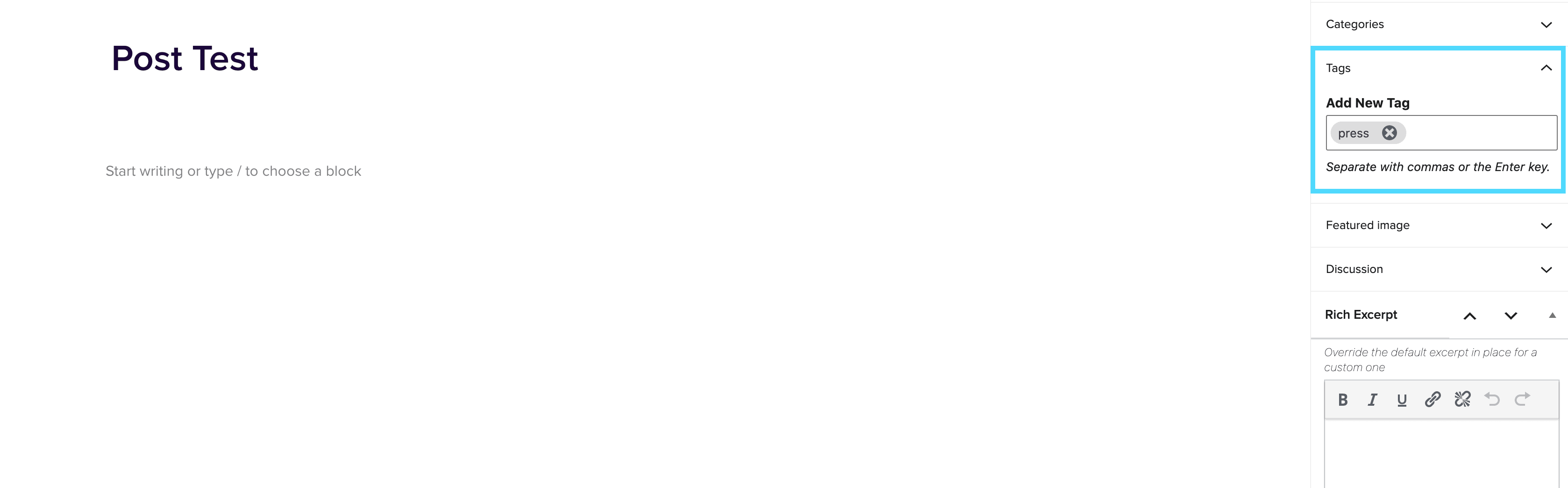
- On the right hand menu go to tags and add ‘press’ into the tags.
- Update the post.
Adding the block to a page
- Create a new page.
- If you want the feed to appear on a specific url then use the standard parent page feature on the right hand menu.
- Add the new news block page to the page by either typing /news or click on add block and then select the news block.
- You can adjust the block settings to change the posts per page and the heading colour.
- Finally publish the page.
Example of block:
In the News
Query Parameter Block
June 27, 2022
Query Parameter Block The Query Parameter block allows you to display different pieces of content based on URL parameters. Some of the features include: Ability to dynamically control blocks of content based on query parameters Ability to set which parameter the query block would read Adds a “contains” option so that you can show content if a parameter contains a given string Adds “or” logic so that the same content can be shown for multiple possible parameter combinations Ignores capitalisation for keys/values To insert a Query Parameter block, insert the Query Parameter Container block, like you would any other block […]
Responsive Image Wrapper
June 10, 2022
Responsive Image Wrapper The Responsive Image Wrapper block should be used in place of the 2U Image block, when you are wanting to control different breakpoints. Once you have inserted the block, you should see 3 tabs reading Desktop, Tablet and Mobile: You can choose a different image for each breakpoint. Each image selected for the different breakpoints will have it’s own group of settings which include (these can all be set for each breakpoint, using the responsive device controls): Padding & MarginAlignment Border Radius Border ColorBorder Width (px)Image Size