News Block
The external news block can be used to display a feed of posts which link out of the website with the option to include internal posts. The block will primarily use the custom post type ‘External News’ to populate the feed and include any internal posts tagged with ‘press’.
Adding External Posts
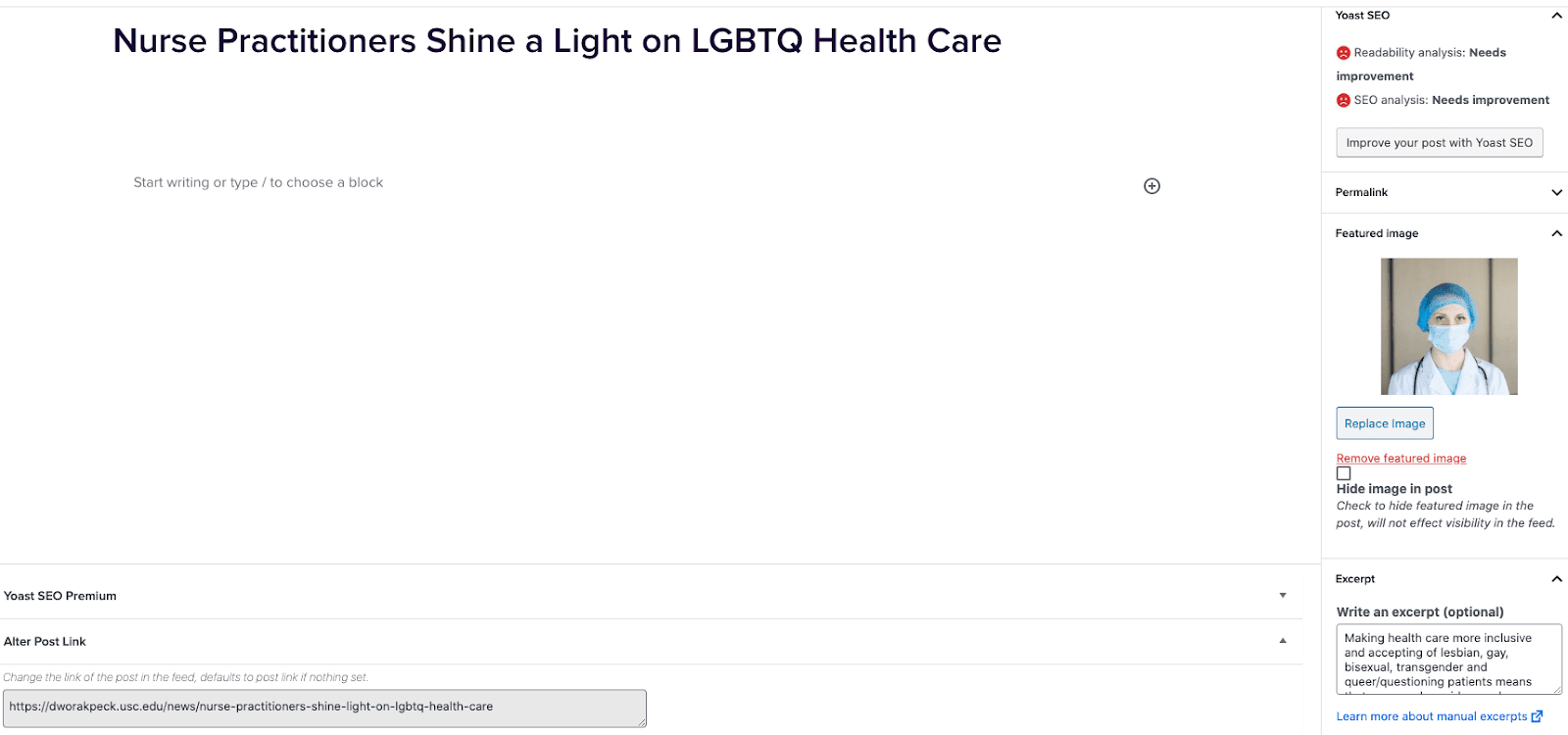
- Go to External News from the left sidebar inside WordPress and click ‘Add New’
- On the right hand menu add your featured image.
- On the right hand menu add the excerpt into the excerpt field.
- At the very bottom of the page add the URL into the ‘Alter Post Link’ field.
- Publish the post.

Including Internal Posts
- Go to the post you want to include.
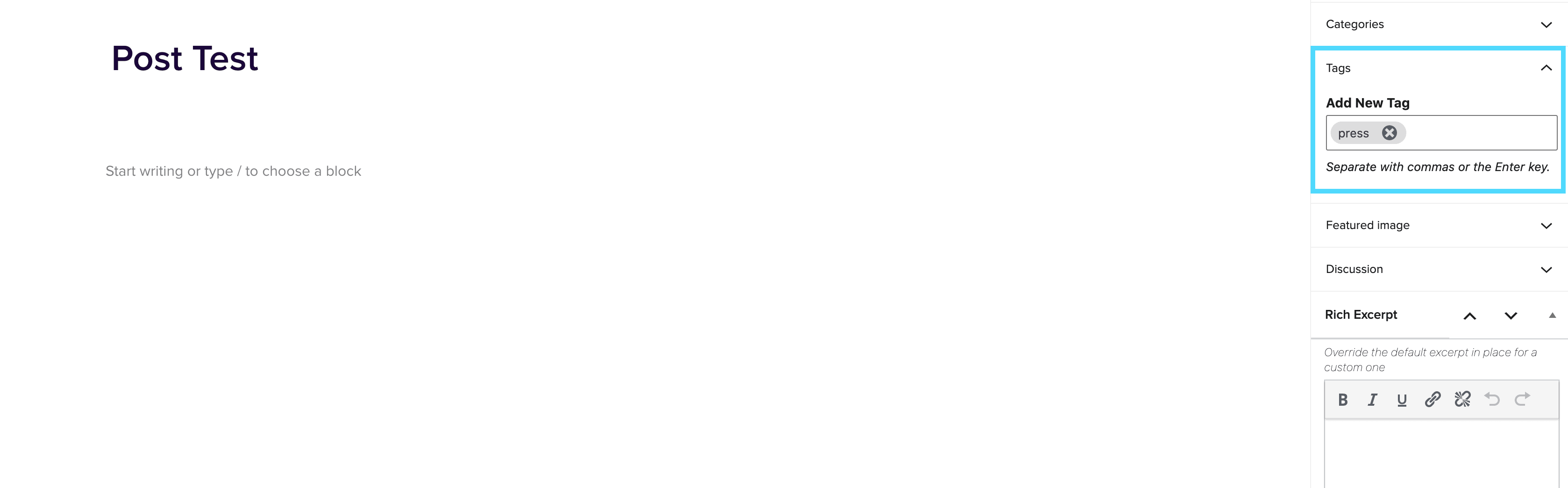
- On the right hand menu go to tags and add ‘press’ into the tags.
- Update the post.

Adding the block to a page
- Create a new page.
- If you want the feed to appear on a specific url then use the standard parent page feature on the right hand menu.
- Add the new news block page to the page by either typing /news or click on add block and then select the news block.
- You can adjust the block settings to change the posts per page and the heading colour.
- Finally publish the page.
Example of block:
In the News
Button Block
September 9, 2020
Button(s) Block The Button(s) Block can be used anywhere on the site and within mostly every block. There are many uses for the button block, as these can be placed statically to link through to pages or external links, as well as open Taxi Lead Form Modals. Below are the different style variations that are available within the button block: Button Amount Setting This setting allows you to have up to 3 buttons side-by-side on a page. You can adjust each button’s style individually and set links for each button too. You can also adjust the alignment of all 3 buttons together. Margin Component Setting […]