


News Block
The external news block can be used to display a feed of posts which link out of the website with the option to include internal posts. The block will primarily use the custom post type ‘External News’ to populate the feed and include any internal posts tagged with ‘press’.
Adding External Posts
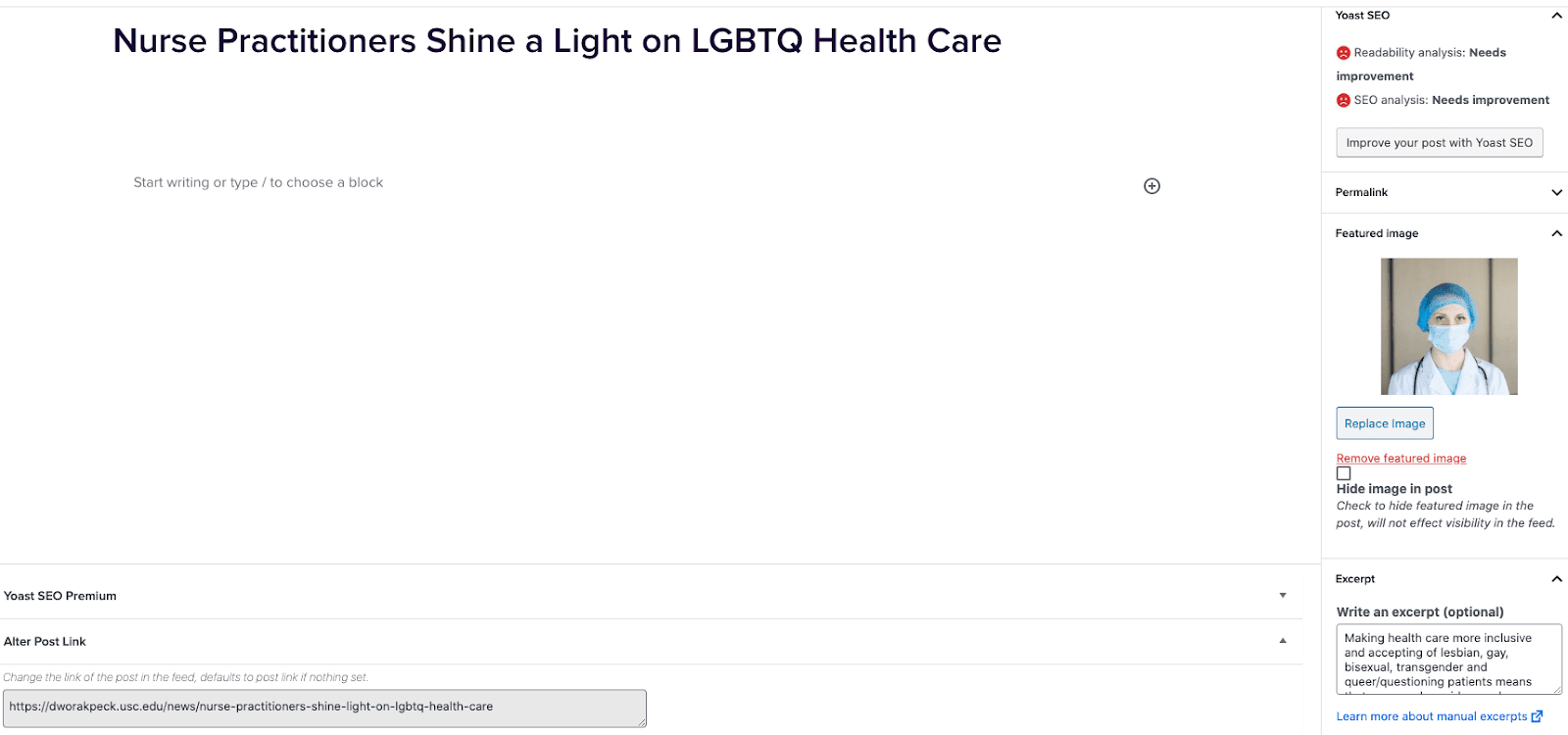
- Go to External News from the left sidebar inside WordPress and click ‘Add New’
- On the right hand menu add your featured image.
- On the right hand menu add the excerpt into the excerpt field.
- At the very bottom of the page add the URL into the ‘Alter Post Link’ field.
- Publish the post.
Including Internal Posts
- Go to the post you want to include.
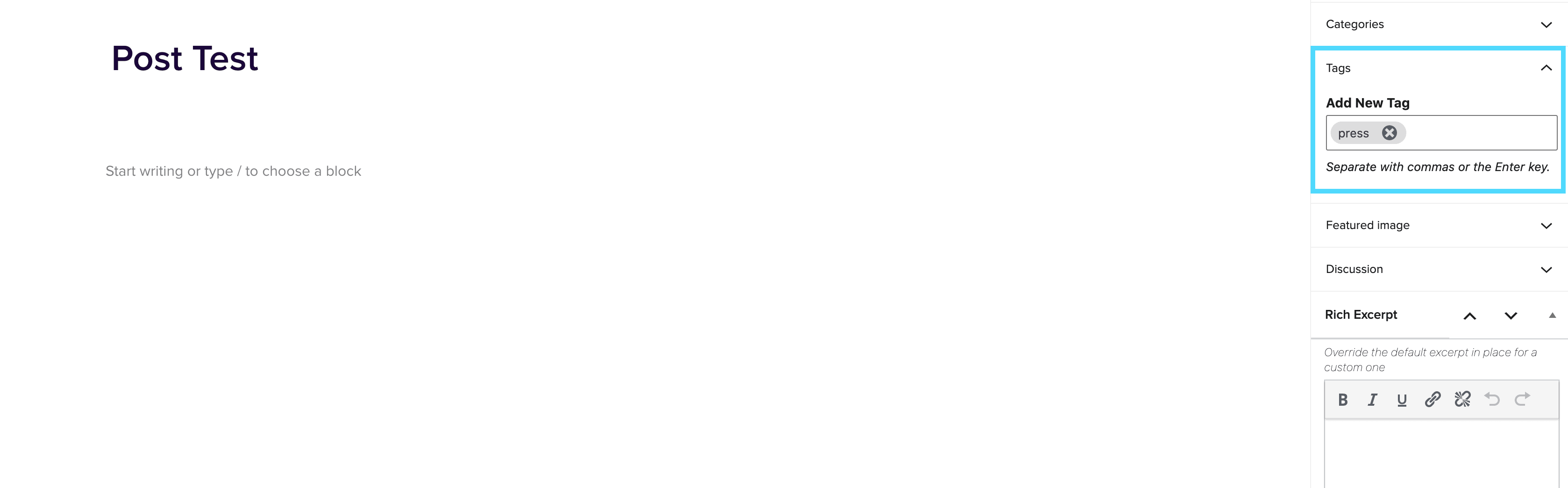
- On the right hand menu go to tags and add ‘press’ into the tags.
- Update the post.
Adding the block to a page
- Create a new page.
- If you want the feed to appear on a specific url then use the standard parent page feature on the right hand menu.
- Add the new news block page to the page by either typing /news or click on add block and then select the news block.
- You can adjust the block settings to change the posts per page and the heading colour.
- Finally publish the page.
Example of block:
In the News
BB List test v2
June 7, 2021
This is my Heading Lorem Ipsum is simply dummy text of the printing and typesetting industry. Lorem Ipsum has been the industry’s standard dummy text ever since the 1500s, when an unknown printer took a galley of type and scrambled it to make a type specimen book. It has survived not only five centuries, but also the leap into electronic typesetting, remaining essentially unchanged. It was popularised in the 1960s with the release of Letraset sheets containing Lorem Ipsum passages, and more recently with desktop publishing software like Aldus PageMaker including versions of Lorem Ipsum. Indent this slightly so bullet lines […]
Swiss Army Section Block
May 12, 2021
Swiss Army Section Block The Section Block is one of the most fundamental blocks within the Gutenberg suite on the 2U environment and will often be added to a page automatically. We have adapted this and added new features to improve functionality. What’s new? The old Select Background Image button has been integrated with the new features. The wording Select Background Image has been changed to Select Desktop Image to keep it consistent with the new options, but it still works in the same way as the old button. Similarly to the New Image Block there is a device selector that will […]