Release 6.27.6
Settings added for Xpert Chatbot to be used across all sites.


The Dynamic Card Block uses the same settings as the Custom Card Block. The only difference between these blocks, is that the dynamic card block allows you to pull a feed of data from your selected custom post type. E.g. you can choose to pull a feed from the Alumni post type, then style the cards as you would with the custom card block.
The 6.27.0 Release included an update to WordPress 6.8. Dot releases following this were for minor fixes.
Hero PLP experiment feature rollout, admin updates
Before you can use the Dynamic Card Block; you will need to create some posts within the WordPress dashboard area. The following post types will be available to use from this screen:
Creating a post is essentially like creating a page, you can insert any block within a post page and this is what the user will see when they click in the card that is related to that post.
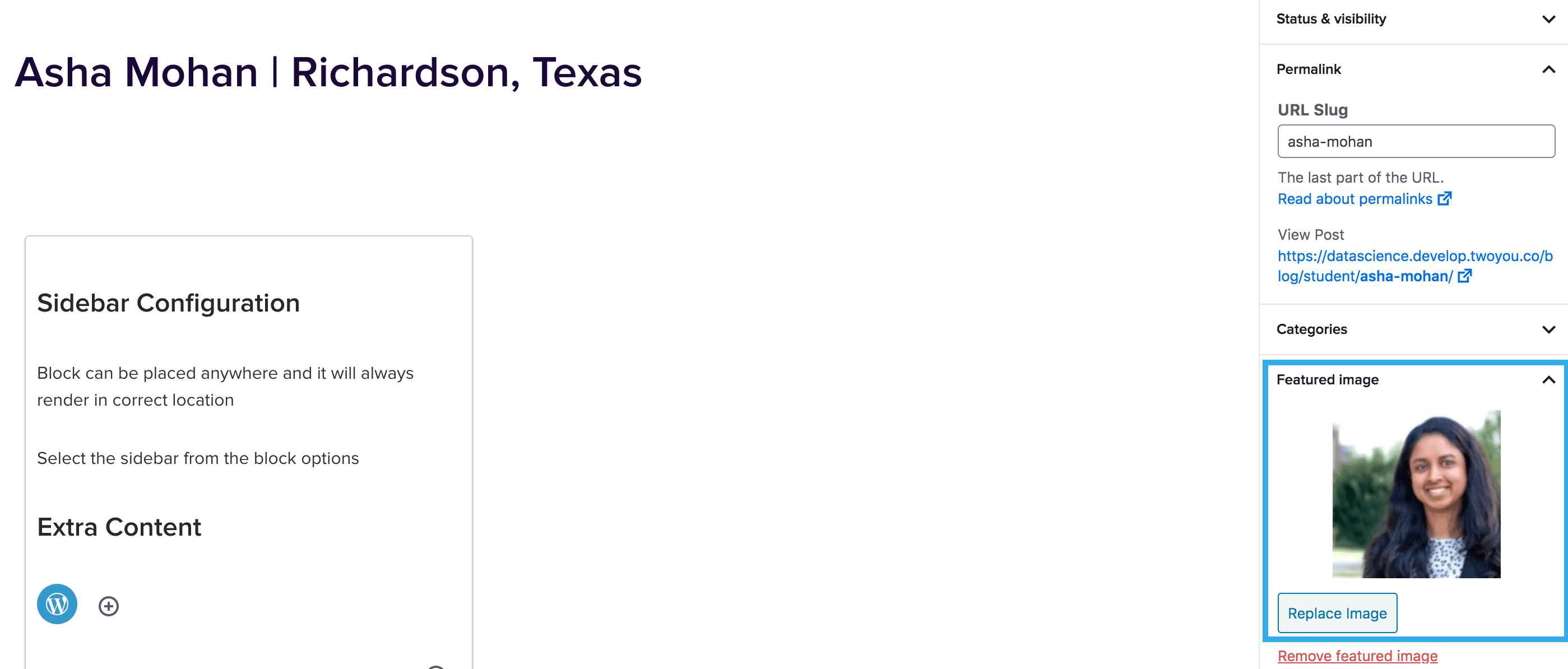
Note: It is important to remember to select a featured image for your post as this is what will show on the front-end of the card, when using the Dynamic Card Block.
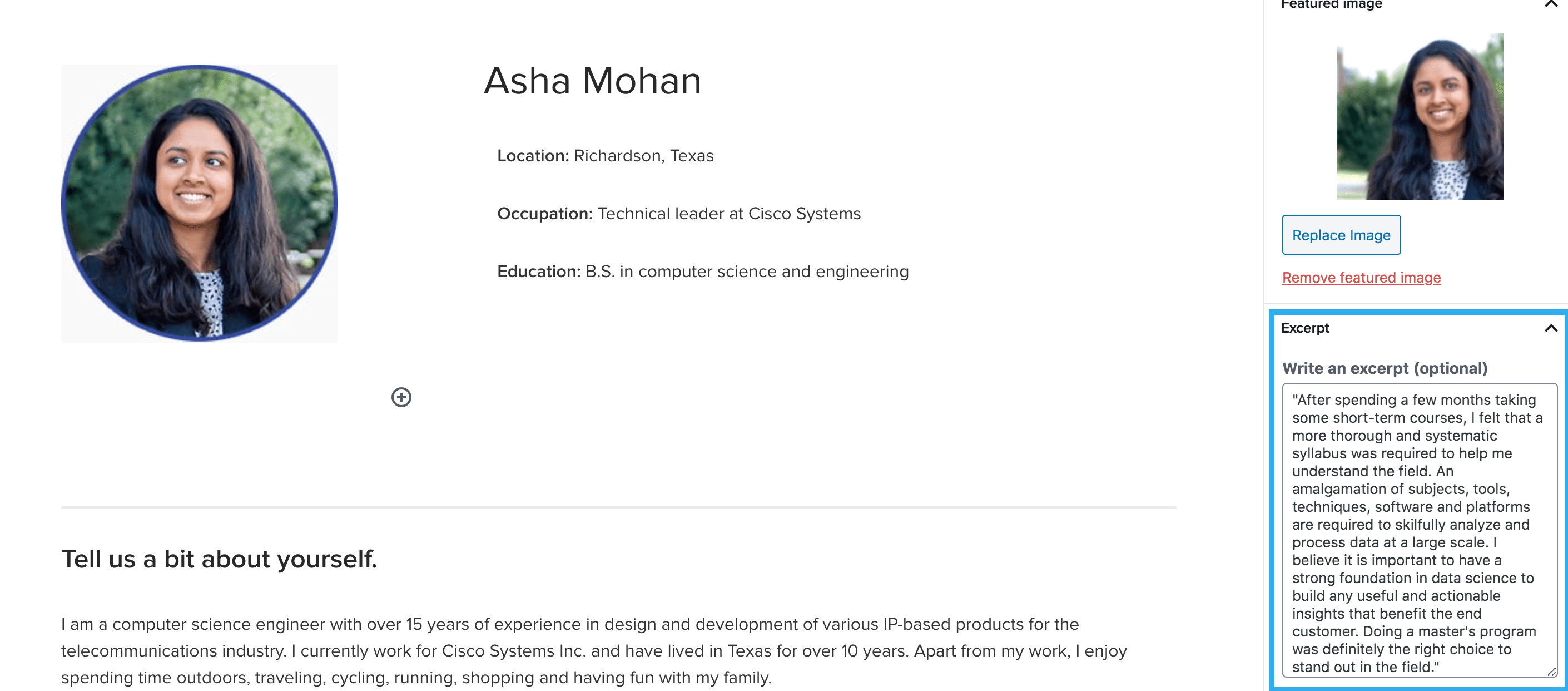
Once you have selected a featured image for your post, you can choose to insert an excerpt which will be shown on the front-end of the card. If you choose not to insert an excerpt, the card will pull through the content from within the post page.
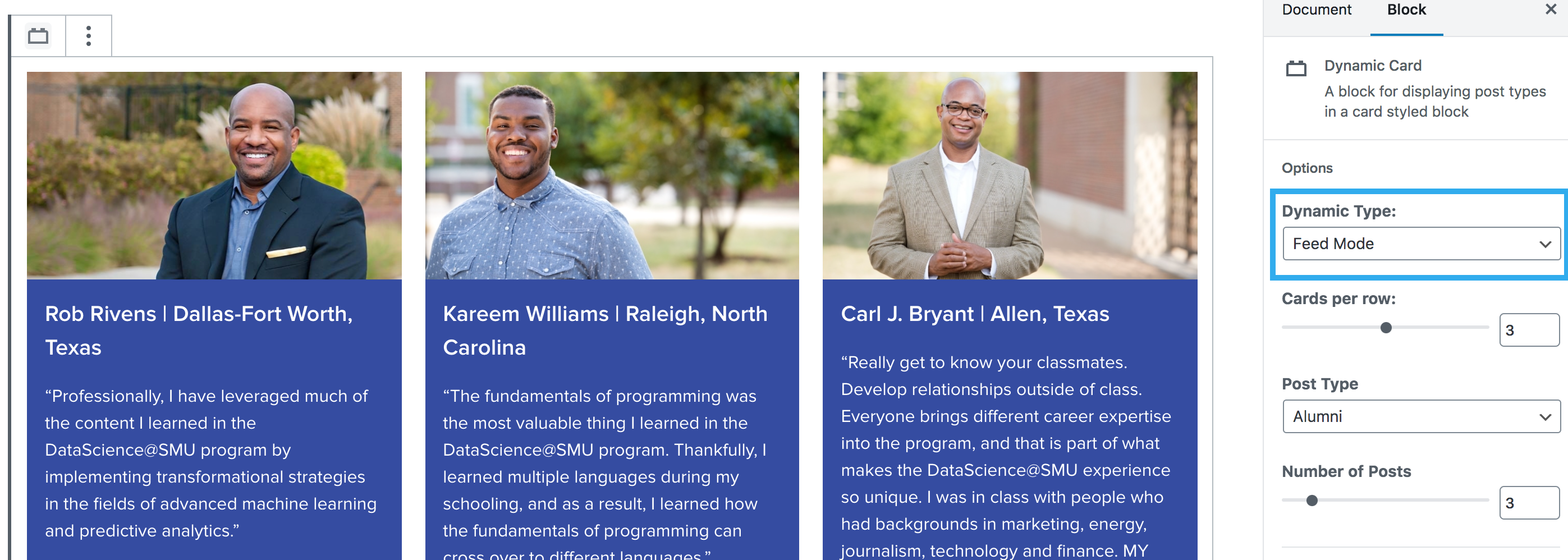
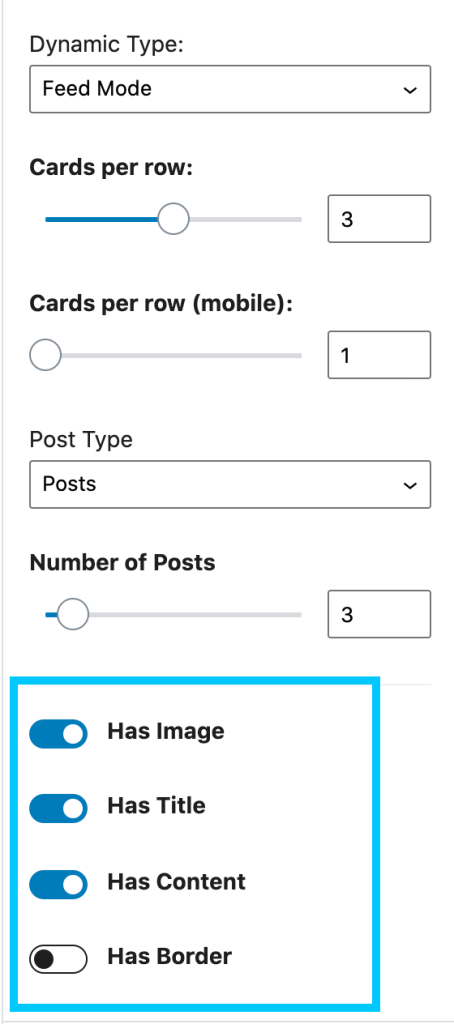
This setting allows you to either feed mode, where it will display a full feed of all of the posts created using that post type; or alternatively, you can choose selection mode which allows you to select specific posts to show on the page.
Note: in selection mode, you can select posts from different post types, rather than just an individual post type.
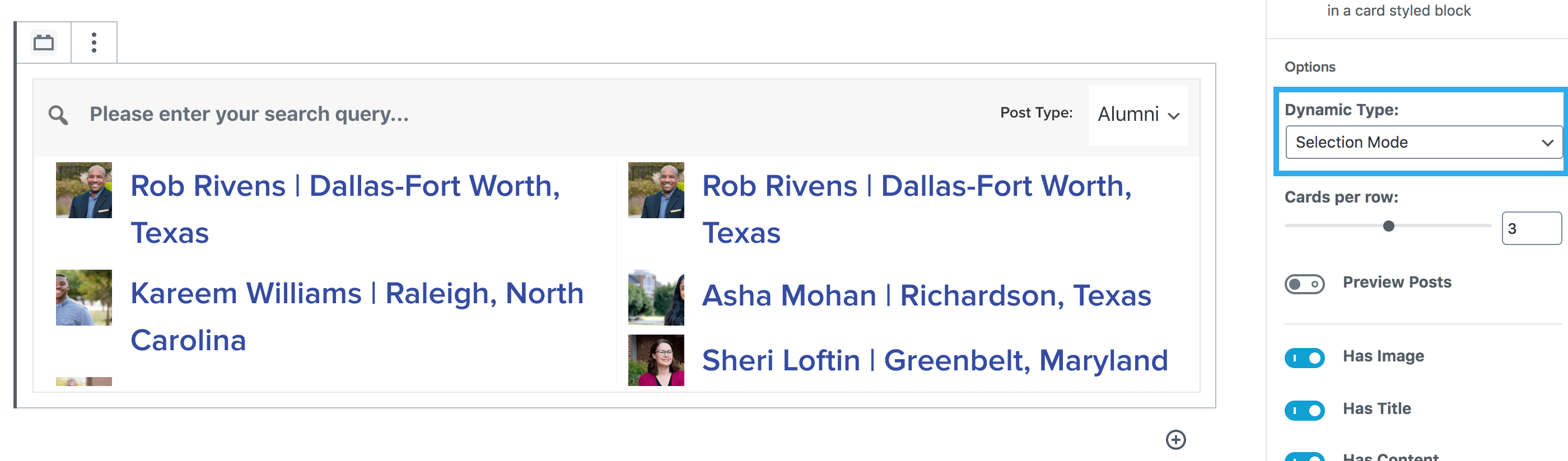
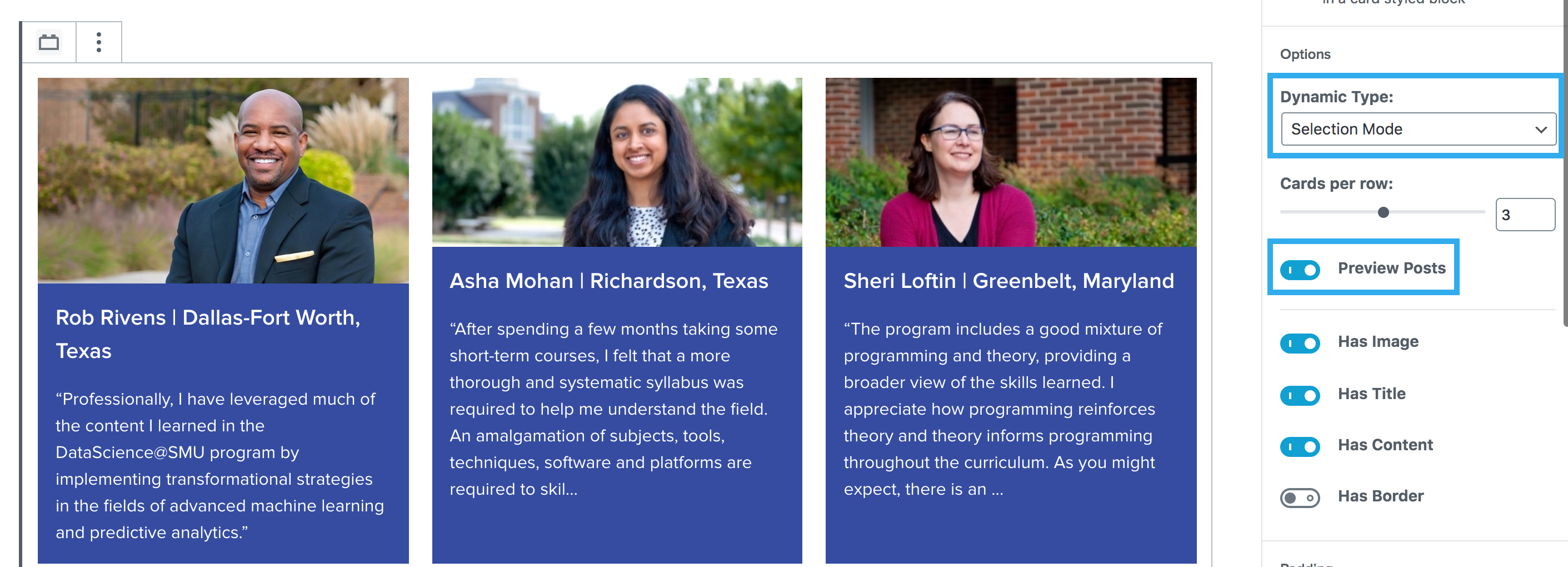
In selection mode, you are presented with a new setting for preview posts, which you can toggle on/off in order to view the posts that you have selected.
Note: you can also search for a specific post in this mode.
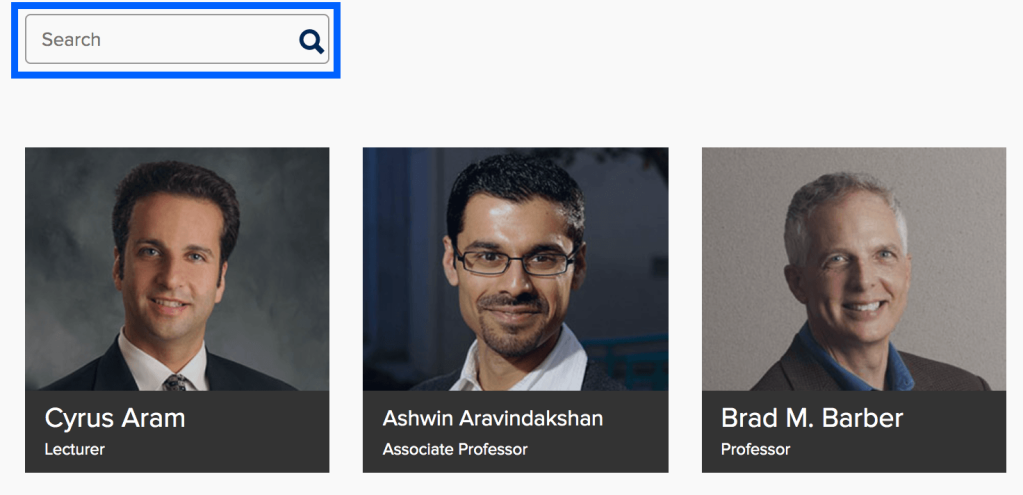
To allow further functionality on this block we have added a search feature to allow users to navigate the posts easier and find what they’re looking for quickly.
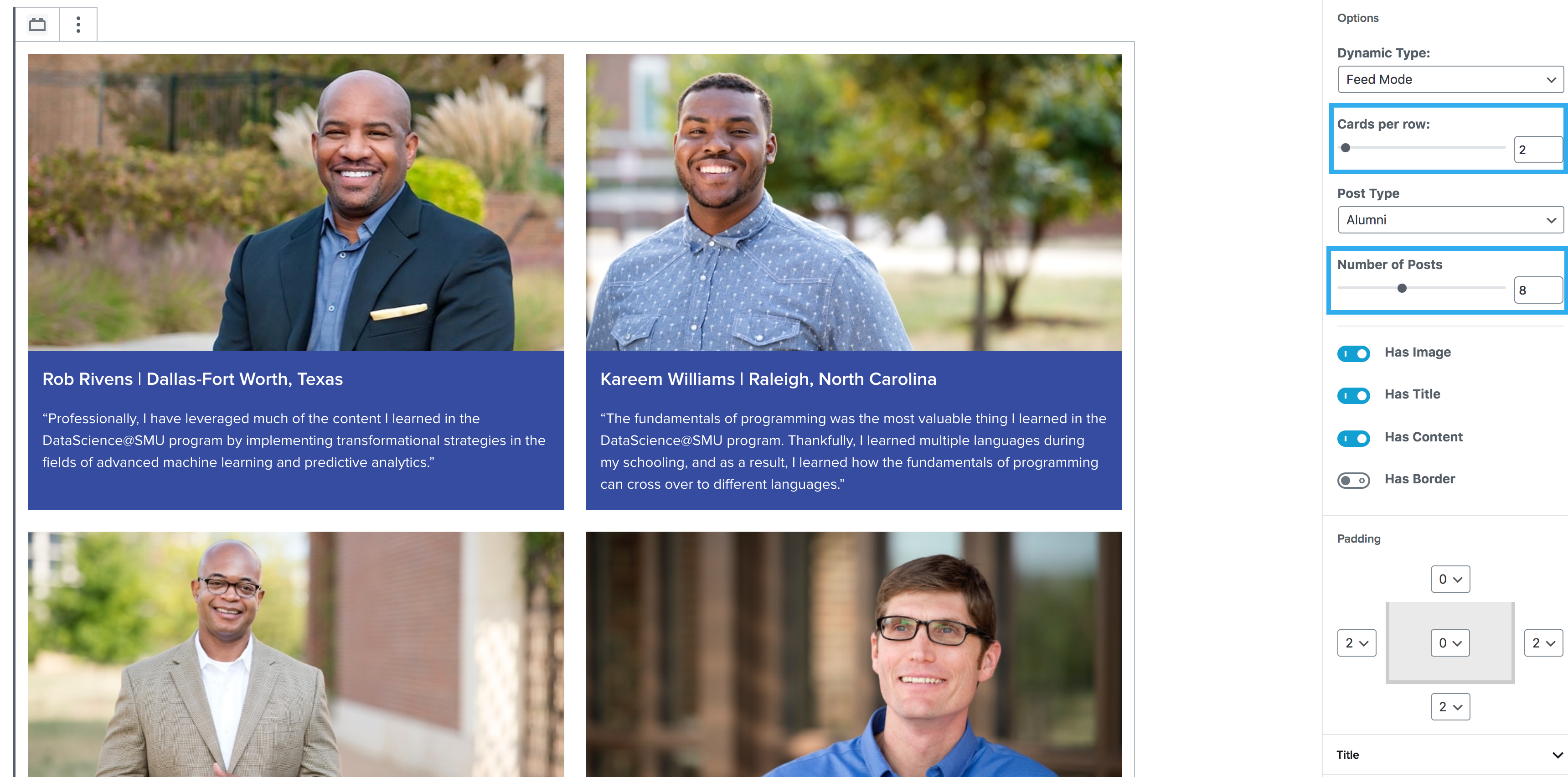
This setting allows you to select how many cards you want to be displayed in each row, you then have a setting below this to select the number of posts you want to appear on the page.
This is the second version of the Dynamic Card Block which allows you to insert the block within the footer of the page.
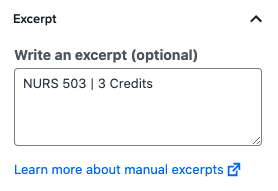
When the 2 column layout is selected the dynamic card block will remove the | character from the excerpt and split the text into two columns.
This will now apply the 2 column footer layout to the dynamic card and you can use the other settings to achieve your desired style.
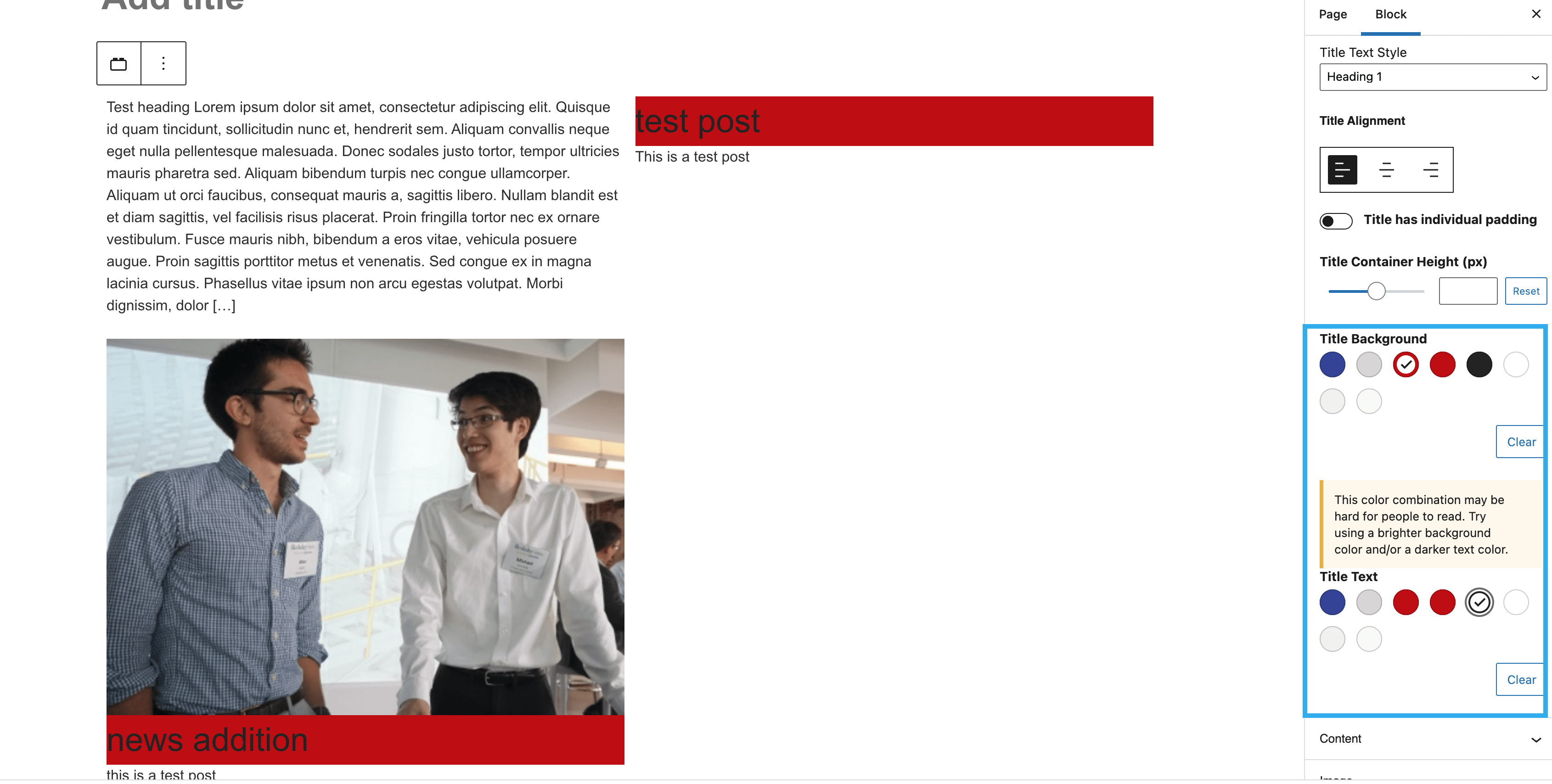
The dynamic card block also has the ability to customize the title content and image. To add these settings to the options panel, ensure the below toddles are highlighted.
These options allow you to change the text and background colours of the title and content.
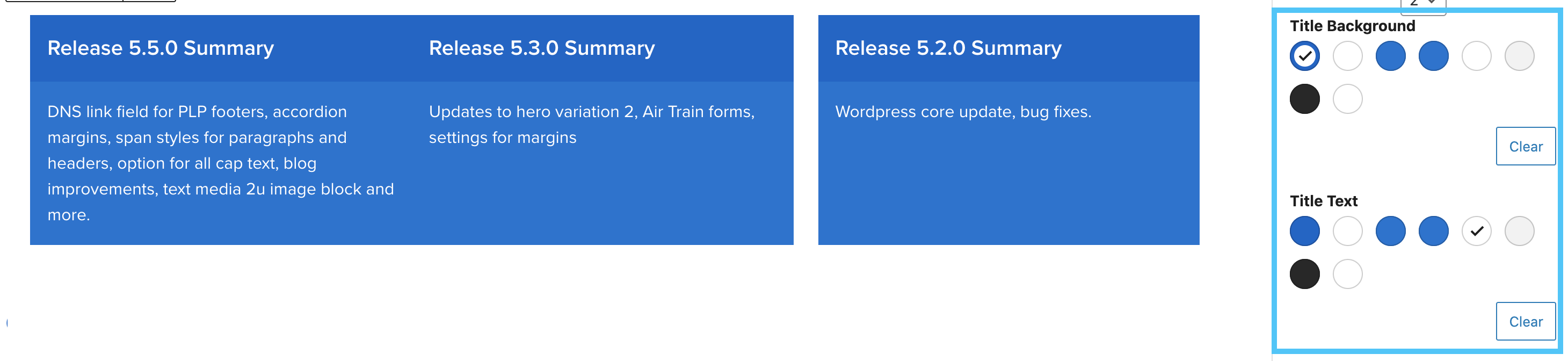
The Dynamic card block also includes a feature which triggers an alert should the background and text colour combination not meet the minimum colour contrast.