Global Settings
How it works
As part of the Theme Development for 2U, Big Bite designed & developed a React-based app which lives within the WordPress dashboard, to control the Global Settings of each site.
This houses settings for elements such as:
- General
- Header
- Footer
- Navigation Options
- Typography
- Colours
- Branding
- Taxi
- Blog
- Gutenberg Blocks (e.g. content container / section)
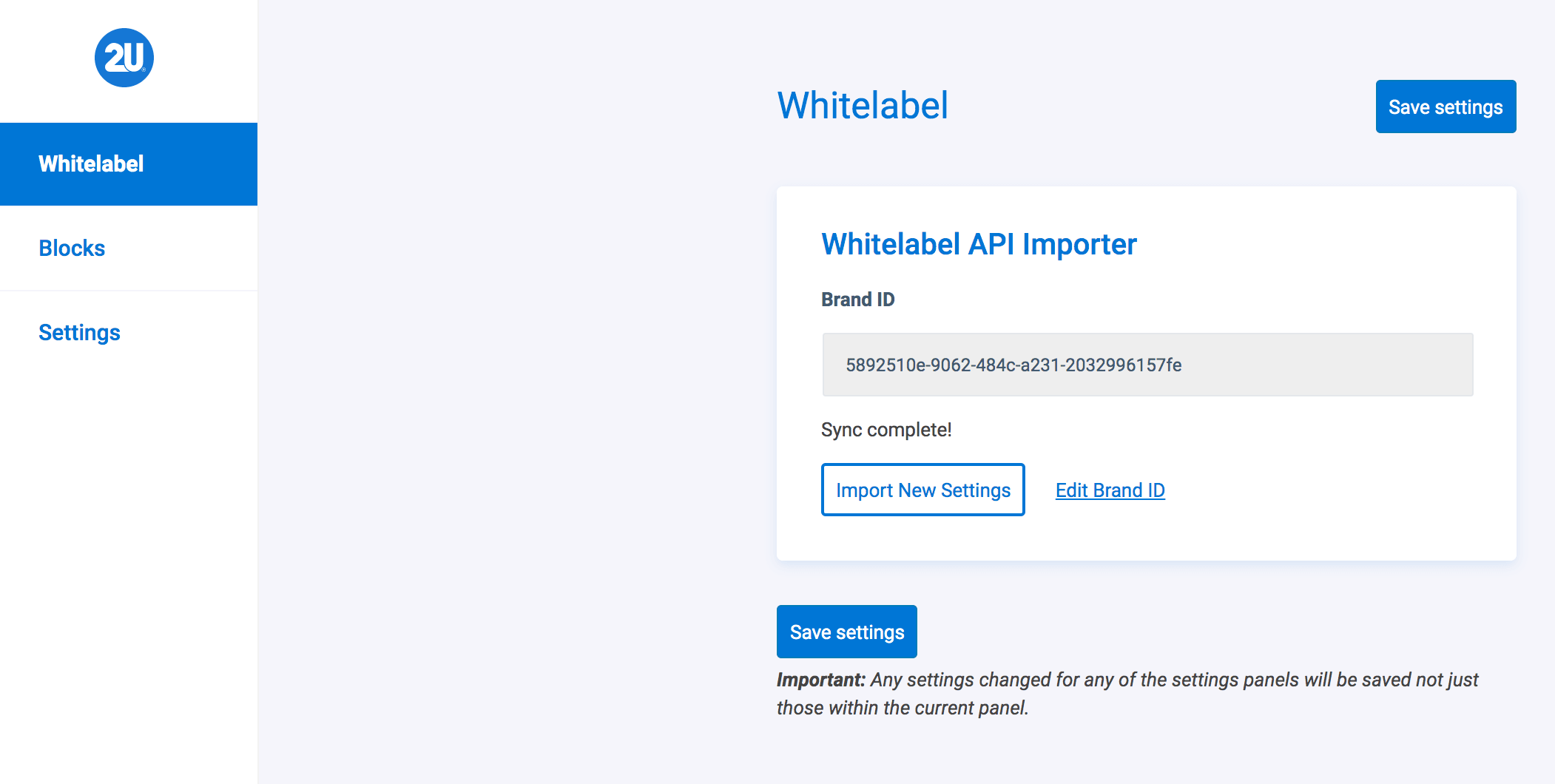
This is also the area used to control the Whitelabel & Taxi integrations. You can import new settings from Whitelabel by going to Options > Whitelabel > Import New Settings. Or set the Brand ID here too.
General
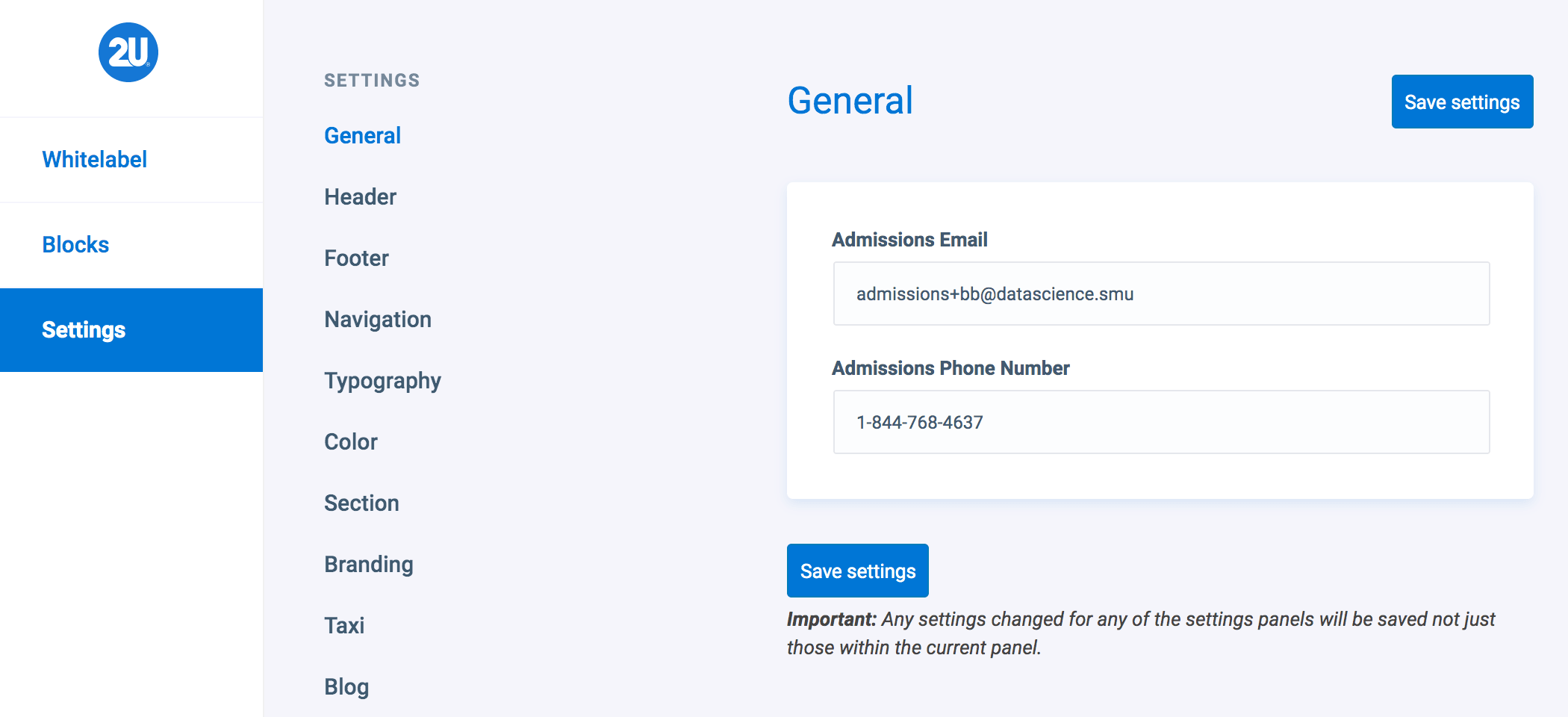
The General settings tab allows you to edit the Admissions Email and Admissions Phone Number.
Header
The Header area of Global Settings allows you to select the overriding settings for elements such as:
- ‘Apply Now‘ CTA button
- Navigation Alignment
- Navigation Style (Hover & Active State Colours)
- Logo 1 & 2 Horizontal & Vertical Alignment
- Footer Logo Height & Padding
- Mobile Logo Alignment, Height & Padding
Footer
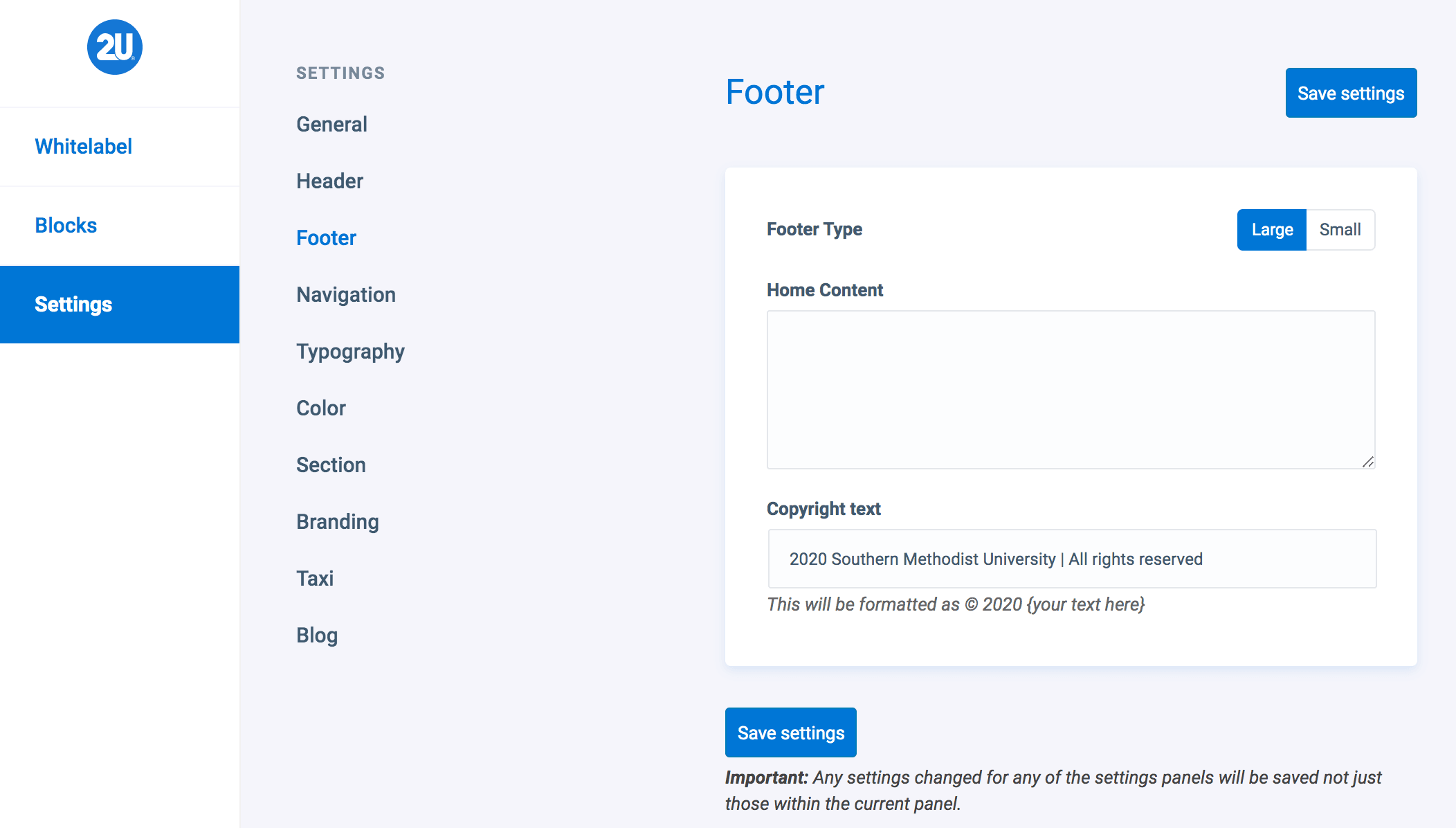
The Footer area of Global Settings allows you to edit the following fields:
- Home Content
- Copyright Text
Any text that is entered in these fields, will override the entire site. You can use the Footer Block to override these fields per page, if required.
Navigation Options
The Navigation tab within Global Settings allows you to adjust the horizontal alignment of the header navigation. This will also allow you to select the mobile alignment of the navigation too.
Insert image here once this is released
Typography
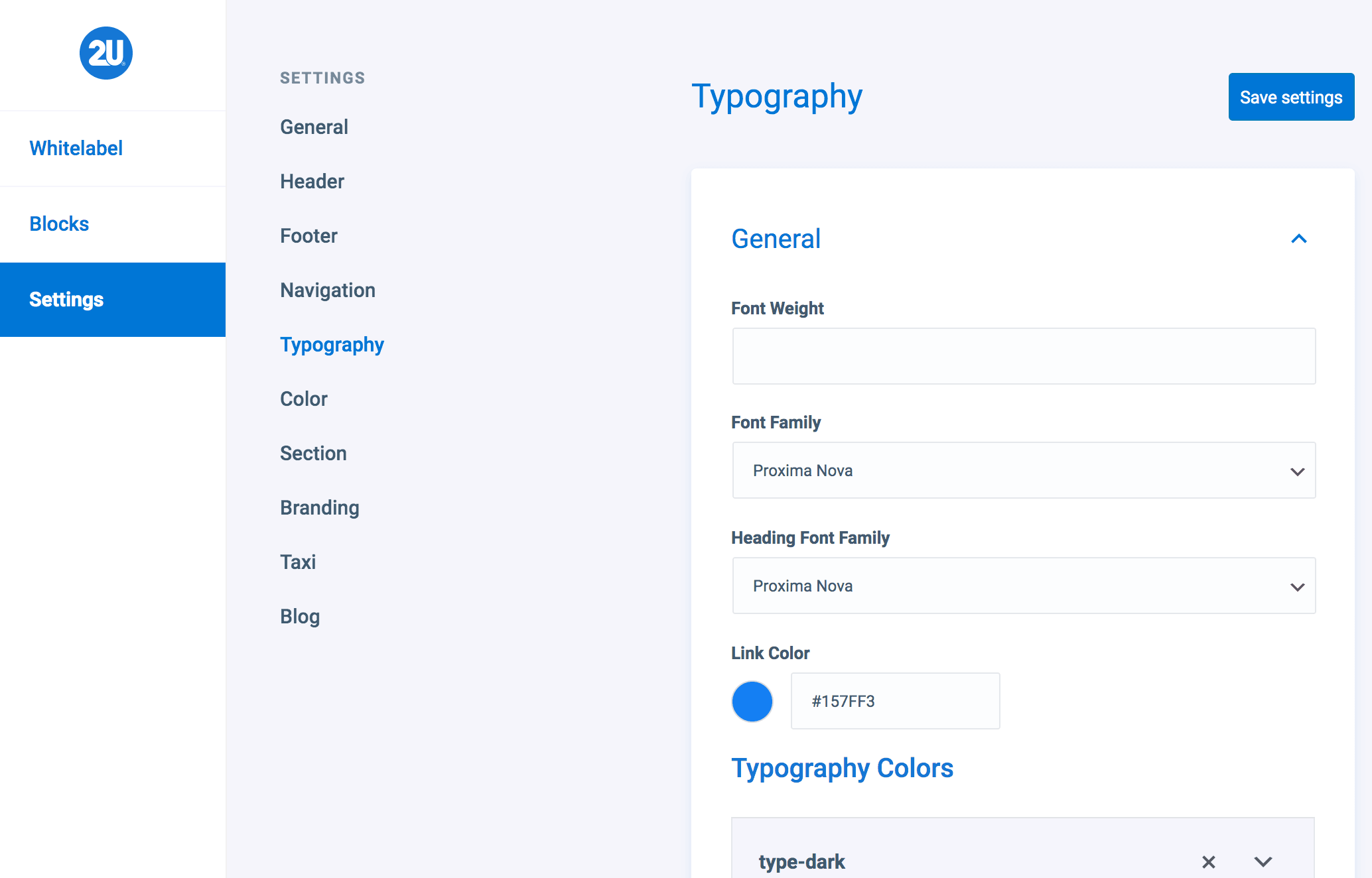
The Typography tab within Global Settings allows you to override all settings that have been imported from the Whitelabel settings. You can override settings such as:
- General Font Family
- Heading Font Family
- Link Colour
- Typography Colours
- Typography Size, Weight, Line Height & Letter Spacing
Colours
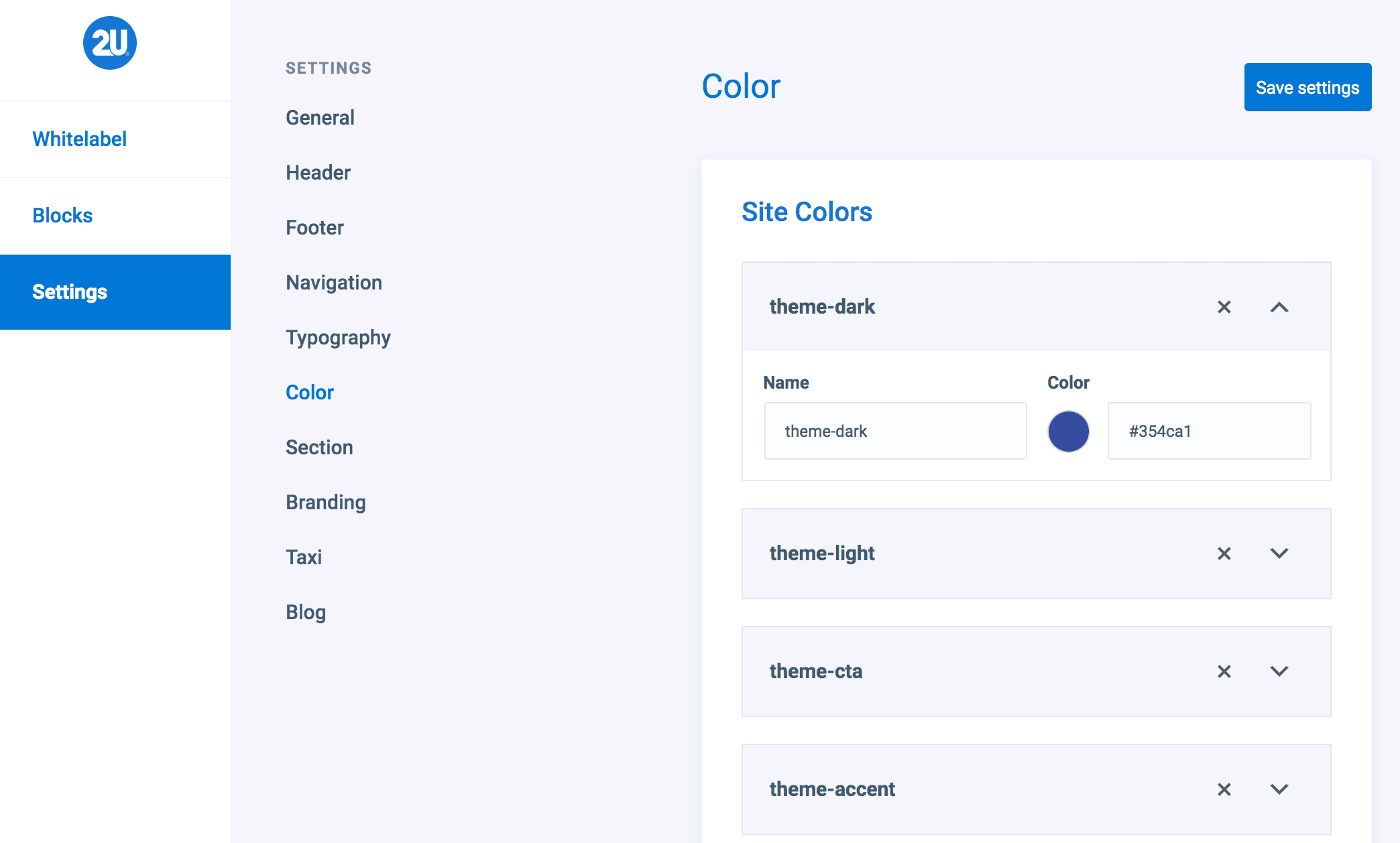
The Color tab within Global Settings allows you to to view & override any settings that have came down from the Whitelabel settings. The Whitelabel importer pulls over the color names such as:
- theme-dark
- theme-light
- theme-cta
- theme-accent
You can also add new colors on this page, which will not sync across to Whitelabel.
Section
The Section tab within Global Settings allows you to view the container sizes that have been passed through the Whitelabel importer. You can also override these container sizes, or add new ones, within this screen.
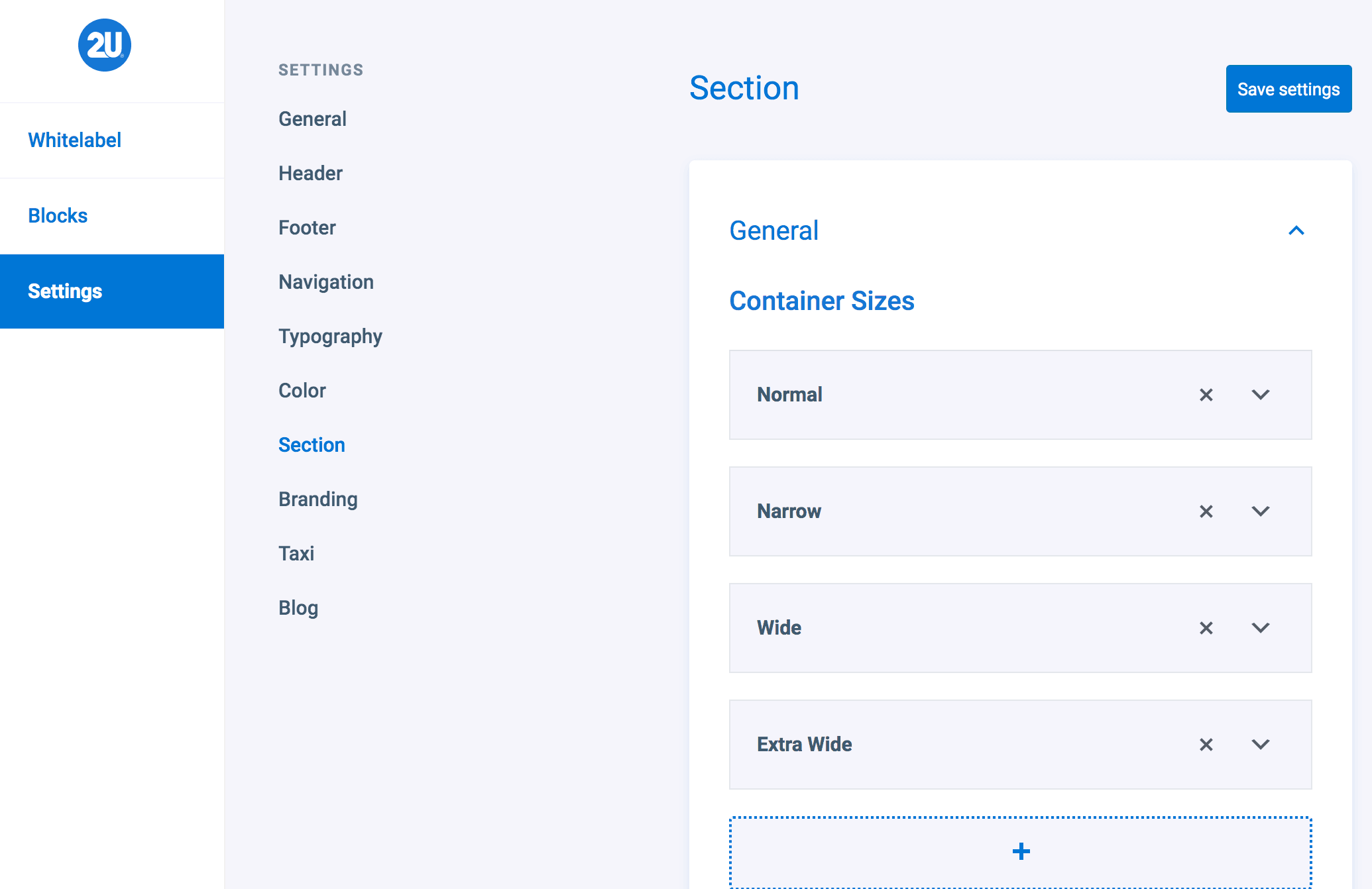
As well as the container sizes, you can set the sections default, primary & dark colors.

Branding
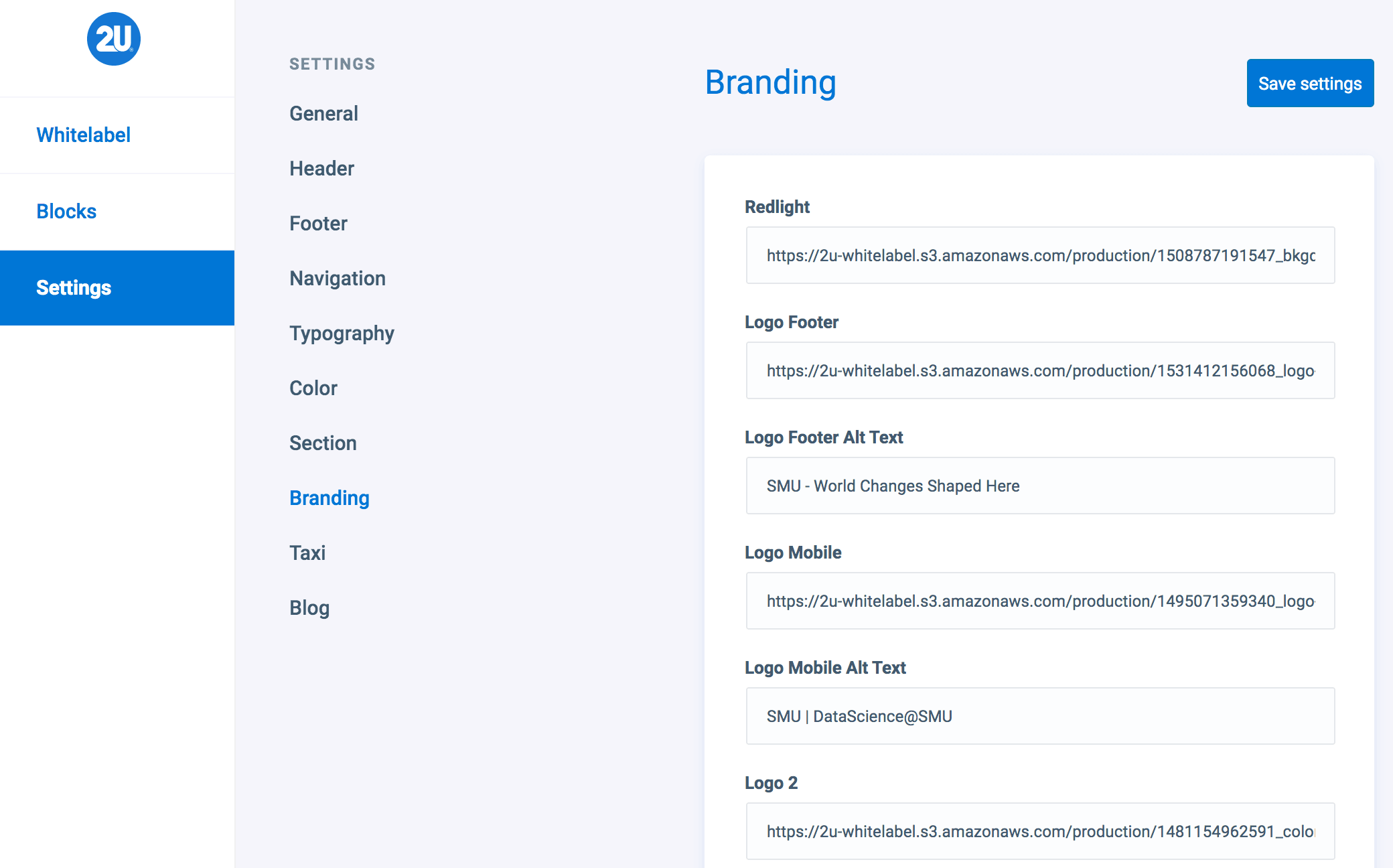
The Branding tab within Global Settings allows you to view all of the assets that have been pulled down via the Whitelabel importer. Some examples include:
- Redlight
- Logo Footer
- School Logo
- Program Logo
- Favicon
Within this screen, you can override any of these assets by inserting a URL to the new asset you want to use and clicking save.
Taxi
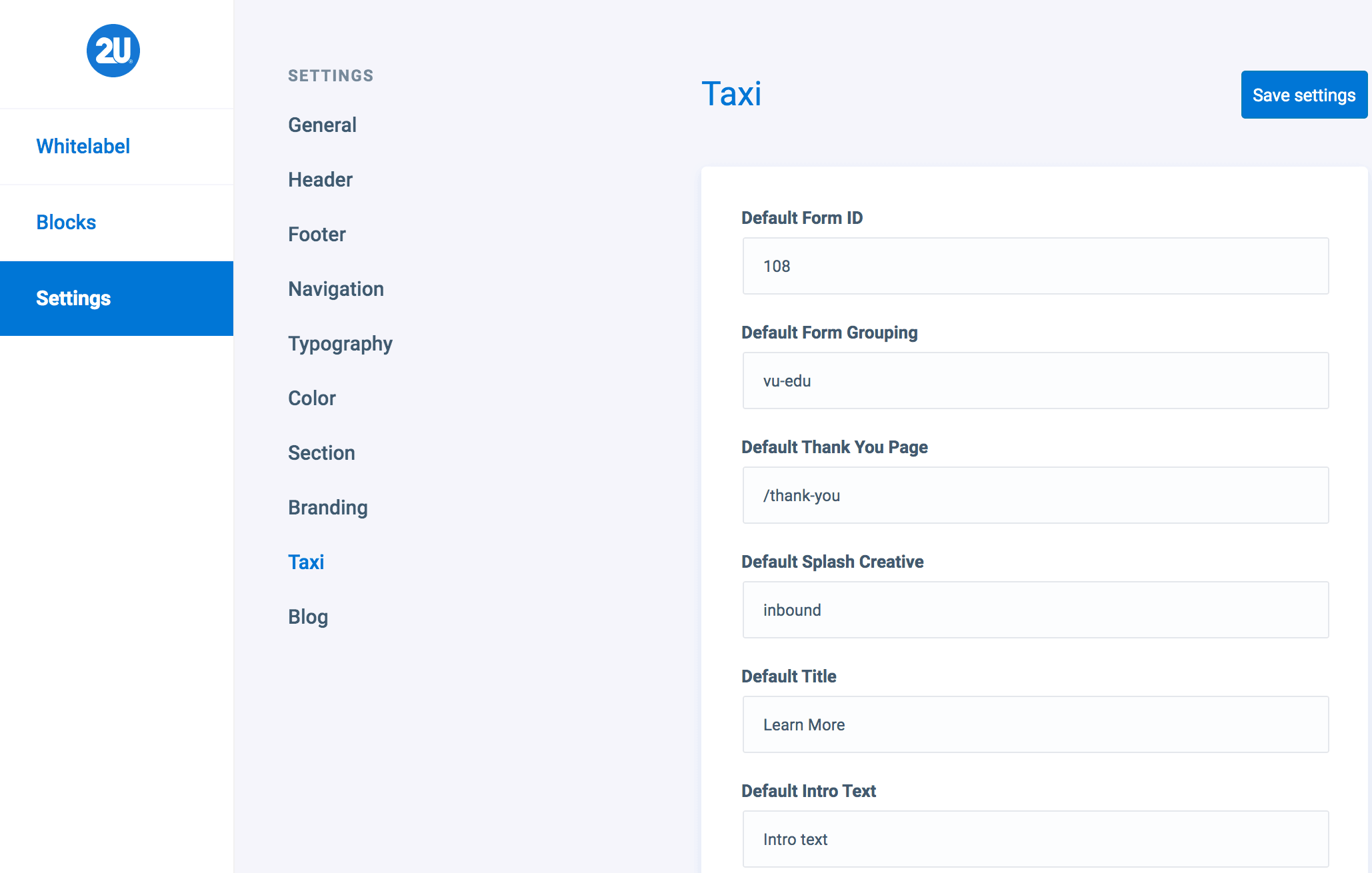
The Taxi tab in Global Settings allows you to enter a Default Form ID and Default Form Grouping which will sync with the Taxi Block when inserted anywhere on the site. Any fields that you override in this screen, will apply to all Taxi forms used across the site.
Blog
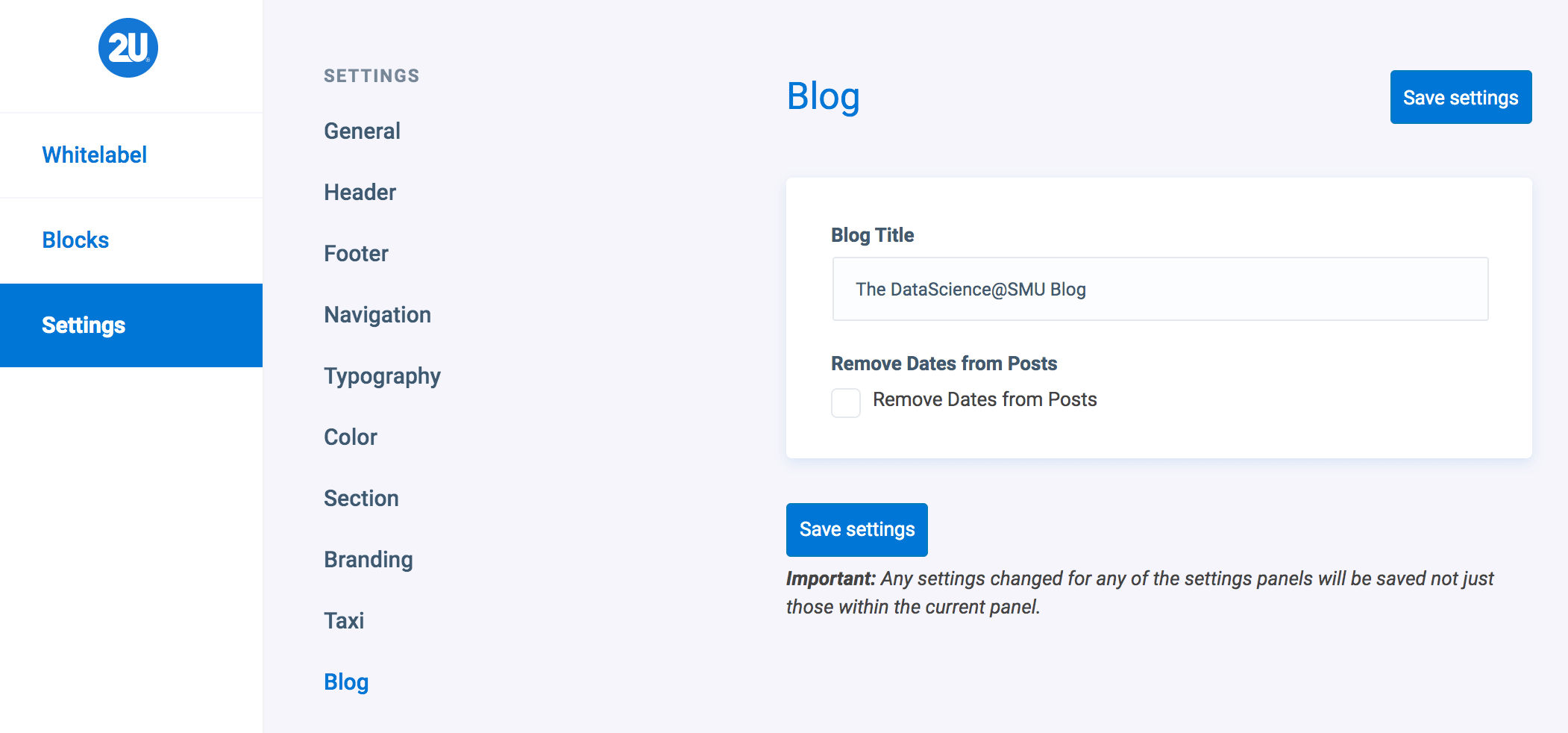
The Blog tab within Global Settings allows you to edit the following:
- Blog Title
- Remove dates from Posts
Global PLP Settings
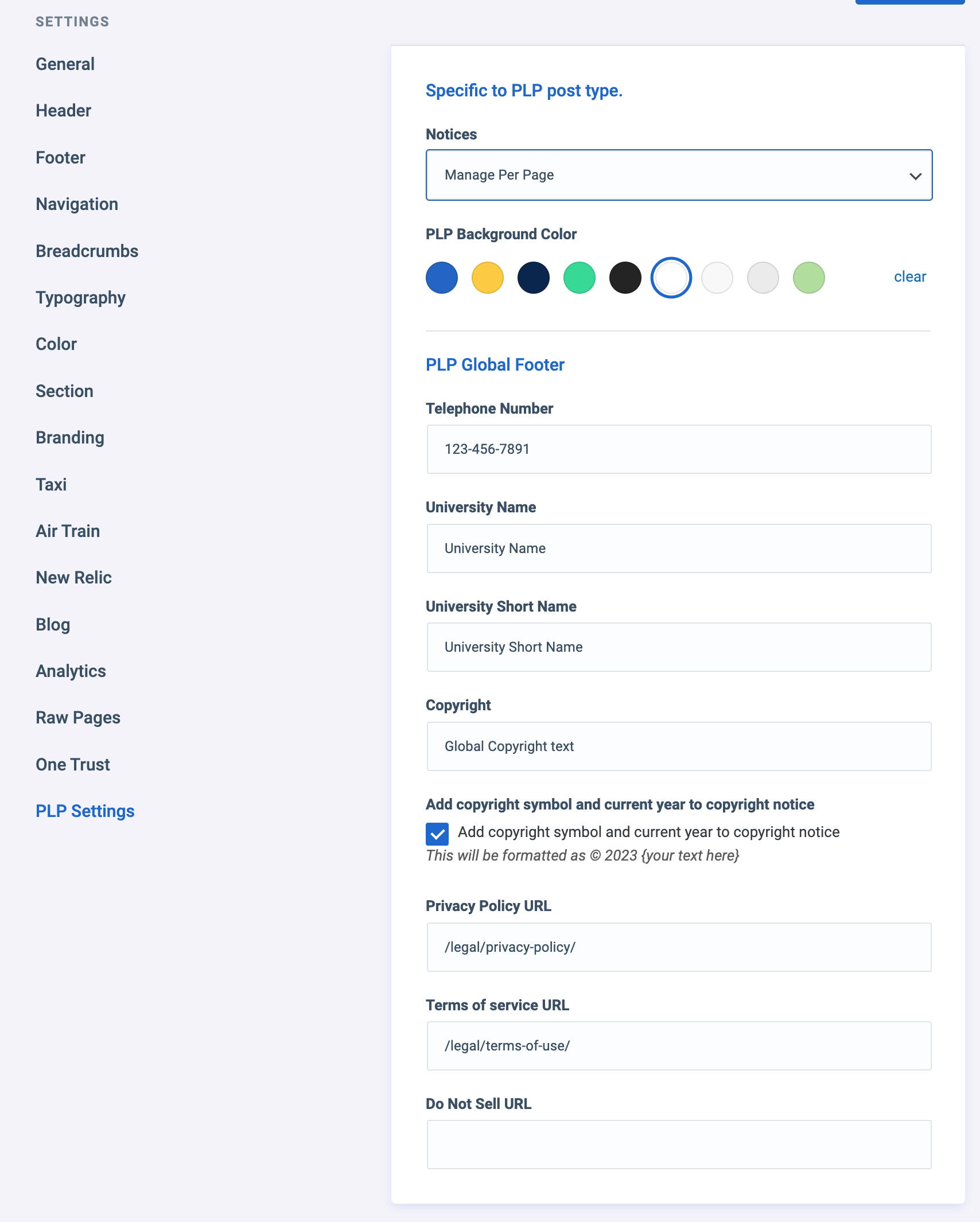
The PLP Settings tab provides options for notice/banner management, PLP Background Color and Global Footer information across the PLP post-type.
The Footer information will display across all PLPs unless there is a footer override block present to customize footer info on a page-level basis. Any fields left blank in the footer override block will pull from the global settings.
AirTrain
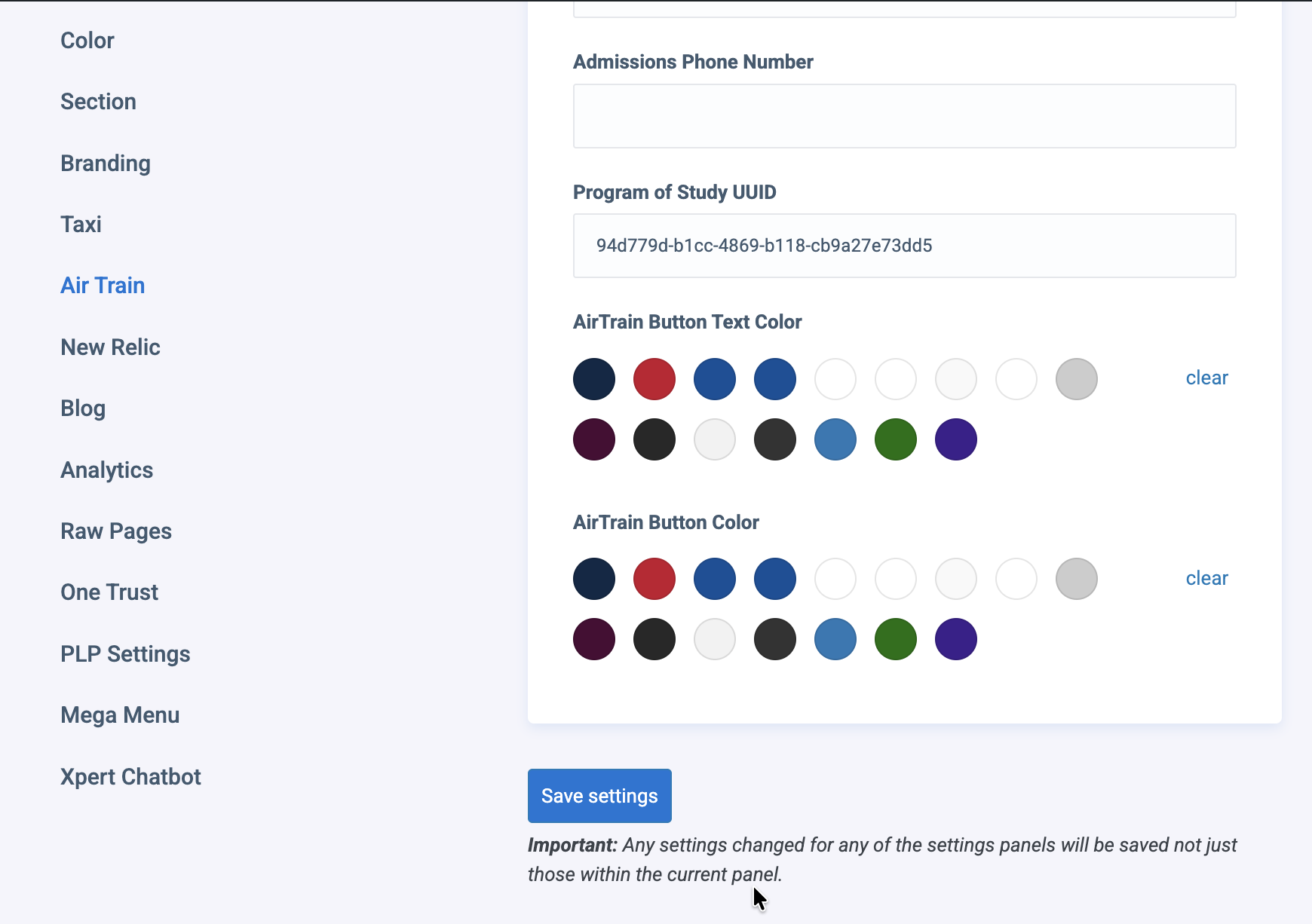
The AirTrain Settings tab defines the site-wide defaults. The following exact fields are configured in the options panel:
- Title
- Intro Title
- Greenlight Grouping
- Grouping
- Redirect URL
- Admissions Email
- Admissions Phone Number
- Program of Study UUID
- AirTrain Button Text Color
- AirTrain Button Color
When adding a Form v2 block to a page or post, content editors can override these defaults on a page-level basis using the block’s inspector controls sidebar. Any field left blank in the block configuration will automatically fall back to the values defined in the global settings.
The Program of Study UUID field maps the form submission payload to a specific academic program track using its unique UUID (programOfStudy in the frontend payload).
To resolve the Program of Study UUID, the form template first checks the page-level Gutenberg block settings for a block-specific override. If a block-level UUID is configured, it is used. If the block-level field is left empty, the template falls back to the default Program of Study UUID set in the Global Settings. If neither is defined, the parameter is omitted from the frontend form payload so the form still initializes and functions correctly.
Custom 404 Pages
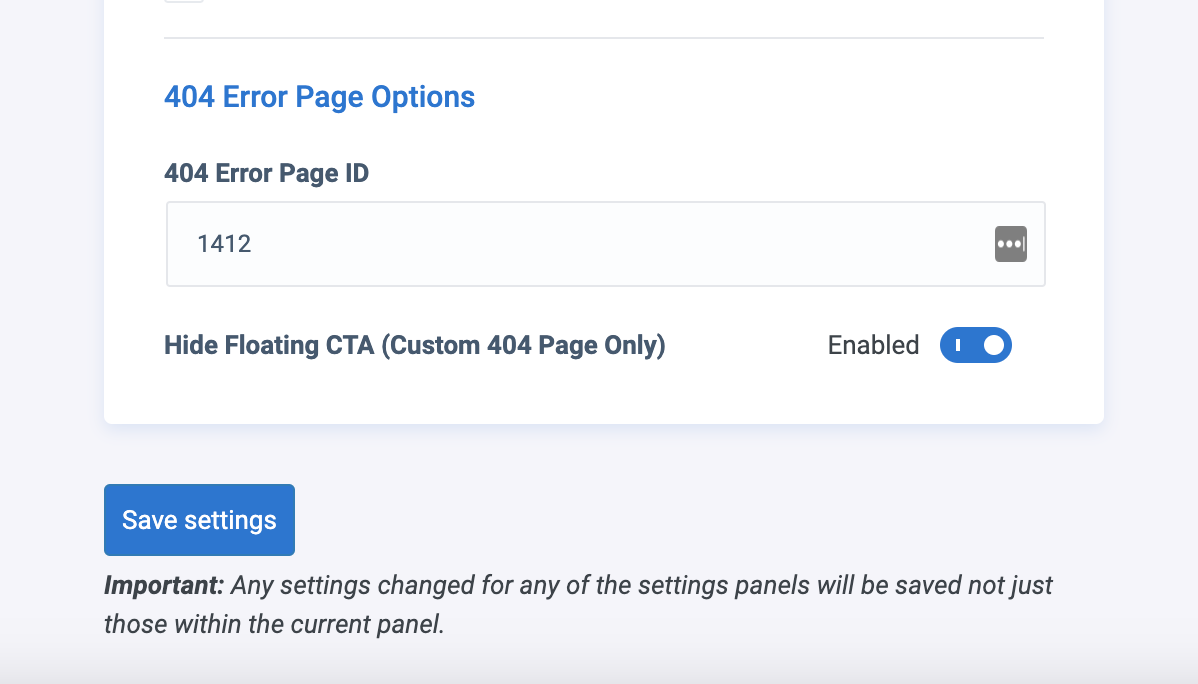
To create a custom 404 page
- Create and publish a no-index page with the title “Page not found“. Once approved, set this page as the 404 page via these remaining steps.
- Note the page ID found in the editor url, example: wp-admin/post.php?post=1412&action=edit (1412 is the page ID)
- Go to the Global Settings > General admin page
- Scroll to the bottom and find the select box for 404 Error Page ID and enter the page ID
- Save
- Visit a random non existing URL on the front end, your page should be shown: example:
Example: This example page is the custom 404 page for the TAP website.