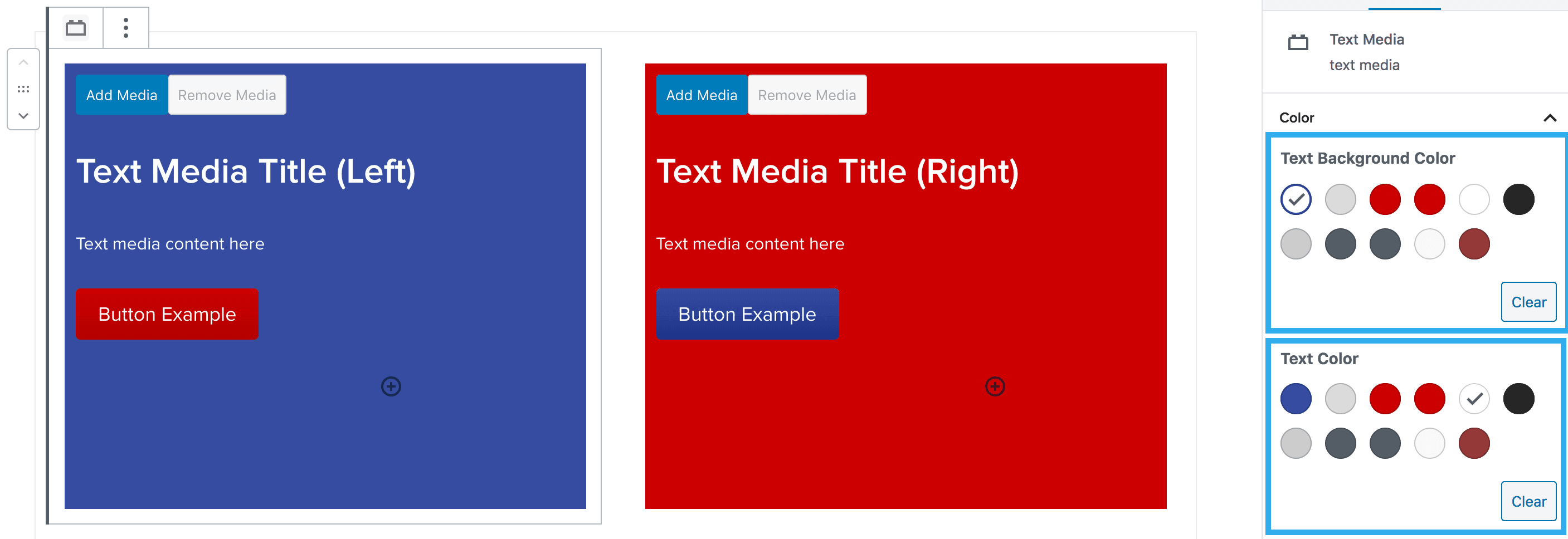
Text Media Block
The Text Media Block allows you to create side-by-side content and images without having to use the column builder. It allows you to insert images in both sides of the block and also insert text over the images.
Note: you can insert mostly any other block, within the text media block e.g. Headings, Paragraph, Button(s), Lists, 2U Image block etc
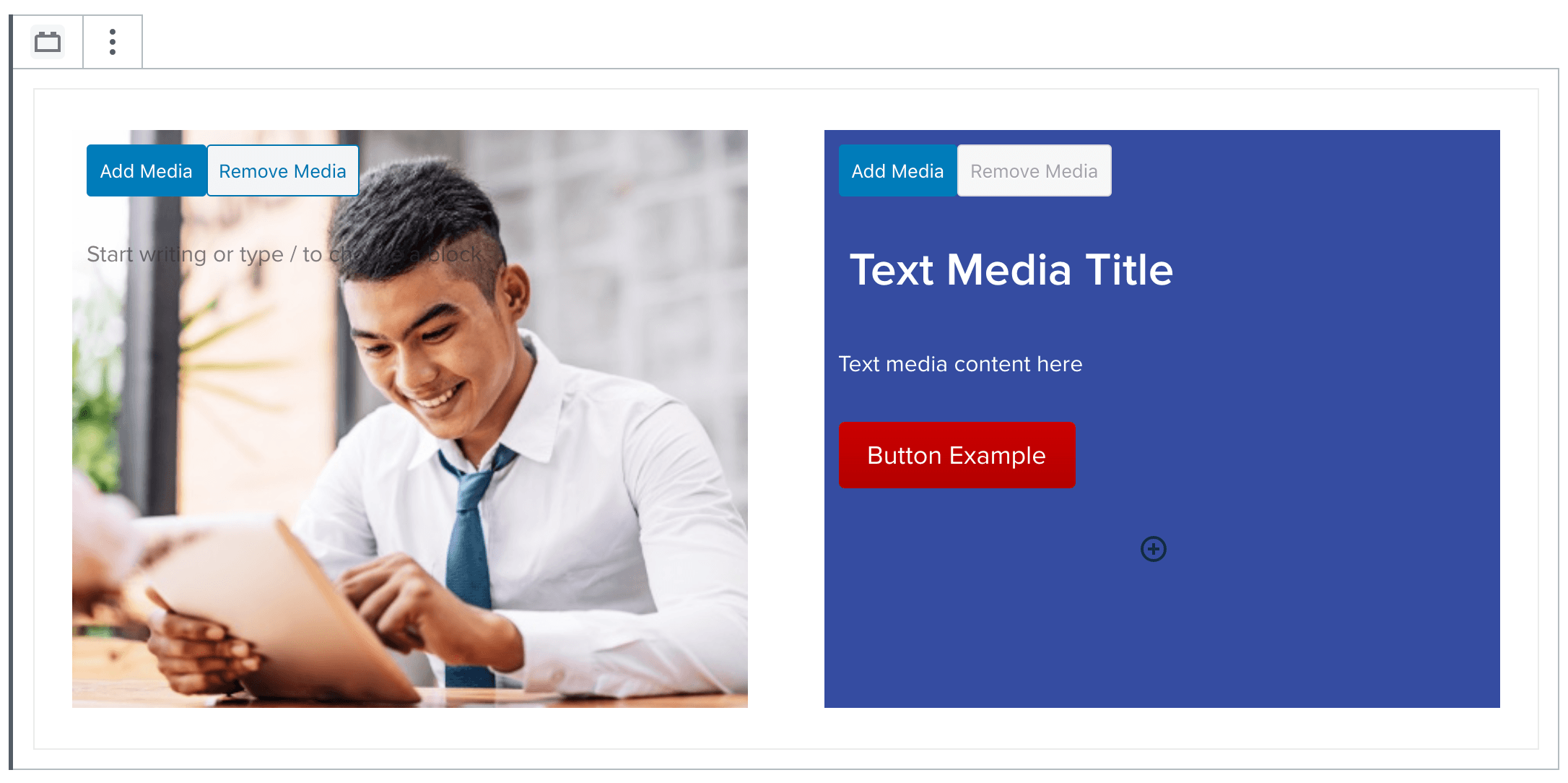
Add Media Setting
This setting allows you to insert an image on either side of the text media block. You can also set the anchor point of the image background to avoid images being cropped in undesirable places.
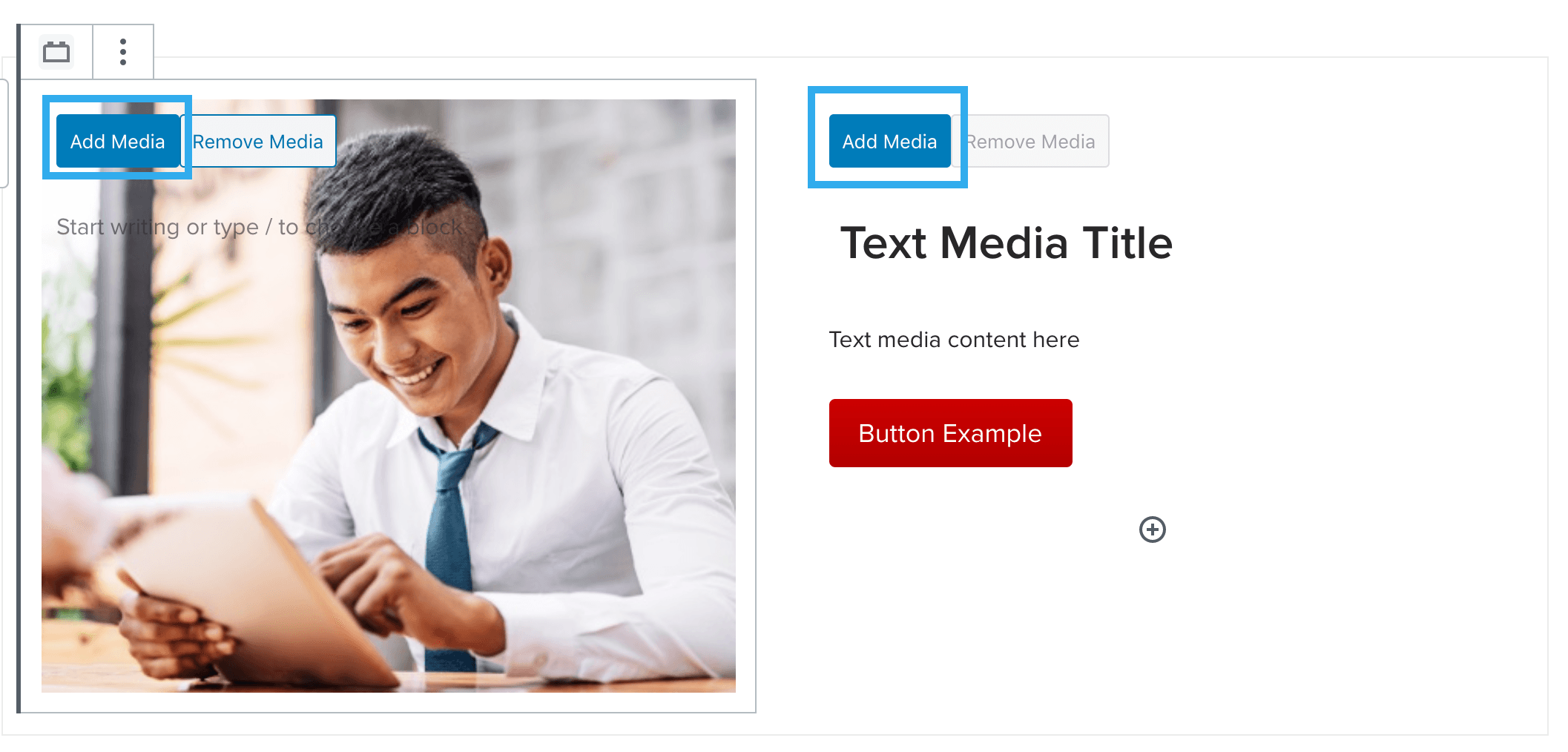
Text & Background Colour Setting
This setting allows you to select a background color for each side of the block (if an image is not used) and also allows you to select the text colour for each side of the block too.
Note: if a background image is added, a background colour cannot be applied at the same time and vice versa.
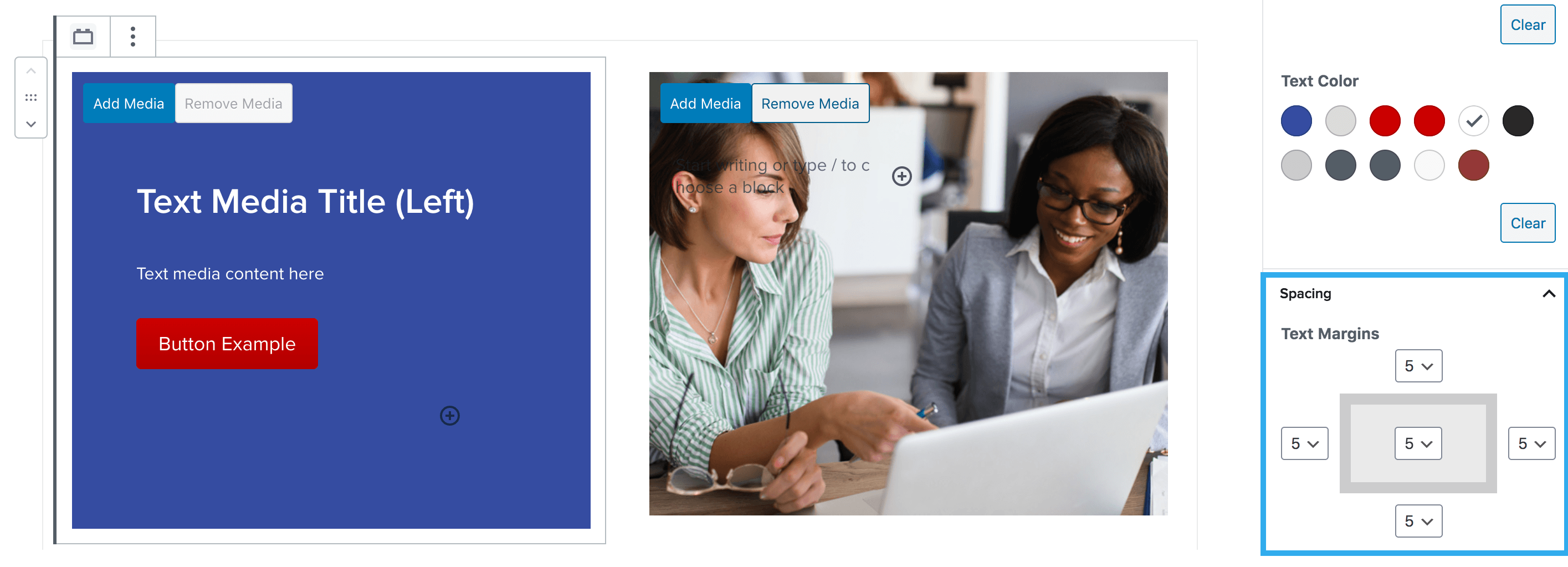
Text Margins Setting
This setting allows to add margins to the text within each side of the text media block.
Note: if you have applied padding or margin to the heading or paragraph block within the text media areas, this margin will be applied as well as that.
Hide Image on Mobile Setting
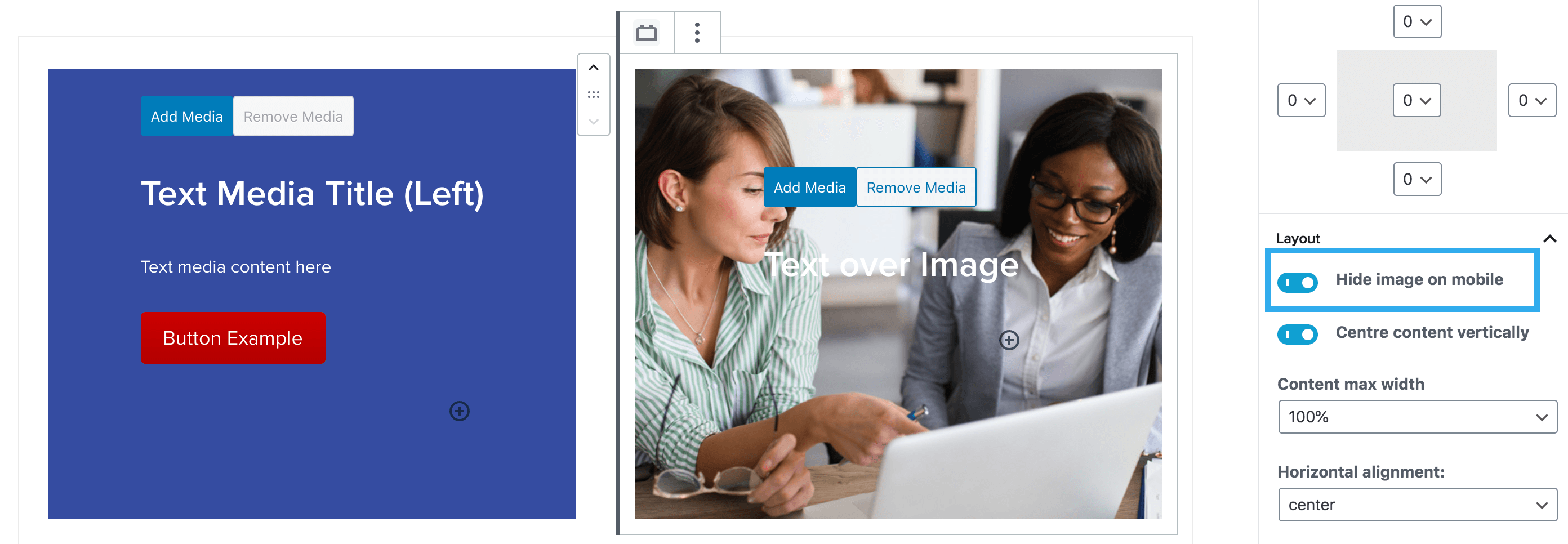
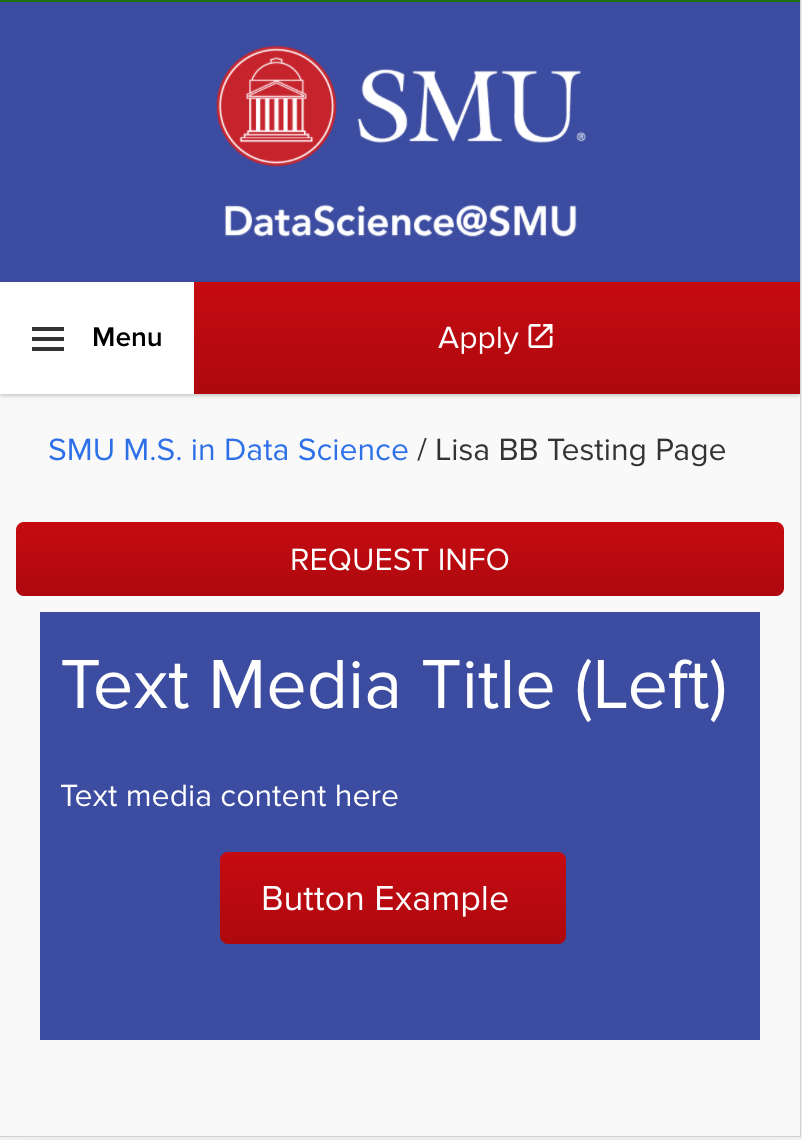
This setting will hide any image that you have uploaded to use as the background on each side of the text media column, on mobile view.
So if you have some text placed over an image, you can hide this image on mobile, but keep the text visible:
Desktop
Mobile
Content Alignment Settings
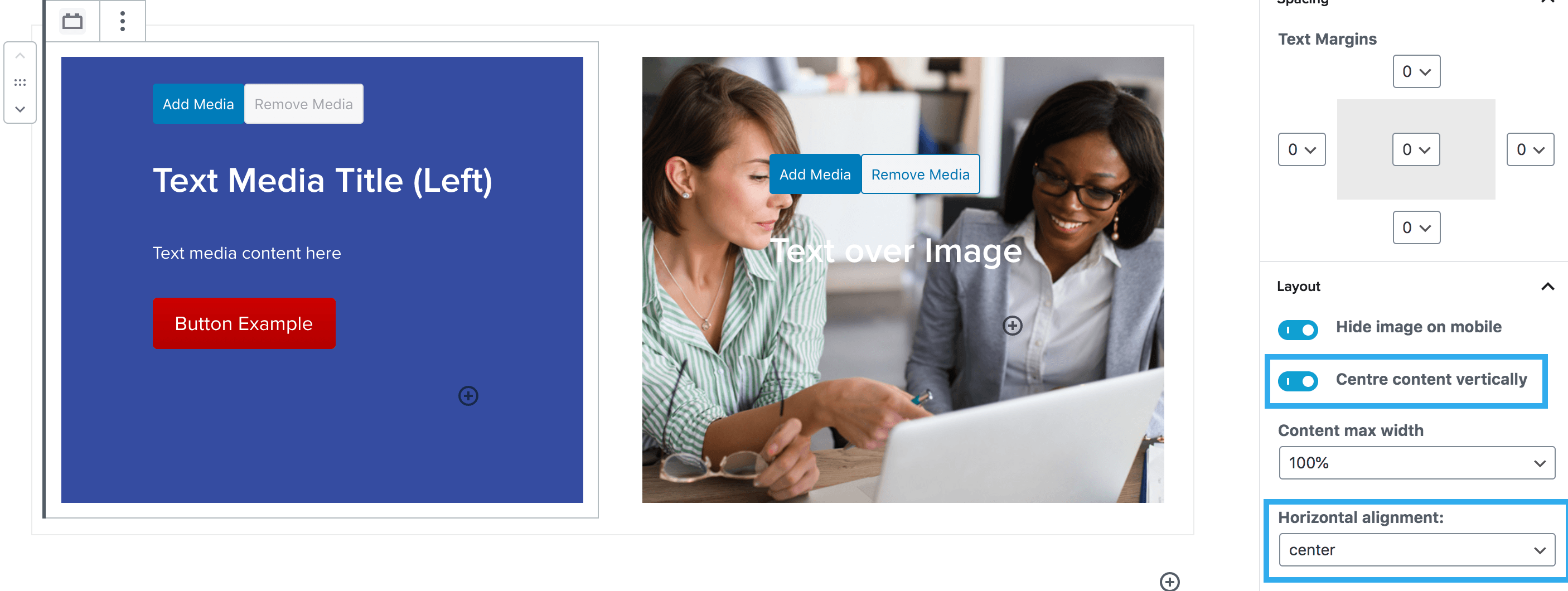
There are settings for both horizontal & vertical alignment of the content within each side of the text media block. When initially inserting the text media block, the horizontal alignment will default to left-aligned and the vertical alignment will default to top.
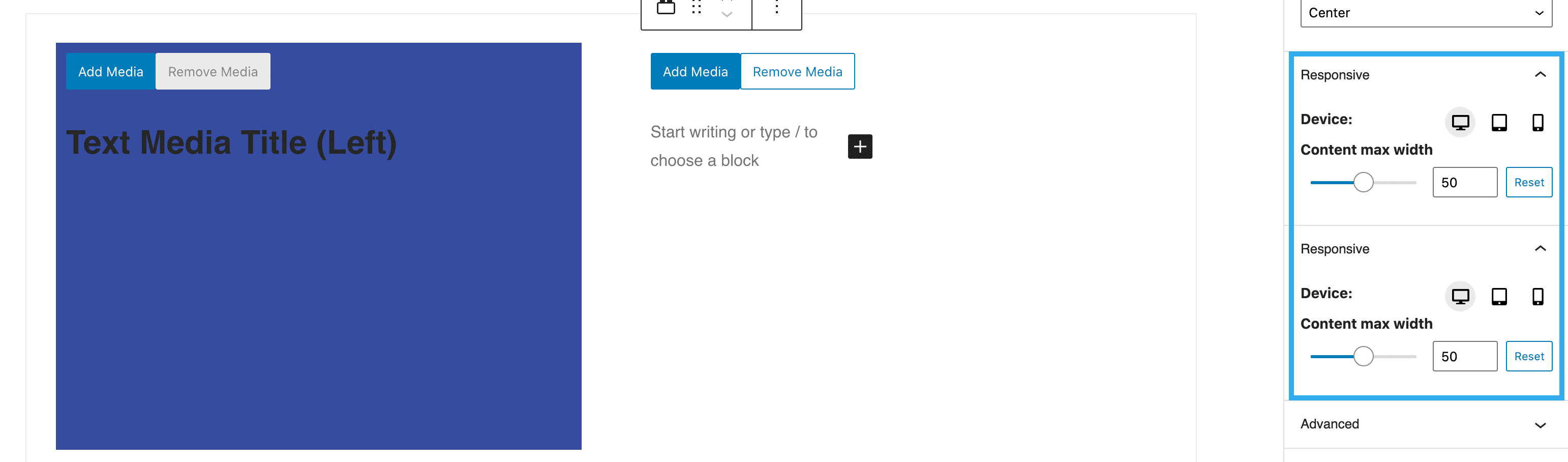
Content Max-Width Setting
This setting allows you to select the max-width of the content within each side of the text media block. You can use the slider to choose between 1-100.