2U Image Block
The new image block can be found under 2U image Block. You can find this in the block menu or by typing ‘/’ followed by the block name directly into the page editor.
How to use
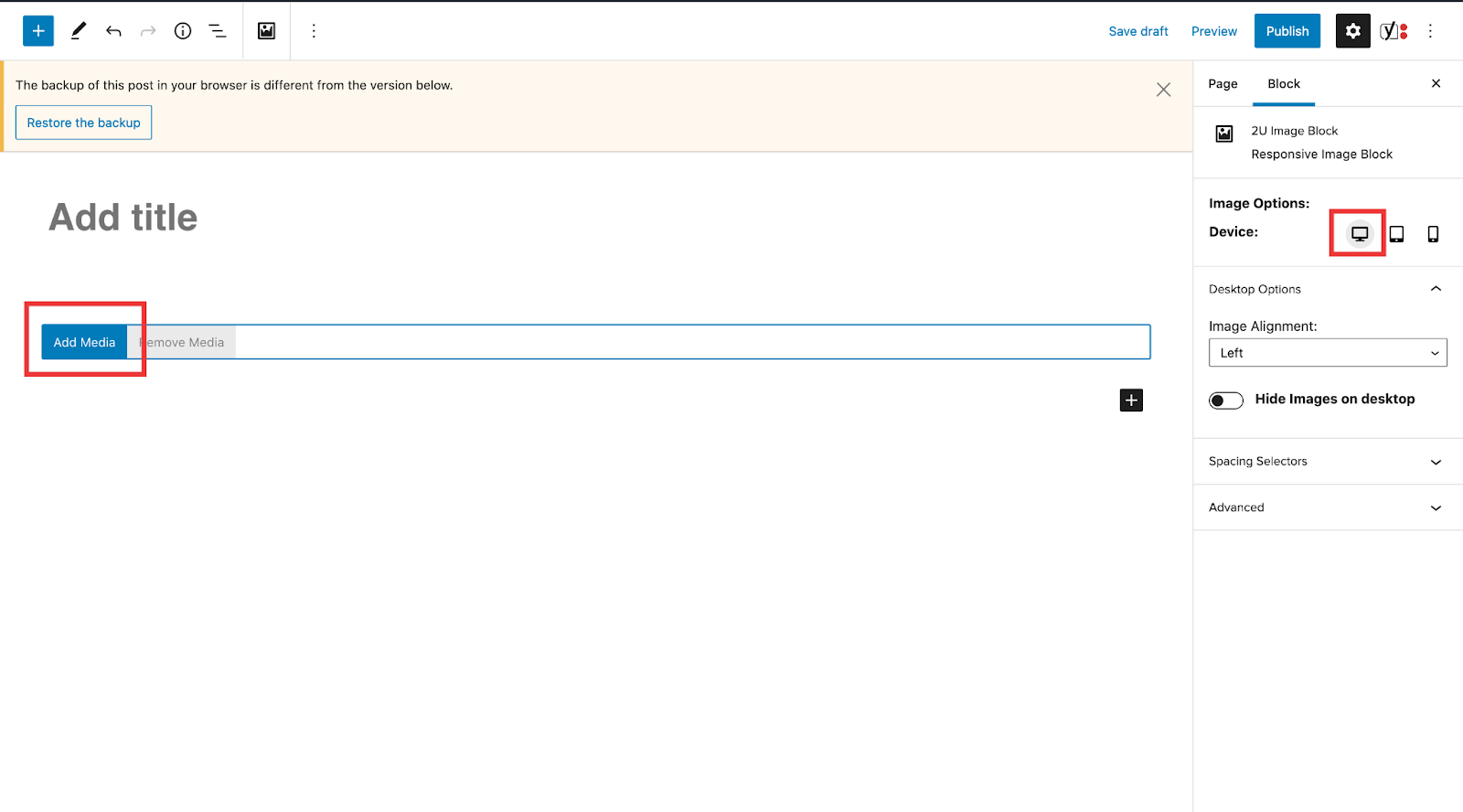
The block will load on the page and default to desktop from the Device options panel. Click ‘Add Media,’ and choose your image from the media library or upload a new one.
Note: If you only upload an image for the desktop then this image will be used on the tablet and mobiles devices.
Altering your image (on Desktop)
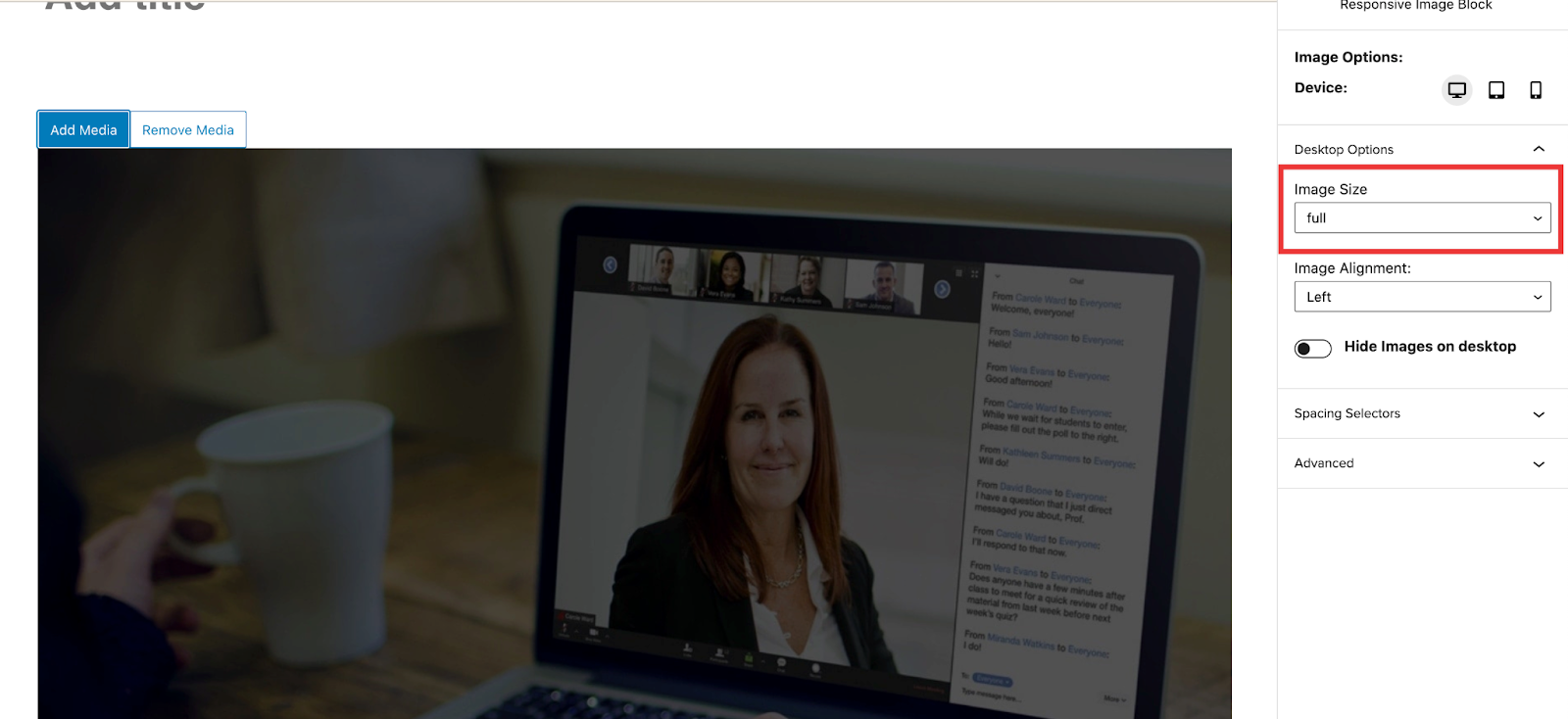
Once you have added an image to the block, the image will show in the editor, and a new option will appear in the sidebar. Image Size has some options that allow you to change the size of the image. The options are dynamically created based on the size/aspect ratio of the image you are using.
The image alignment will change the alignment of the image on the page.

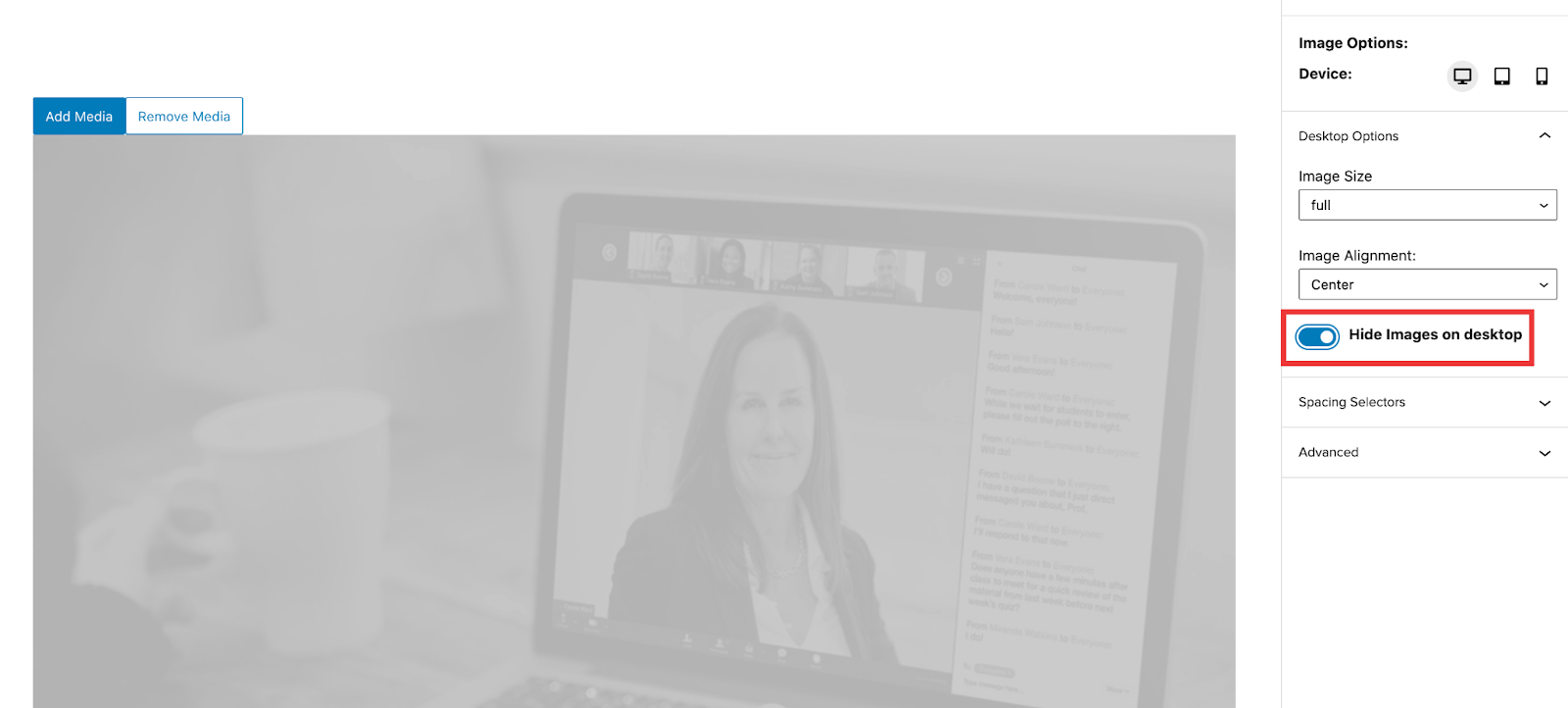
The Hide Images on… toggle will hide all images that are used. So hiding the image on the desktop will display no images on that device. The image will also be greyed out as a visual indication that it is hidden on that device.
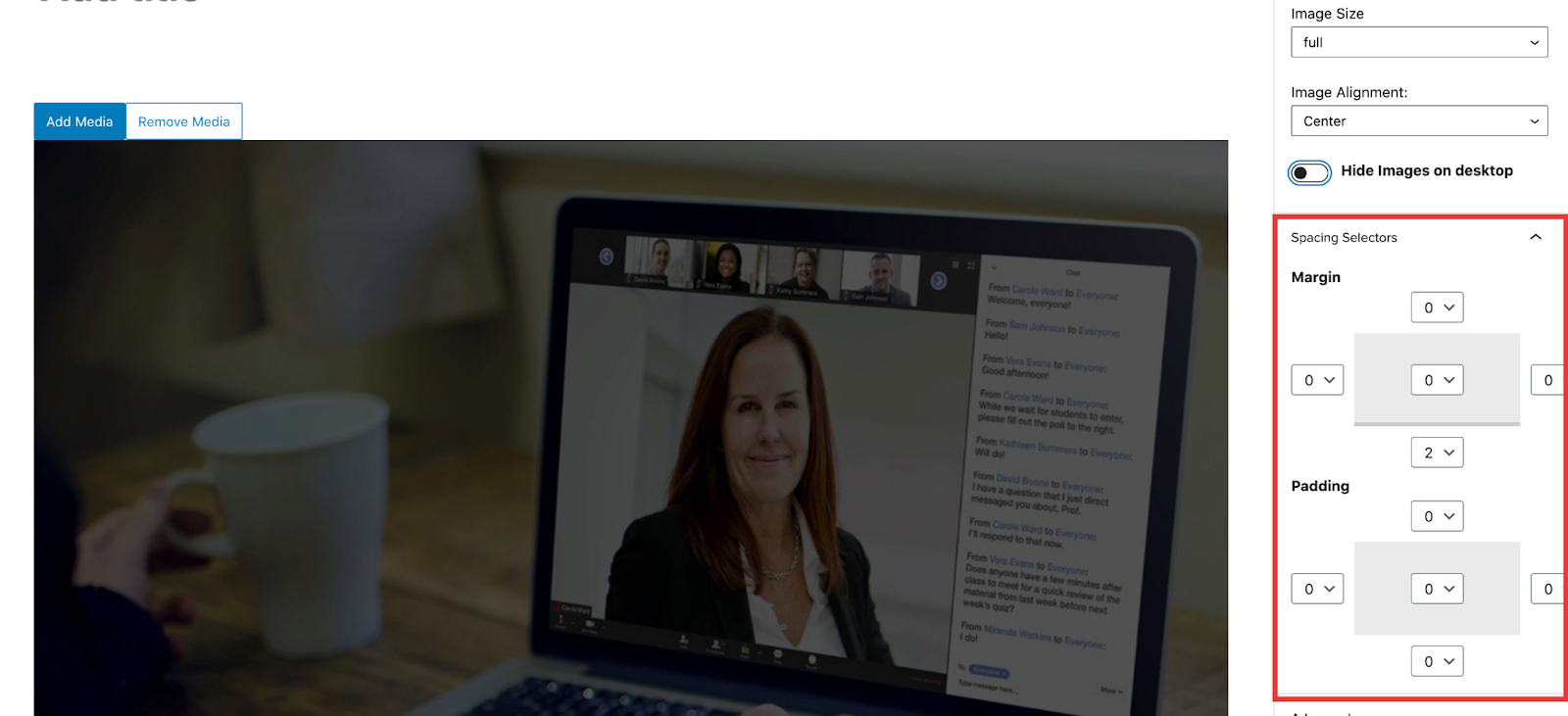
The spacing selectors (margin & padding) will apply to all the images being used.
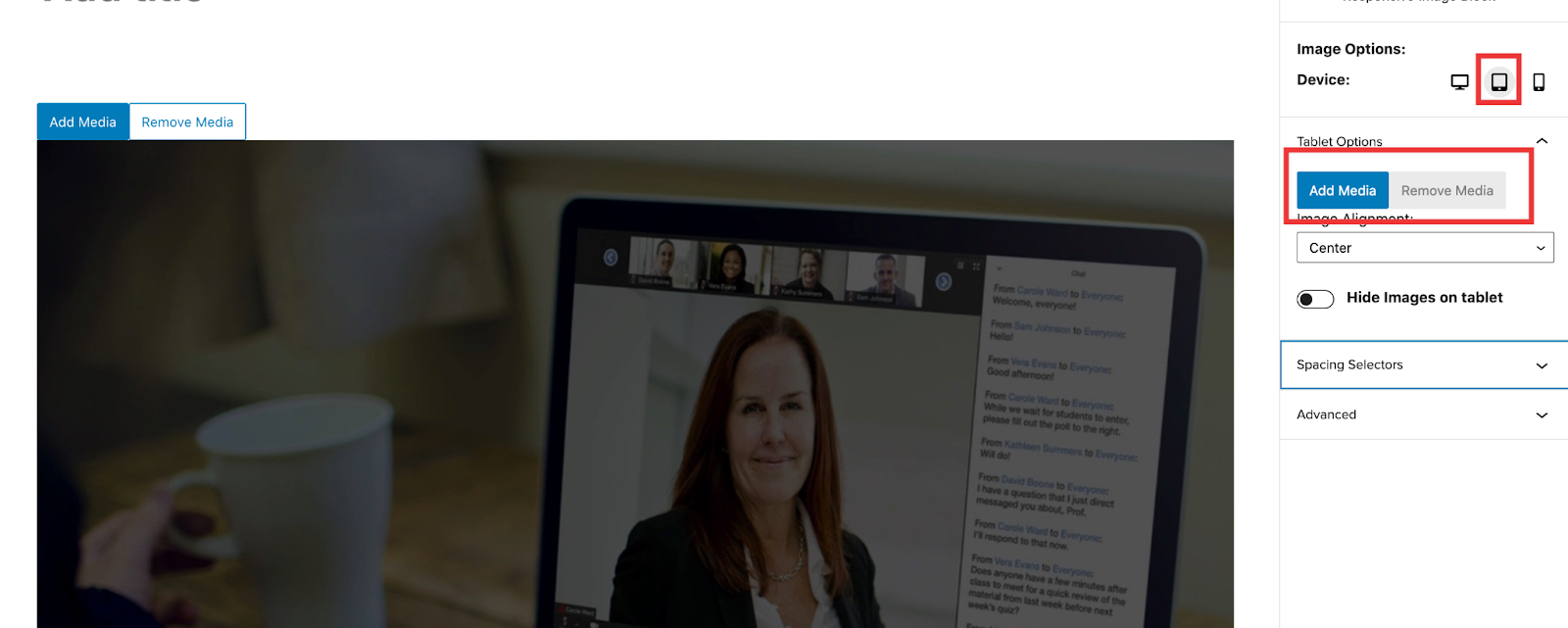
To set a tablet or mobile image, select the corresponding device in the device selector. You will see a new add media option in the sidebar.
Tablet and Mobile
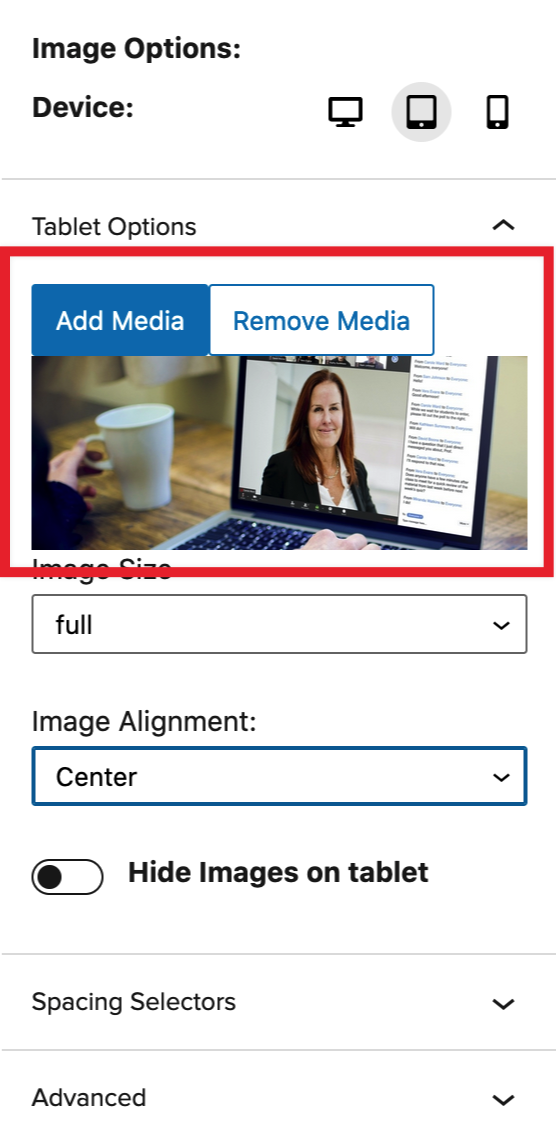
The tablet and/or mobile images will appear in the sidebar. You will also have the same options as mentioned above for the desktop image. The image size, Image alignment and hide on… options are all device specific.
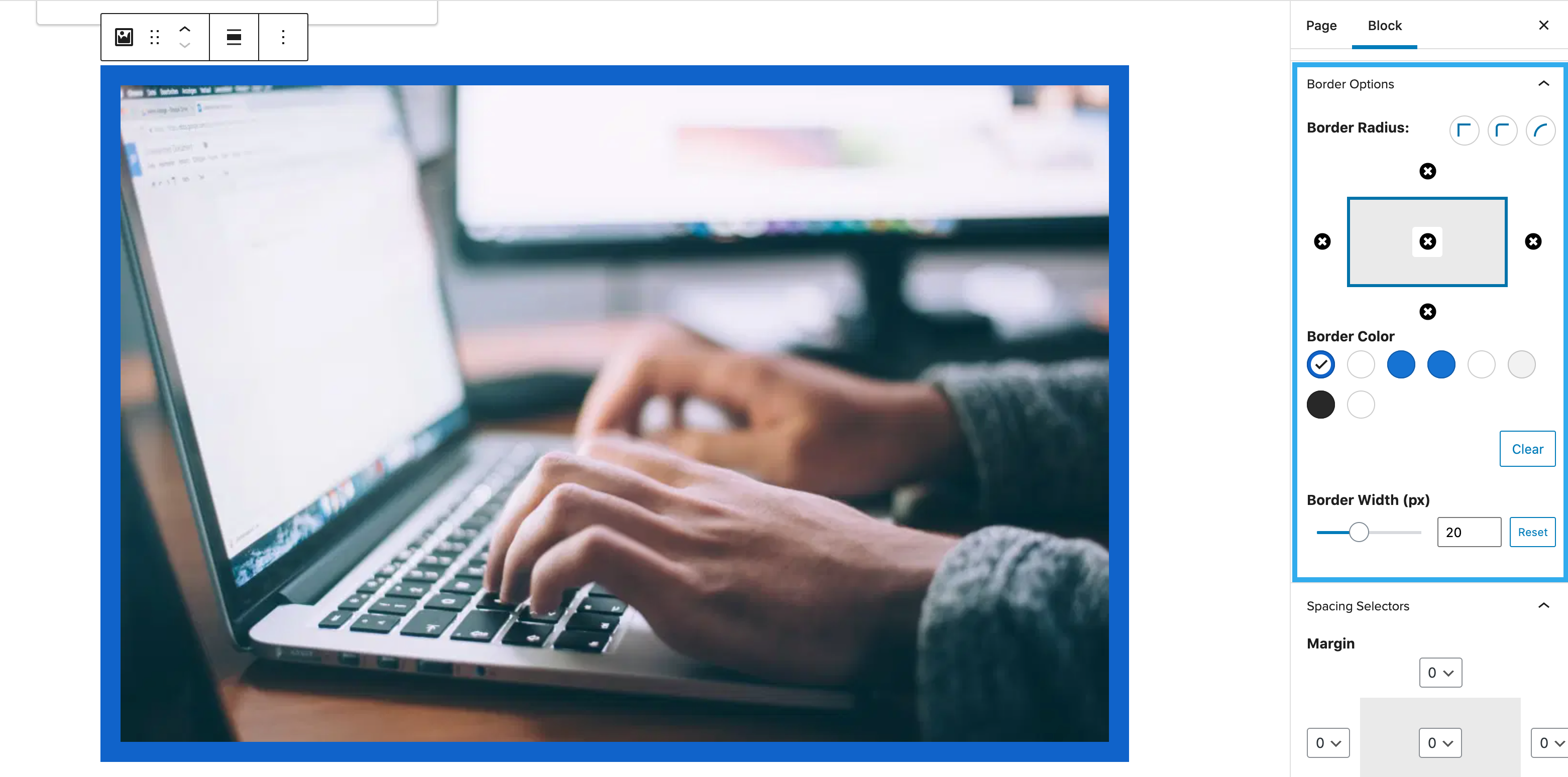
Responsive border controls
This block has the ability to add and customise borders. There is the option to add each side of the border individually, plus change the colour and width.
Text wrapping
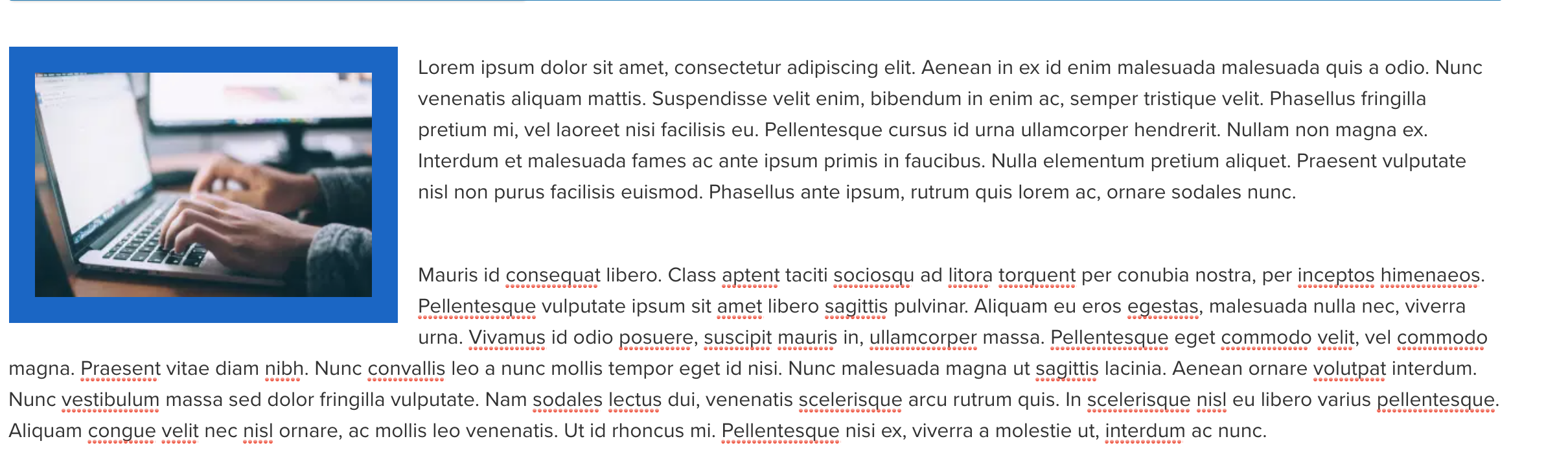
Another feature of this block that sets it apart from the core image block is that is has the ability to wrap text around the image. This allows the user to create a more dynamic and eye catching layout. To use, simply insert a paragraph block before or after the image and any text that expands further than the image will automatically wrap around.